

Quick Summary
Area | What Small Businesses Must Do |
Update consistently | Apply core, plugin, and theme updates monthly – security patches immediately |
Back up before everything | Run automated offsite backups daily for stores, weekly for service sites |
Monitor proactively | Set up uptime alerts and run monthly speed and security scans |
Know when to outsource | Sites with 15+ plugins or WooCommerce need professional maintenance |
A WordPress site without regular maintenance is not a stable business asset – it’s a liability waiting to surface at the worst possible time. For small businesses especially, one hacked site, one failed update, or one week of unexplained downtime can wipe out weeks of marketing effort. This guide breaks down exactly what WordPress maintenance involves, what small businesses should prioritize, and where most owners go wrong.
Why WordPress Maintenance Is Not the Same as “Leaving It Alone”

WordPress is not a set-and-forget platform. The core software, along with every plugin and theme installed on your site, receives regular updates. Those updates exist for a reason – security vulnerabilities are discovered constantly, and each unpatched version is an open door for automated bots that scan millions of sites per day.
According to Sucuri’s annual hacked website report, outdated plugins and themes account for the majority of WordPress compromises – not weak passwords, not poor hosting. The attack surface is almost always an unupdated dependency sitting quietly on a site the owner assumed was “fine.”
Understanding why website maintenance is important goes beyond security – it directly affects your search rankings, page speed, and whether Google continues to trust and crawl your site regularly.
The Core Components of WordPress Maintenance for Small Business
WordPress Core, Plugin, and Theme Updates
Every WordPress site runs on three layers of software: the core CMS, the plugins that extend its functionality, and the active theme that controls its appearance. Each of these updates independently, and each carries its own security and compatibility considerations.
What most small business owners get wrong: They either update everything at once without backing up first, or they avoid updates entirely out of fear of breaking something. Both approaches create problems.
The correct process is: backup first, then update core, then plugins one at a time, then test the site immediately after each update. If something breaks, you have a clean restore point. If everything works, move on.
Real example: In early 2024, a critical vulnerability in the Bricks Builder theme (used by thousands of WordPress sites) allowed unauthenticated remote code execution. Sites that updated within 24 hours were protected. Sites that delayed were actively compromised within 72 hours of the vulnerability being made public.
Automated Offsite Backups

A backup stored only on your hosting server is not a real backup. If your server goes down, gets compromised, or your hosting account is suspended, that backup goes with it.
Backup strategy by site type:
- Brochure or service site (5–10 pages): Weekly automated backups stored in Google Drive or Dropbox
- Blog with regular content: Daily backups
- WooCommerce store: Daily backups minimum – real-time incremental backups are ideal
Plugins like UpdraftPlus, BlogVault, and ManageWP Orion handle automated offsite backups well. Most managed hosting providers (WP Engine, Kinsta, Flywheel) include daily backups as standard, but always verify where they are stored and how far back the restore points go.
Critical step most guides skip: Test your backup. Set a quarterly calendar reminder to restore a backup to a staging environment and confirm it works. A backup you’ve never tested is a backup you can’t trust.
WordPress Security Scanning and Hardening
Security for a small business WordPress site is not just about installing a plugin and forgetting it. It involves layered defenses that reduce the attack surface at multiple points.
Baseline security setup every small business site needs:
- Wordfence or Sucuri plugin for active scanning and firewall rules
- Two-factor authentication enabled on all admin accounts
- Default /wp-admin login URL changed (WPS Hide Login handles this in two minutes)
- XML-RPC disabled if you’re not using it (a common brute-force vector)
- Limit login attempts enforced
One element that gets overlooked is the WordPress user role structure. Many small business sites have multiple users with Administrator access when Editor or Author roles would be sufficient. Every unnecessary admin account is an additional attack surface.
Uptime and Downtime Monitoring
If your site goes offline and you don’t find out for 48 hours, you’ve lost every visitor, every lead, and every potential sale that came to your URL during that window. Uptime monitoring costs nothing to set up and alerts you within 60 seconds of any outage.
UptimeRobot offers free monitoring for up to 50 sites with 5-minute check intervals. Paid tools like Better Uptime and Pingdom offer 30-second intervals and more detailed incident reporting. For most small businesses, UptimeRobot’s free plan is more than sufficient.
Set up alerts to go to both your email and phone. A site-down event at 2am is worth a midnight notification.
Page Speed and Core Web Vitals
Google has made page speed a direct ranking signal, and Core Web Vitals scores are now part of how Google evaluates page experience. For small businesses competing in local or niche markets, a slow site is a ranking disadvantage you’re carrying every single day.
Running through a proper website speed optimization checklist monthly – especially after plugin updates – catches performance regressions before they compound into meaningful ranking drops.
Monthly speed maintenance tasks:
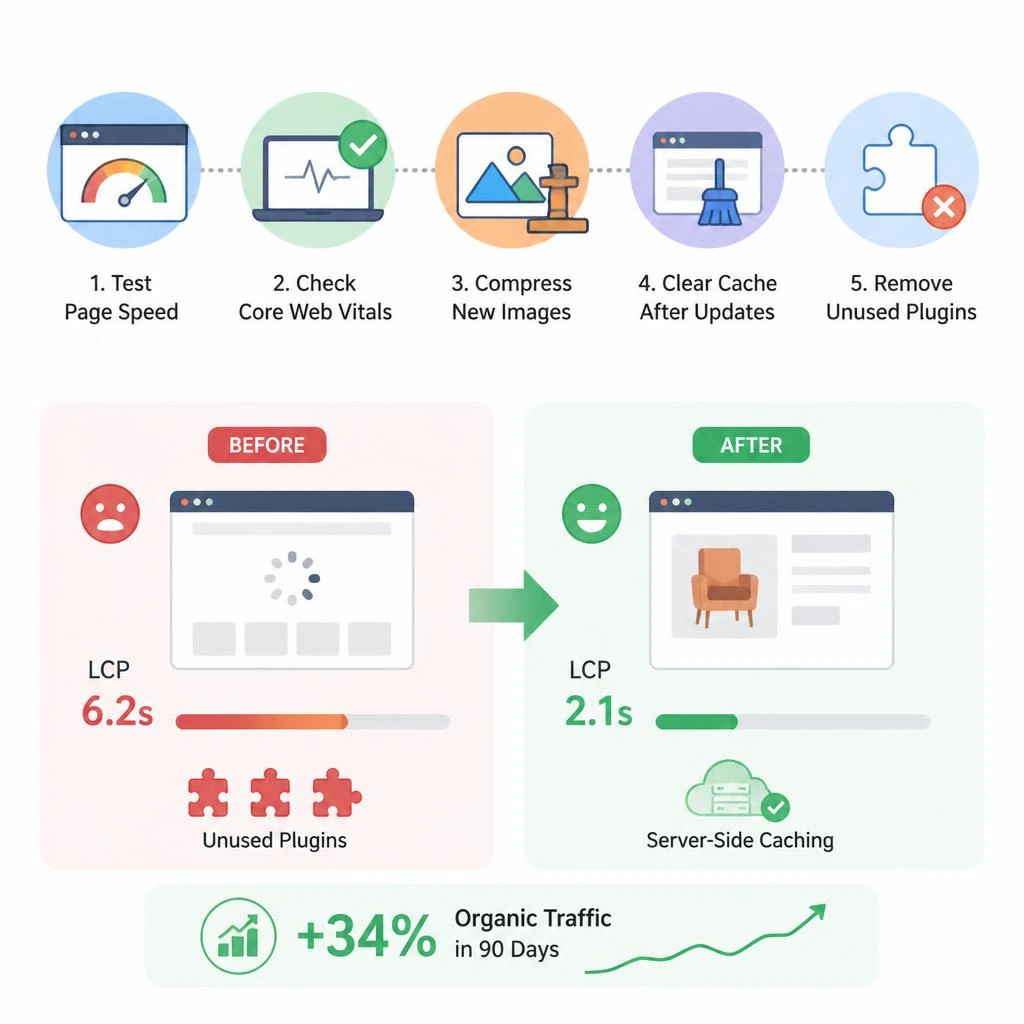
- Run Google PageSpeed Insights on your homepage and top 3 landing pages
- Check Core Web Vitals in Google Search Console under “Experience”
- Compress any newly uploaded images (ShortPixel, Smush, or Imagify)
- Clear full-page cache after any plugin or theme update
- Review and remove any plugins that are installed but not actively used
Real-world impact: An e-commerce site selling handmade furniture improved their LCP (Largest Contentful Paint) from 6.2s to 2.1s by removing three unused plugins and enabling server-side caching. Their organic traffic increased 34% over the following 90 days with no other changes.
Database Optimization
WordPress stores everything in its database – posts, pages, settings, user data, revisions, transients, and logs. Over time, this database accumulates bloat from post revisions, deleted content, spam comments, and expired transients that were never cleared.
A bloated database slows down every database query your site makes – which is essentially every page load. For small businesses on shared hosting, this effect is amplified.
Tools like WP-Optimize or Advanced Database Cleaner can be run monthly to clear post revisions (keep the last 3–5), delete spam comments, remove expired transients, and optimize database tables. This takes under five minutes and can meaningfully reduce query time on older sites.
Broken Link and Content Auditing
Every broken link on your site – internal or external – is a small signal to Google that your site is not well-maintained. Enough of these signals compound into reduced crawl frequency and lower trust scores. For small businesses trying to rank in competitive local markets, this matters more than most owners realize.
The website maintenance checklist we use at RyDesk specifically includes a monthly broken link scan as a non-negotiable step – it takes 10 minutes and consistently surfaces issues that would otherwise go unnoticed for months.
Run Screaming Frog (free up to 500 URLs) or the Broken Link Checker plugin monthly. Fix internal 404s with redirects. For external broken links, either update or remove the reference.
DIY WordPress Maintenance vs Professional Service: The Honest Breakdown
This is where most small business owners get stuck. Here’s a straightforward way to think about it:
Scenario | Recommended Approach |
5-page brochure site, no plugins beyond contact form | DIY with a monthly checklist |
Service site with 10–20 plugins | DIY is risky – consider a professional plan |
WooCommerce store, active orders | Outsource – downtime directly costs revenue |
Custom development, third-party integrations | Professional maintenance required |
Owner has no technical background | Outsource from day one |
The time cost calculation: WordPress maintenance done properly takes 2–4 hours per month. If your time as a business owner is worth $80/hour, that’s $160–$320/month in opportunity cost. Most professional WordPress maintenance plans for small businesses cost $75–$200/month. The math usually favors outsourcing once your site is generating real business.
If you’re looking for a reliable option built specifically for smaller WordPress sites, RyDesk’s WordPress Maintenance Services cover updates, backups, security, speed optimization, and monthly reporting – with a clear scope and no vague promises.
What Small Businesses Actually Get Wrong With WordPress Maintenance

Updating Without Backing Up First
This is the single most common and most damaging mistake. A plugin update that conflicts with your theme or another plugin can take down your entire site in seconds. Without a recent backup, recovery means either paying a developer emergency rates ($75–$150/hour) or losing content entirely.
The fix is simple: automate your backups with a tool like BlogVault or UpdraftPlus and confirm the backup completed before touching any updates.
Ignoring PHP Version Compatibility
WordPress requires a minimum PHP version to run properly, and hosting providers periodically end support for older PHP versions. Sites left running on end-of-life PHP (like PHP 7.4, which reached end of life in 2022) become progressively more vulnerable and may stop functioning correctly with newer plugins.
Check your PHP version in your hosting dashboard or under Tools > Site Health in WordPress. If you’re running anything below PHP 8.1, upgrading should be a priority – but test on staging first, as some older plugins break on newer PHP versions.
Treating the Hosting Environment as Maintenance
Many small business owners assume that paying for hosting means their site is “being taken care of.” Hosting handles server uptime and infrastructure – it does not handle plugin updates, content audits, security hardening beyond the server level, broken links, or performance optimization at the WordPress layer.
Understanding the difference between website maintenance vs redesign is also important – a poorly maintained site often gets mistaken for a site that “needs a redesign” when the real issue is years of deferred maintenance.
Not Having a Staging Environment
Making changes directly to a live WordPress site – whether updating plugins, editing templates, or installing new features – is an unnecessary risk. A staging environment is an identical copy of your site where changes can be tested safely before going live.
Many managed hosts include staging (WP Engine, Kinsta, Flywheel, SiteGround all do). If yours doesn’t, plugins like WP Staging can create one. Any site generating real business should have staging configured before the next update cycle.
Monthly WordPress Maintenance Schedule for Small Businesses
Every Week
- Verify automated backup completed and is stored offsite
- Review uptime monitoring logs for any alerts
- Check security scan reports for new flags
Every Month
- Create a manual backup before beginning any updates
- Update WordPress core, then plugins, then theme – one at a time
- Run Google PageSpeed Insights on key pages and log the scores
- Scan for broken links and fix any 404 errors found
- Review Google Search Console for crawl errors or manual actions
- Check SSL certificate expiry date
- Clear database bloat (revisions, spam, transients)
Every Quarter
- Test backup restore on a staging environment
- Audit top-performing pages for content freshness and accuracy
- Test all contact forms, booking flows, and checkout processes
- Review and remove unused plugins and themes
- Check PHP version and confirm compatibility with active plugins
Every Year
- Full security audit including user role review
- Check domain and hosting renewal dates (add to calendar)
- Evaluate whether current hosting plan still fits your traffic level
- Update privacy policy and terms if business practices have changed
How to Choose a WordPress Maintenance Provider for Your Small Business

Not every maintenance provider is equal. Knowing what to look for in a website maintenance provider upfront saves you from signing up for a plan that sounds comprehensive but delivers little more than automated plugin updates.
Must-have criteria:
- Updates applied on a staging or test environment before going live on your site
- Offsite backup storage – not just on the same server
- Defined emergency response time (e.g., “we respond to site-down issues within 4 hours”)
- Monthly report showing exactly what was done
- Clear process for handling a hacked or compromised site
Questions to ask any provider before signing:
- “What is your process when a plugin update breaks the site?”
- “Where are backups stored and how do I access them if needed?”
- “What is your response time for a site that’s completely offline?”
- “Do you use a staging environment before applying updates?”
A provider who can answer these clearly and specifically is a good sign. Vague answers or deflection on any of these points is a red flag.
WordPress Maintenance Costs for Small Businesses in 2026
Plan Type | Monthly Cost | Best For |
Basic (updates + backups) | $30 – $75 | Simple brochure sites |
Standard (full maintenance) | $75 – $200 | Most small business sites |
Full-service (WooCommerce/lead gen) | $200 – $500 | Stores and high-traffic sites |
Managed WordPress hosting | $25 – $100 | Auto-updates only, limited support |
Hidden costs to budget for:
- Emergency malware cleanup if not included in plan: $150 – $500+
- Developer emergency hours: $75 – $150/hour
- Staging environment setup (if host doesn’t include it): one-time $50–$150
- SSL certificate (if not provided by host): $0 – $100/year
For most small businesses with a standard WordPress site, the $75–$200/month range covers all essential maintenance and costs significantly less than a single emergency recovery incident.
Conclusion
WordPress maintenance is not a background task you do when you remember – it’s the ongoing work that keeps your site secure, fast, and generating business. Small businesses that skip it don’t save money; they defer costs into far more expensive emergencies.
If you want maintenance handled properly without spending your own time on it, Home Page provides professional WordPress care built specifically for small business sites. See what’s covered in our WordPress Maintenance Services and ContactUs for a free audit of your current site’s health.
FAQs
1.What does WordPress maintenance for small businesses include?
It includes monthly core, plugin, and theme updates, automated offsite backups, security scanning and hardening, uptime monitoring, page speed checks, broken link auditing, database optimization, and monthly reporting on site health status.
2.How often should a small business update their WordPress site?
Security patches should be applied immediately. Plugin and theme updates should be done monthly after backing up. Core WordPress updates should be tested on staging before applying to the live site.
3.What happens if I stop maintaining my WordPress website?
Unpatched plugins become security vulnerabilities. Performance degrades as database bloat accumulates. Google begins to reduce crawl frequency. Eventually, malware infections or a complete site compromise become likely – recovery costs far exceed what maintenance would have cost.
4.Can I maintain my WordPress site myself?
Yes, for simple sites with fewer than 10 plugins and no WooCommerce. Follow a monthly checklist: backup, update one at a time, test, scan for broken links. For more complex sites, professional maintenance reduces risk and saves time.
5.How much does WordPress maintenance cost for a small business?
Most small businesses pay $75–$200 per month for professional maintenance. DIY costs $0–$50 in tools but requires 2–4 hours monthly. One emergency malware cleanup or database recovery typically costs more than 3–6 months of professional maintenance.
6.Do I need a staging environment for WordPress maintenance?
Yes, if your site generates leads or revenue. Always test plugin updates on a staging copy before applying to your live site. Most managed hosts include staging. If yours doesn’t, WP Staging plugin creates one for free.
7.Is managed WordPress hosting the same as WordPress maintenance?
No. Managed hosting handles server uptime, infrastructure, and often auto-updates. It doesn’t cover content audits, custom security hardening, broken link fixes, SEO health checks, or hands-on emergency support for site-specific problems.
8.What is the most common cause of WordPress sites getting hacked?
Outdated plugins and themes – not weak passwords. Sucuri’s research consistently shows that unpatched plugin vulnerabilities are the #1 attack vector for compromised WordPress sites. Keeping plugins updated is the single highest-impact maintenance task.