

Quick Summary
Render-blocking resources are CSS and JavaScript files that force a browser to pause page rendering until they finish loading, directly slowing down your Largest Contentful Paint (LCP) and First Contentful Paint (FCP). You eliminate them by minifying and combining CSS/JS, deferring or async-loading non-critical scripts, inlining critical CSS, using a CDN, and choosing lightweight themes and plugins – including specific Elementor optimization steps inside the Experiments panel. Fixing this typically takes 30–90 minutes for a technical user, or can be handled professionally in under a day.
What Are Render-Blocking Resources?

When a browser loads a webpage, it reads your HTML from top to bottom. The moment it hits a <link> tag for a stylesheet or a <script> tag without defer or async attributes, it stops everything else and waits for that file to download, parse, and execute before continuing. That pause is what we call a render-blocking resource.
On a typical WordPress site, this usually comes from theme stylesheets, Google Fonts, plugin CSS files, jQuery, and any third-party JavaScript loaded in the <head> – think chat widgets, analytics scripts, or marketing pixels. A site running ten plugins might be loading ten separate CSS and JS files before a single pixel paints on screen.
This isn’t a theoretical problem. If you run a PageSpeed Insights or lighthouse test on most unoptimized WordPress sites, “Eliminate render-blocking resources” shows up as one of the very first flagged opportunities, often costing 1–3 seconds of load time.
Why Render-Blocking Resources Hurt Your Business

Speed isn’t a vanity metric – it’s a revenue lever. Every additional second of load time measurably increases bounce rate and decreases conversions, particularly on mobile where users are far less patient with sluggish pages.
For small businesses and startups specifically, this matters more, not less. You’re often competing against larger brands with bigger ad budgets, and a slow site actively undoes that spend – visitors who click your ad and land on a stalling page simply leave before they ever see your offer. Google has also been explicit that page experience signals factor into ranking, meaning a render-blocked site can lose visibility before it even gets the chance to convert anyone.
The good news: render-blocking fixes are some of the highest-ROI technical changes you can make, because they’re one-time structural improvements rather than ongoing content work.
How Render-Blocking Resources Impact Core Web Vitals (LCP, INP, FCP)
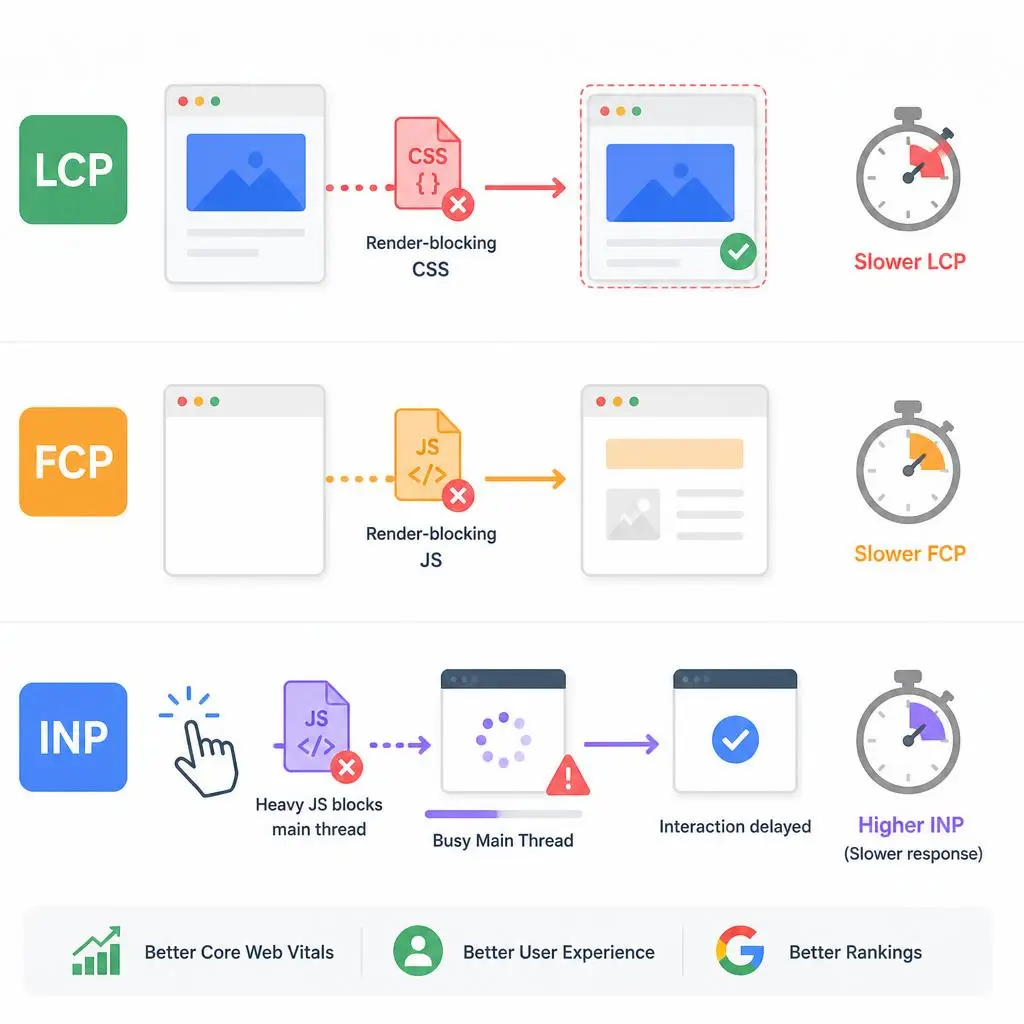
This is where most guides stop short – they treat render-blocking as a generic “speed” issue. In reality, it has distinct, measurable effects on each of Google’s three Core Web Vitals, and understanding the mechanism matters if you want to fix the right thing first.
Largest Contentful Paint (LCP)
LCP measures how long it takes for the biggest visible element – usually a hero image, headline, or banner – to fully render. If your CSS is render-blocking, the browser can’t even calculate the layout needed to paint that element, let alone display it. A single oversized, render-blocking stylesheet can add a full second or more directly onto your LCP score. Google’s threshold for “Good” LCP is under 2.5 seconds, and render-blocking CSS is one of the most common reasons sites fail to hit it.
First Contentful Paint (FCP)
FCP measures the moment anything – text, a background color, an image – first appears on screen. Render-blocking resources delay FCP because the browser literally cannot paint pixels while it’s busy downloading and parsing a blocking file. A bloated <head> section full of synchronous scripts is the single most common cause of poor FCP scores on WordPress.
Interaction to Next Paint (INP)
INP is the newer Core Web Vital that replaced First Input Delay, and it measures how responsive your page feels when a user actually clicks, taps, or types. Render-blocking JavaScript is especially damaging here – large, unoptimized scripts that load and execute on the main thread can keep the browser too busy to respond to user interaction quickly, leading to a sluggish, unresponsive feel even after the page appears loaded. Deferring and async-loading scripts directly frees up the main thread, which is one of the most effective ways to improve INP.
Together, these three metrics make up the technical backbone of Google’s page experience signals – and render-blocking resources touch all three simultaneously, which is exactly why fixing them produces such an outsized improvement in real-world Core Web Vitals scores.
How to Fix Render-Blocking Resources in WordPress
Below are the six most effective, field-tested methods, ordered roughly by impact-to-effort ratio – the same priority order we follow in our own website speed optimization checklist.
Minify and Combine CSS and JavaScript

Minification strips unnecessary whitespace, comments, and characters from your code, while combining merges multiple files into fewer requests. Both reduce file size and the number of round-trips the browser has to make.
How to do it:
- Use a caching/optimization plugin such as WP Rocket, Autoptimize, or NitroPack – most have a one-click toggle for “Minify CSS” and “Minify JavaScript.”
- Test combining cautiously. Combining files can occasionally break scripts that depend on load order, so always check your site visually after enabling it.
- Avoid manually editing core theme files; let a plugin handle this so updates don’t overwrite your changes.
Defer Non-Critical JavaScript
Deferring tells the browser to download a script in the background but wait to execute it until after the HTML has finished parsing. This is ideal for scripts that aren’t needed immediately, like comment widgets, social share buttons, or below-the-fold interactive elements.
How to do it:
- In most optimization plugins, look for a “Load JavaScript Deferred” setting.
- Exclude scripts critical to your layout (some slider or menu scripts may break if deferred) – test thoroughly on mobile after applying.
- Prioritize deferring anything related to comments, footers, and third-party widgets first, since these are almost never needed for initial paint.
Async Loading for Scripts

Async loading downloads a script in parallel with the HTML parse, then executes it as soon as it’s ready – regardless of HTML parse order. It’s best suited for independent scripts like analytics or tracking pixels that don’t manipulate the DOM on load.
How to do it:
- Add async attributes via your optimization plugin’s script management panel rather than editing theme files directly.
- Reserve async specifically for analytics, ad scripts, and tracking pixels – anything that doesn’t need to run in a specific order relative to other code.
- Never async scripts that your theme or page builder depends on for initial layout; this can cause visible flashes of unstyled content.
Inline Critical CSS
Critical CSS refers to the small subset of styles needed to render the visible portion of your page (the “above the fold” content) immediately, while the rest of your CSS loads asynchronously in the background.
How to do it:
- Plugins like WP Rocket include an automatic “Generate Critical Path CSS” feature – enable it and let it regenerate after any major design change.
- If you’re comfortable with code, services and plugins exist that extract and inline this CSS automatically per page template.
- Always clear your cache and re-test LCP after generating new critical CSS, since theme updates can shift what counts as “above the fold.”
Use a Content Delivery Network (CDN)
A CDN serves your static assets – CSS, JS, images, fonts – from servers geographically closer to your visitor, reducing latency on every blocking resource your page requests.
How to do it:
- Cloudflare’s free tier is a strong starting point for most small business sites.
- Pair your CDN with your caching plugin; most major plugins have direct CDN integration settings.
- Confirm your CDN is actually caching CSS/JS files (not just images) by checking response headers – this is a commonly missed configuration step.
Optimize Plugins and Theme Choice
Every plugin you install is a potential source of additional render-blocking CSS and JS. Bloated, poorly coded themes are just as damaging, regardless of how well you optimize everything else.
How to do it:
- Audit your plugin list quarterly and deactivate anything not actively in use – dormant plugins still often enqueue assets.
- Choose lightweight, performance-focused themes (Astra, GeneratePress, Kadence) over heavy, all-in-one theme frameworks.
- Use a plugin like Query Monitor or Perfmatters to identify exactly which plugins are loading unnecessary CSS/JS on pages where they’re not even used, then disable those assets selectively.
How to Eliminate Render-Blocking Resources in Elementor

Elementor sites are particularly prone to render-blocking issues because the page builder loads its own core CSS/JS framework on top of your theme and plugins. Fortunately, Elementor has built-in performance tools that most users never enable.
Enable Elementor’s Performance Experiments
Go to Elementor → Settings → Experiments in your WordPress dashboard. Activate the following:
- Improved Asset Loading – only loads CSS/JS for the specific widgets actually used on each page, instead of loading Elementor’s entire widget library site-wide.
- Improved CSS Loading – separates inline styles from the main render path, reducing CSS file size on each page. If you’ve previously dealt with Elementor CSS changes not reflecting on the frontend, enabling this setting often resolves that issue as a side benefit.
- Inline Font Icons – converts icon fonts (FontAwesome, etc.) to inline SVG, cutting an entire render-blocking font request.
Reduce Global Widget and Font Loading
Elementor by default loads Google Fonts and icon libraries globally across your site. Under Elementor → Settings → Advanced, disable Google Fonts loading if you’re using system fonts or self-hosted fonts instead, and switch to “Inline Font Icons” rather than loading the entire FontAwesome library for two icons.
Limit Third-Party Widget Bloat
Widget add-on packs (Elementor Pro add-ons, third-party widget libraries) often load CSS/JS for every widget in the pack regardless of whether you use them. Stick to a single well-coded widget library and disable unused widgets where the plugin allows it.
Combine with Standard Optimization Tools
 Elementor’s settings handle Elementor-specific bloat, but you still need a caching plugin (WP Rocket, Perfmatters, or similar) to minify, defer, and inline critical CSS for the rest of your stack. The two layers work together – Elementor’s settings reduce what’s generated in the first place, while your caching plugin optimizes delivery of what remains. If you’ve ever experienced an Elementor layout breaking after a theme or plugin update, it’s worth re-checking your caching exclusions any time you make changes to either layer.
Fix Comparison Table
Fix Method | Primary CWV Impact | Difficulty | Best For |
Minify & Combine CSS/JS | FCP, LCP | Easy | All WordPress sites |
Defer Non-Critical JS | INP, FCP | Easy–Medium | Sites with footer widgets, comments |
Async Loading | INP | Medium | Analytics, tracking, ad scripts |
Inline Critical CSS | LCP | Medium | Image/text-heavy landing pages |
CDN Implementation | LCP, FCP | Easy | Sites with global/international traffic |
Plugin & Theme Optimization | All three | Ongoing | Long-term site health |
Elementor Asset Tuning | All three | Easy–Medium | Elementor-built sites specifically |
Conclusion
Fixing render-blocking resources properly requires more than flipping a few plugin toggles – it requires testing each change against your specific theme, plugins, and Elementor configuration to make sure nothing breaks while everything gets faster. If you’d rather have this handled correctly the first time, RyDesk’s Website Speed Optimization Services team specializes in exactly this kind of technical WordPress and Elementor performance work, diagnosing your specific bottlenecks and resolving them without risking your site’s stability. You can review our full process on the rydesk explore our complete lineup, directly to get a speed audit started.
FAQs
1.What are render-blocking resources?
Render-blocking resources are CSS and JavaScript files that a browser must fully download and process before it can continue rendering the rest of a webpage, delaying the point at which visitors see visible content.
2.How do I eliminate render-blocking resources in WordPress?
The most reliable approach combines minifying and combining CSS/JS, deferring non-critical scripts, inlining critical CSS, and serving assets through a CDN – typically managed through a caching plugin like WP Rocket or Perfmatters.
3.How do I fix render-blocking resources without breaking my site?
Apply changes one at a time, clearing cache and visually testing your site (especially mobile menus, sliders, and forms) after each change, since aggressive deferring or combining can occasionally break scripts that depend on a specific load order.
4.How do I eliminate render-blocking resources in Elementor specifically?
Enable Elementor’s “Improved Asset Loading,” “Improved CSS Loading,” and “Inline Font Icons” experiments under Elementor → Settings → Experiments, then pair them with a standard WordPress caching plugin for full-site optimization.
5.Does eliminating render-blocking resources actually improve Core Web Vitals scores?
Yes – render-blocking resources directly delay FCP and LCP by blocking the rendering pipeline, and render-blocking JavaScript specifically degrades INP by occupying the main thread, so resolving them produces measurable improvement across all three metrics.
6.Will minifying CSS and JavaScript break my WordPress site?
It can occasionally cause minor display issues if files are minified incorrectly, which is why most caching plugins include a built-in CSS/JS exclusion list for problematic files – testing after activation is recommended rather than skipped.
7.Is a CDN necessary if my WordPress hosting is already fast?
Yes, in most cases – even excellent hosting only serves from one or a few physical locations, while a CDN distributes your static assets globally, which specifically improves load times for visitors located far from your server.
8.How often should I re-audit render-blocking resources on my site?
Quarterly is a reasonable baseline, and additionally after any major theme update, new plugin installation, or significant content/design change, since each of these can introduce new render-blocking assets without obvious warning.
Need Help Eliminating Render-Blocking Resources?
If this all sounds complicated or you’re not sure where to start, RyDesk, is here to help. We specialize in optimizing WordPress sites to load faster, perform better, and rank higher, including fixing render-blocking issues, optimizing scripts, and improving Core Web Vitals. Contact Us page and let’s make your WordPress site lightning fast.