Quick Answer
The most common fix for an Elementor layout broken after an update is to regenerate CSS files from Elementor → Tools → Regenerate Files & Data. If that doesn’t work, clear all caches (server, plugin, and CDN), then check for plugin conflicts using Elementor’s built-in Safe Mode. In 90% of cases, one of these three steps restores the layout immediately.
You updated WordPress, Elementor, or a plugin – and now your website looks completely wrong. Columns are collapsed, padding is off, sections are stacked incorrectly, or entire page sections have disappeared. It’s stressful, especially if this is a live client site.The good news: this is almost always fixable without rebuilding anything. In most cases, it takes less than 10 minutes once you know what’s actually causing it.This guide walks you through every real fix – in order of what’s most likely to work – based on hands-on experience troubleshooting Elementor sites. If you want a permanent fix or professional setup, check out our Technical WordPress Optimization Services.
Why Does Elementor Break After an Update?
Before jumping to fixes, it helps to understand why this happens. Elementor generates its own CSS files and stores them on your server. It also depends on your WordPress version, active theme, PHP version, and every other active plugin playing nicely together. When any one of those changes, something can break.Before we start clicking buttons, let’s talk about why things actually go south. Elementor builds its own custom CSS sheets and dumps them directly onto your server. The catch is that it heavily relies on your core WordPress files, your active theme setup, PHP versions, and every other third-party plugin playing nice together. The moment one wheel updates without the others, things shatter. Honestly, staying on top of how often should you update your website is the easiest way to safeguard your design from these sudden breaks.
Here are the four most common root causes:
WordPress Core Updates
WordPress updates sometimes change how assets are enqueued or how certain hooks work. If Elementor’s CSS or JavaScript files conflict with a new WordPress behavior, your layout can fall apart visually even though the page data is intact. WordPress core updates often change the backend scripts or tweak how internal asset hooks behave. If Elementor’s styling or scripting files conflict with these brand-new core behaviors, your layout completely falls apart visually on the front-end, even though your page content is perfectly safe in the database. When a conflict gets really ugly, it can slide past a simple broken layout and trigger a full, site-crashing WordPress critical error.
Elementor or Elementor Pro Version Mismatch
This is the single biggest cause of broken Elementor layouts. If you updated Elementor (free) but not Elementor Pro – or vice versa – you’re running two versions of the same system that weren’t built to work together. Elementor explicitly requires both versions to match. Even a minor version gap (Elementor 3.21 with Elementor Pro 3.20) can corrupt widget rendering.
Theme Compatibility Conflicts
Many themes add their own CSS that specifically targets Elementor containers, sections, or columns. When Elementor updates and changes its CSS class names or structure (which it has done several times – most notably the shift from .elementor-section to .e-con containers), your theme’s custom CSS suddenly targets elements that no longer exist, or worse, applies styles to the wrong elements.
Plugin Conflicts After Update
Cache plugins, optimization plugins, security plugins, and form plugins all interact with Elementor in various ways. After an update, what used to coexist peacefully can suddenly create CSS conflicts, JavaScript errors, or cached versions of old files that override the new layout.
Fix 1 – Regenerate Elementor CSS Files

This should always be your first step. Elementor builds separate CSS files for each page and stores them in your wp-content/uploads/elementor/css/ folder. After an update, these files can become outdated or corrupted.
How to do it:
- Log in to your WordPress dashboard
- Go to Elementor → Tools
- Click the “Regenerate Files & Data” button
- Wait for the process to complete (it may take 30–60 seconds on larger sites)
- Reload your front-end page with a hard refresh (Ctrl + Shift + R on Windows, Cmd + Shift + R on Mac)
What this does: It deletes all the cached CSS files Elementor generated previously and rebuilds them fresh from your current design data. If the update changed how CSS is generated, this forces a clean rebuild.
Pro Tip: If you’re on a large site with many pages, the regeneration might time out. In that case, try going to Elementor → Tools → Replace URL and run that first to stabilize the database references, then retry regeneration. If you keep running into persistent styling mismatches, you’ll definitely want to check out our deep-dive fix Elementor CSS not updating complete guide to clear the roadblocks.
Fix 2 – Clear All Caches (The One Most People Skip)

After regenerating Elementor’s CSS, your caching plugins might still be serving the old, broken files to visitors – and even to you in preview.
You need to clear caches at every layer:
1 .Elementor’s own cache: Go to Elementor → Tools → and click “Regenerate Files & Data” (covered above).
2. WordPress caching plugin: Open your cache plugin (WP Rocket, W3 Total Cache, LiteSpeed Cache, WP Super Cache, etc.) and clear all cached files. In WP Rocket, this is the big “Clear Cache” button in the top toolbar. In LiteSpeed, it’s LiteSpeed → Purge All.
3. Server-level cache: If your host uses server-side caching (most managed hosts like WP Engine, Kinsta, SiteGround, Cloudways do), log in to your hosting control panel and clear the server cache from there.
4. CDN cache: If you use Cloudflare, BunnyCDN, or any other CDN, log in and purge everything. In Cloudflare, go to Caching → Configuration → Purge Everything.
5. Your browser cache: Do a hard refresh: Ctrl + Shift + R or Cmd + Shift + R (Mac). Even better, open an Incognito/Private window and check the site there.
A surprising number of Elementor is still broken situations are resolved after a complete multi-layer cache clear. The layout was actually fixed after Step 1 – it just wasn’t visible yet. It is crazy how many times an “Elementor is broken” crisis turns out to be nothing more than old data sitting in a cache layer. In most scenarios, the layout was actually fixed the second you regenerated the files, but you just couldn’t see it yet. Keeping your active files freshly cleared not only preserves your design structure but also checks off a massive box on your regular website speed optimization checklist.
Fix 3 – Check for Plugin Conflicts Using Safe Mode
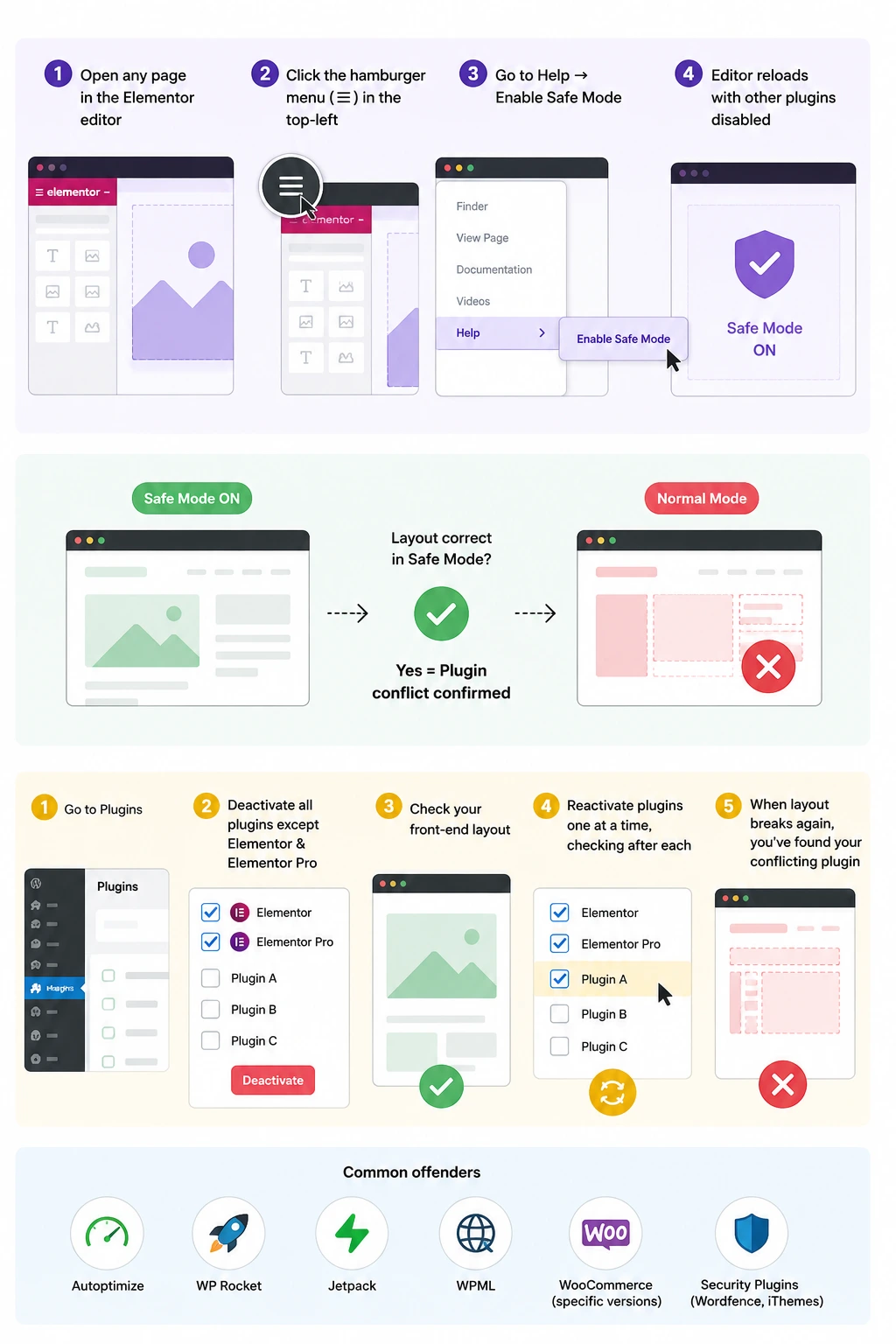
If regenerating CSS and clearing caches didn’t fix the layout, the next most likely culprit is a plugin conflict. One recently updated plugin may be injecting CSS or JavaScript that overrides Elementor’s output.
Elementor has a built-in tool for this called Safe Mode, which loads the Elementor editor with all other plugins disabled temporarily, without actually deactivating them for your visitors.
How to activate Elementor Safe Mode:
1.Open any page in the Elementor editor
2.Click the hamburger menu (☰) in the top-left of the editor
3.Go to Help → Enable Safe Mode
4.The editor will reload with other plugins disabled
If the layout looks correct in Safe Mode, a plugin conflict is confirmed. Now you need to find which plugin:
The plugin isolation method:
1.Go to your WordPress dashboard → Plugins
2.Deactivate all plugins except Elementor and Elementor Pro
3.Check your front-end layout
4.Reactivate plugins one at a time, checking the layout after each
5.When the layout breaks again, you’ve found your conflicting plugin
Common offenders include: Autoptimize, WP Rocket’s JS/CSS minification, Jetpack, WPML, WooCommerce (specific versions), and security plugins like Wordfence or iThemes Security.
Once you identify the problem plugin, check if there’s a newer version available that resolves the conflict, or reach out to the plugin’s support team.
Fix 4 – Resolve Elementor & Elementor Pro Version Mismatch

If you use Elementor Pro, this is a critical check. Go to WordPress Dashboard → Plugins and look at both “Elementor” and “Elementor Pro” version numbers side by side.
They must match. If Elementor says version 3.26 and Elementor Pro says 3.24, that mismatch is almost certainly causing your layout issues.
How to fix it:
- If Elementor Pro is behind: Log in to your Elementor account at my.elementor.com, download the latest Elementor Pro zip file, then go to Plugins → Add New → Upload Plugin, and install it over the existing version.
- If Elementor (free) updated automatically but Pro didn’t: This is the most common scenario. Many hosts and auto-update settings update the free version from WordPress.org automatically but can’t auto-update licensed plugins like Pro. Always update both manually at the same time, or configure both to auto-update together.
Important: Before updating either version, always make a full site backup. Elementor Pro version mismatches can sometimes corrupt page data, not just CSS.
Fix 5 – Switch to the Default WordPress Theme Temporarily
Your theme may be injecting CSS that conflicts with Elementor’s updated styles. A quick way to test this is to temporarily switch to a default WordPress theme like Twenty Twenty-Four.
How to do it:
1.Go to Appearance → Themes
2.Activate Twenty Twenty-Four (or any default WordPress theme)
3.Check your front-end layout
If the layout looks normal with the default theme, your original theme is the source of the conflict. You have a few options:
- Check for a theme update: Your theme developer may have already released a patch for Elementor compatibility.
- Manually override conflicting CSS: If you know CSS, open your theme’s style.css or use Appearance → Customize → Additional CSS to override the problematic styles.
- Contact the theme developer: Report the conflict with your Elementor version number. Most reputable theme developers respond within a few days.
If the layout is still broken with the default theme, the issue isn’t theme-related – continue to the next fix.
Fix 6 – Increase PHP Memory Limit

Elementor is a resource-intensive page builder. If your server’s PHP memory limit is too low (under 256MB), Elementor can fail to load assets completely after an update, causing layout issues that look like CSS problems but are actually incomplete asset loading.
Check your current memory limit:
Go to Elementor → System Info and scroll to the “Server Environment” section. Look for “PHP Memory Limit” and “WordPress Memory Limit.”
Elementor recommends a minimum of 256MB, with 512MB preferred for complex sites.
How to increase it:
Option A – wp-config.php (recommended):
Open your wp-config.php file and add this line above the “That’s all, stop editing!” comment:
php
define(‘WP_MEMORY_LIMIT’, ‘512M’);
Option B – php.ini:
If you have access to your server’s php.ini file, find the memory_limit line and change it:
ini
memory_limit = 512M
Option C – .htaccess (Apache servers only):
Add this to your .htaccess file:
apache
php_value memory_limit 512M
After making the change, go back to Elementor → Tools and regenerate CSS files again. Once you’ve successfully saved those changes, make sure to jump right back into Elementor → Tools and run that CSS regeneration one more time. Now, if your host uses an aggressive control panel that locks you out of making these manual edits yourself, don’t sweat it-just follow our easy walkthrough to fix WordPress memory limit error to bypass the restriction.
Fix 7 – Roll Back Elementor to the Previous Version

If the layout broke immediately after updating Elementor and none of the above fixes have worked, rolling back to the previous stable version is a practical short-term solution. This restores your site while you wait for Elementor to release a patch.
How to roll back using WP Rollback plugin:
1.Install and activate the free WP Rollback plugin from WordPress.org
2.Go to Plugins → Installed Plugins
3.Find Elementor and click the new “Rollback” link below it.
4.Choose the previous version (one version back from your current one)
5.Click Rollback and confirm
Critical Warning – You Must Rollback Elementor Pro Too
As covered in Fix 4, Elementor free and Elementor Pro must always run the same version number. If you roll back only the free Elementor plugin but leave Elementor Pro on the newer version, you will create a version mismatch that is worse than your original problem – this commonly causes a Fatal Error (White Screen of Death) on your entire site.
Always rollback both together:
- Roll back Elementor (free) via WP Rollback as described above
- Then go to my.elementor.com, download the matching older version of Elementor Pro manually, and install it via Plugins → Add New → Upload Plugin
Match the version numbers exactly before reloading your site.
After rolling back both plugins, go to Elementor → Tools and regenerate CSS files.
Also Important: After rolling back, disable auto-updates for both Elementor and Elementor Pro until the conflict is resolved. You can do this from the Plugins list by clicking Disable auto-updates next to each plugin.
Fix 8 – Repair Elementor Data (Database Corruption)
Sometimes an update process gets interrupted – by a server timeout, a hosting restriction, or a network hiccup – and Elementor’s database tables end up in a partially updated state. This is rare but can cause layouts to look completely broken in ways that CSS regeneration can’t fix.
How to repair Elementor data:
1.Go to Elementor → Tools → General tab
2.Click “Rebuild Post Meta” – this rebuilds the metadata Elementor stores for each page
3.Then click “Sync Library” if you use Elementor’s template library
4.Also run “Replace URL” with your current site URL to fix any database URL inconsistencies
Check your database tables directly (advanced):
If you’re comfortable with database tools, open phpMyAdmin from your hosting panel, select your WordPress database, and run this query:
sql
SELECT * FROM wp_options WHERE option_name LIKE ‘%elementor%’ LIMIT 20;
This shows you Elementor’s stored settings. If you see any obviously corrupted values (garbled data, mismatched brackets), you may need to restore from a clean backup.
Fix 9 – Disable Elementor’s Optimized Asset Loading

Elementor introduced an Optimized Asset Loading feature that loads only the CSS and JS needed for widgets used on each specific page, rather than loading everything globally. While this is great for performance, it sometimes causes layout issues after updates because certain assets that your pages depend on are no longer being loaded globally.
How to disable it:
1.Go to Elementor → Settings → Advanced tab
2.Find “Improved Asset Loading” (also labeled “Optimized Asset Loading” in some versions)
3.Toggle it off
4.Save changes
5.Regenerate CSS files and clear all caches
If this fixes the issue, the root cause is that one or more of your pages is using a widget or global style whose asset was being loaded globally before and is no longer being included. You can re-enable this feature later and troubleshoot which specific widget or global style needs its asset loading configured correctly.
Fix 10 – Restore From a Backup (Last Resort)
If you’ve gone through every fix above and your layout is still broken, and you have a backup from before the update, this is the safest path forward.
Restoring from backup:
Most managed WordPress hosts (WP Engine, Kinsta, Cloudways, SiteGround) have one-click restore points built into their dashboard. For self-managed sites, if you use UpdraftPlus or BlogVault, restore from the last clean backup.
After restoring:
1 .Test the site to confirm it’s back to normal
2.Set up a staging environment before attempting updates again
3.Update Elementor and Elementor Pro together on staging first
4.Verify everything is working, then push to production
If you don’t have a backup and the layout is completely destroyed, this is the moment that makes you set up automatic daily backups. Services like BlogVault, UpdraftPlus Pro, or your host’s built-in backup system are worth every penny. Look, if you don’t have a backup ready and your site’s design is completely toast, let this be the exact wake-up call that forces you to lock down daily automation. Premium services like BlogVault or UpdraftPlus Pro are worth every single penny when things go wrong. To make sure you’re never caught off guard without an emergency fallback point again, make rolling backups a non-negotiable part of your weekly website maintenance checklist.
How to Prevent Elementor From Breaking After Future Updates

Fixing a broken layout is reactive. Here’s how to stop it from happening again:
1.Always use a staging environment for updates. A staging site is a private copy of your live site where you test changes before they go live. Most quality hosts provide staging with one click. Update everything on staging first, verify it works, then push to production.
2.Update Elementor and Elementor Pro together, never one at a time. Make it a habit to check both version numbers before updating either one.
3.Never auto-update major plugins on live sites without testing. You can keep WordPress core on auto-updates, but major plugins like Elementor, WooCommerce, and your theme should be manually reviewed before updating.
4.Keep daily backups enabled. A backup that’s 24 hours old is infinitely more valuable than no backup at all. Use your host’s backup tool or a dedicated plugin. If setting up and managing staging environments feels like too much of a technical headache, outsourcing the heavy lifting to professional website maintenance services can keep your live business site safe on autopilot.
5.Check Elementor’s changelog before updating. Elementor publishes release notes at elementor.com/changelogs. If a new version mentions “CSS changes,” “container restructuring,” or “deprecated features,” test on staging before updating live.
6.Run Elementor on a “leaner” plugin stack. The more plugins you have, the more potential conflicts exist. Audit your plugins periodically and deactivate anything you’re not actively using.
Elementor Layout Issues – Quick Diagnosis Table
Symptom | Most Likely Cause | First Fix to Try |
Columns collapsed or stacked | CSS not regenerated | Regenerate Files & Data |
Layout fine in editor, broken on front-end | Cache serving old files | Clear all caches |
Layout broken on mobile only | Responsive CSS conflict | Regenerate CSS + check theme |
White screen on page | PHP memory or fatal error | Increase memory limit |
Editor loads but page looks wrong | Plugin conflict | Activate Safe Mode |
Only specific pages affected | Page-level CSS corruption | Rebuild Post Meta |
Broke immediately after update | Version mismatch or regression | Match Elementor + Pro versions, or roll back |
Global colors/fonts gone | Elementor Kit not loading | Re-assign Site Kit in Theme Builder |
Conclusion
An Elementor layout broken after an update is almost never a sign of permanent damage. In the overwhelming majority of cases, regenerating CSS files, clearing all cache layers, or isolating a plugin conflict resolves the issue within minutes.
Work through the fixes in order – start with the fast ones (Fix 1, Fix 2) before moving to the more involved steps. And once you’re back up and running, set up that staging environment. Testing updates before they hit your live site is the single most effective thing you can do to prevent this from happening again. At the end of the day, a shattered Elementor page after an update is rarely a sign of permanent damage. Just work your way through the fixes in order—start with the quick cache and file regenerations before messing with database fixes. And look, if you are still staring at a broken client layout, or if you simply don’t want to deal with the technical stress of running updates on live sites, we can handle it for you. Head over to our homepage at Rydesk to check out our Website Maintenance Services or drop us a line directly through our Contact Us page to get your site perfectly restored right now.
Frequently Asked Questions
1. Why does my Elementor layout keep breaking every time there’s an update?
The core reason is that Elementor generates its own CSS files, and those files need to be rebuilt whenever Elementor, WordPress, or your theme changes. If your caching setup doesn’t clear those files automatically after updates, old CSS persists and causes layout problems. The long-term fix is using a staging environment to test updates before they go live, combined with a caching strategy that purges after deployments.
2. How do I fix Elementor’s layout without losing my content?
Every fix in this guide – from CSS regeneration to safe mode to rolling back – preserves your page content. Your actual design data is stored in WordPress’s database, not in the CSS files. The CSS files are just the visual output of that data. Regenerating or clearing them never touches your content. The only exception is a full database restore from backup, which would revert content changes made since that backup.
3. My Elementor page looks fine in the editor but broken on the front end – why?
This is almost always a caching issue. The editor bypasses most caches and loads Elementor assets directly. The front end serves whatever is in your cache. Clear your caching plugin cache, your server cache, your CDN cache, and do a hard browser refresh. In 95% of cases, this resolves the discrepancy immediately. This is a classic caching discrepancy. The backend editor completely ignores standard browser or site caches to load live assets, while your public pages serve whatever old static files are stuck on your server. If your global styles are fine but graphic icons or vectors refuse to load properly after a hard refresh, you can learn how to fix Elementor SVG upload not working to clean up the asset paths.
4. Can I roll back Elementor safely without breaking my database?
Yes, rolling back the plugin version using WP Rollback does not touch your database. It only replaces the plugin’s PHP files with an older version. Your page designs, settings, and content remain intact. What you should not do is roll back the database schema changes Elementor makes during major updates – those require a full database restore from backup if needed.
5. How do I know if it’s a plugin conflict causing the layout issue?
The clearest signal is if your layout appears correctly in Elementor’s Safe Mode (accessed via the editor’s help menu). Safe Mode loads the editor with other plugins disabled. If it looks fine in Safe Mode but broken normally, a plugin conflict is confirmed. From there, you reactivate plugins one by one on your live site to identify the specific offender.
6. What’s the difference between regenerating CSS and clearing cache?
Regenerating CSS (Elementor → Tools → Regenerate Files & Data) deletes and rebuilds the CSS files Elementor stores on your server. This is an Elementor-specific operation that recreates the style output from your design data.
Clearing cache tells your caching plugin, CDN, or server to stop serving old stored copies of your pages and start serving fresh ones. These are two different layers. After regenerating CSS, you should always also clear your caches – otherwise visitors might still see the old CSS from before you regenerated.
7. My Elementor global colors and fonts disappeared after the update. How do I fix them?
This usually means your Elementor Site Kit (the global kit that stores colors, typography, and button styles) got deassigned. Go to Elementor → Theme Builder and check if a Site Kit is assigned. If not, assign your kit manually. You can also go to Elementor → Settings and check the active kit under the “Style” tab. If the kit itself is corrupted, you may need to recreate your global colors/fonts from your brand guidelines – keep a record of your hex codes and font choices for exactly this reason.
8. Is it safe to update Elementor with WooCommerce active on the same site?
It can be – but WooCommerce and Elementor are two of the most update-heavy plugins in the WordPress ecosystem, and their interaction is a known source of conflicts. Always update them separately (not on the same day), and always test on staging first. Pay special attention to Elementor Pro’s WooCommerce Builder templates, which can break if WooCommerce template hooks change in a new version.