

Quick Fix Guide: Elementor Mobile Menu
Elementor mobile menu stops working due to 4 main reasons: cached files, JS conflicts, wrong widget settings, or z-index issues. Your Elementor mobile menu just stopped working – the hamburger icon won’t open, the dropdown won’t show, or the whole menu is invisible on mobile. This isn’t a rare bug. It happens to thousands of WordPress sites after an update, a plugin install, or a theme change. The good news? Every one of these problems has a clear fix.
This guide covers 7 targeted solutions, ordered from the fastest to the most advanced, so you can stop guessing and start fixing.Here is a quick breakdown:
Issue Type | Root Cause | Fix Method | Difficulty |
Menu not visible on mobile | Hidden via responsive settings | Enable visibility in Elementor Advanced tab | Easy |
Hamburger icon won’t open | JavaScript conflict from a plugin | Deactivate plugins one by one to isolate | Medium |
Menu appears but won’t close | CSS z-index or overflow conflict | Add custom z-index CSS fix | Medium |
Menu broken after update | Outdated Elementor CSS cache | Regenerate CSS files + clear all caches | Easy |
What Is Actually Happening When the Elementor Mobile Menu Fails
Before jumping into fixes, it helps to understand what the Elementor mobile menu actually depends on. When you use the Nav Menu widget inside an Elementor header, it relies on three things working together:
- Elementor’s generated CSS – to apply responsive breakpoints and toggle visibility
- jQuery and Elementor’s JS frontend scripts – to handle the click/open/close behavior of the hamburger toggle
- WordPress menu assignment – to know which menu items to display
If any one of these three breaks, the mobile menu fails. The fix depends entirely on which layer is broken. That is what the 7 solutions below are designed to identify and resolve.
Solution 1: Clear All Caches First (Do This Before Anything Else)

This solves the problem in roughly 30% of cases and takes under two minutes.
When you make changes in Elementor – or when a plugin/theme updates – the old CSS and page cache often stays locked in place. Your browser, your caching plugin, Elementor itself, and your CDN (if you use one like Cloudflare) each hold a separate copy of your page. One stale layer is enough to break the mobile menu display. Go to WordPress dashboard > Elementor > Tools > click “Regenerate Files & Data.” This forces Elementor to rebuild all its CSS files from scratch. If you notice your entire styling breaks during this process, it might be due to a deeper server conflict. In that case, you can follow our detailed guide on how to fix Elementor critical error to get your dashboard layout back to normal.
Here is the correct order to clear everything:
Step 1 – Clear Elementor’s internal cache Go to WordPress dashboard > Elementor > Tools > click “Regenerate Files & Data.” This forces Elementor to rebuild all its CSS files from scratch.
Step 2 – Clear your caching plugin If you use WP Rocket, go to WP Rocket > Dashboard > Clear Cache. For LiteSpeed Cache, go to LiteSpeed > Toolbox > Purge All. For W3 Total Cache, go to Performance > Purge All Caches.
Step 3 – Clear Cloudflare or your CDN Log in to Cloudflare > Caching > Configuration > Purge Everything. If you use a host like SiteGround or Kinsta that has server-level caching, clear it from the hosting panel as well.
Step 4 – Test in a private/incognito browser window Do not test in the same browser tab you were using – your browser may still serve the cached version. Open a fresh incognito tab and load your site on mobile width using Chrome DevTools (F12 > Toggle device toolbar).
Real-world example: A WooCommerce store using LiteSpeed Cache had a fully functional Elementor header on desktop but a missing hamburger icon on mobile. After clearing only the browser cache twice without result, clearing LiteSpeed’s server cache resolved it instantly. The server had cached a pre-update version of the page that was missing the toggle button CSS class.
Solution 2: Check Elementor Nav Menu Widget Settings for Mobile

This is the most commonly misconfigured area. Elementor’s Nav Menu widget has specific settings that control how it behaves at mobile breakpoints – and it is very easy to set them incorrectly, especially after duplicating a header template or switching themes.
How to Access the Correct Settings
Open your Elementor header template: go to Templates > Theme Builder > find your header > Edit with Elementor.
Click on the Nav Menu widget. In the left panel, check the following:
Under the Content tab:
- Layout should be set to Horizontal for desktop. This is correct – Elementor automatically switches it to a dropdown at your chosen breakpoint.
- Breakpoint controls which screen width triggers the mobile toggle. The default is “Mobile” (below 767px). If your site breaks on tablets too, change this to “Tablet.”
- Toggle Button must have an icon selected (three-line hamburger or an X). If this is blank, nothing will appear for users to click on mobile.
Under the Style tab > Dropdown section:
- Toggle Color – if this is set to white or transparent and your header background is also white or light, the hamburger icon becomes invisible. This is a very common oversight.
- Dropdown Background Color – make sure it contrasts with your menu text color. A black background with black text makes the dropdown appear broken when it is actually opening but invisible.
Under the Advanced tab:
- Scroll to the Responsive section. Check that “Hide On Mobile” is NOT enabled for either the Nav Menu widget itself or the Section/Container it lives in.
- If someone accidentally toggled “Hide on Mobile” on the parent section, the entire menu disappears on small screens with no obvious clue in the widget-level settings.
Testing at the Right Breakpoint
At the bottom of the Elementor editor, click the mobile icon to switch to mobile preview mode. This shows you exactly what the menu looks like at mobile width without leaving the editor. Make all style adjustments in this view, not the desktop view, to avoid overwriting mobile-specific styles.
Solution 3: Regenerate Elementor CSS and Data Files
If clearing the cache did not work but the widget settings look correct, the issue is likely corrupted or incomplete Elementor-generated CSS files. This happens most often after:
- Updating Elementor or Elementor Pro to a new major version
- Switching between external and inline CSS loading modes
- Migrating the site to a new domain or server
How to fix it:
Go to WordPress dashboard > Elementor > Tools > General tab > click “Regenerate Files & Data.”
After regeneration, also go to Elementor > Tools > Replace URL if you recently migrated the site. Old URLs baked into the CSS files can cause incomplete stylesheet loading.
If regeneration seems to fail or the button does nothing, check your server’s file permissions. Elementor writes its CSS to the /wp-content/uploads/elementor/css/ folder. If the server cannot write to that directory, regeneration silently fails. An FTP client or File Manager in your hosting panel can confirm the folder is writable (permissions should be 755 for folders). After regeneration, also go to Elementor > Tools > Replace URL if you recently migrated the site. Old URLs baked into the CSS files can cause incomplete stylesheet loading. If you want a more detailed walkthrough of this process, check out our quick tutorial on to restore your styles instantly.
Solution 4: Find and Fix Plugin Conflicts
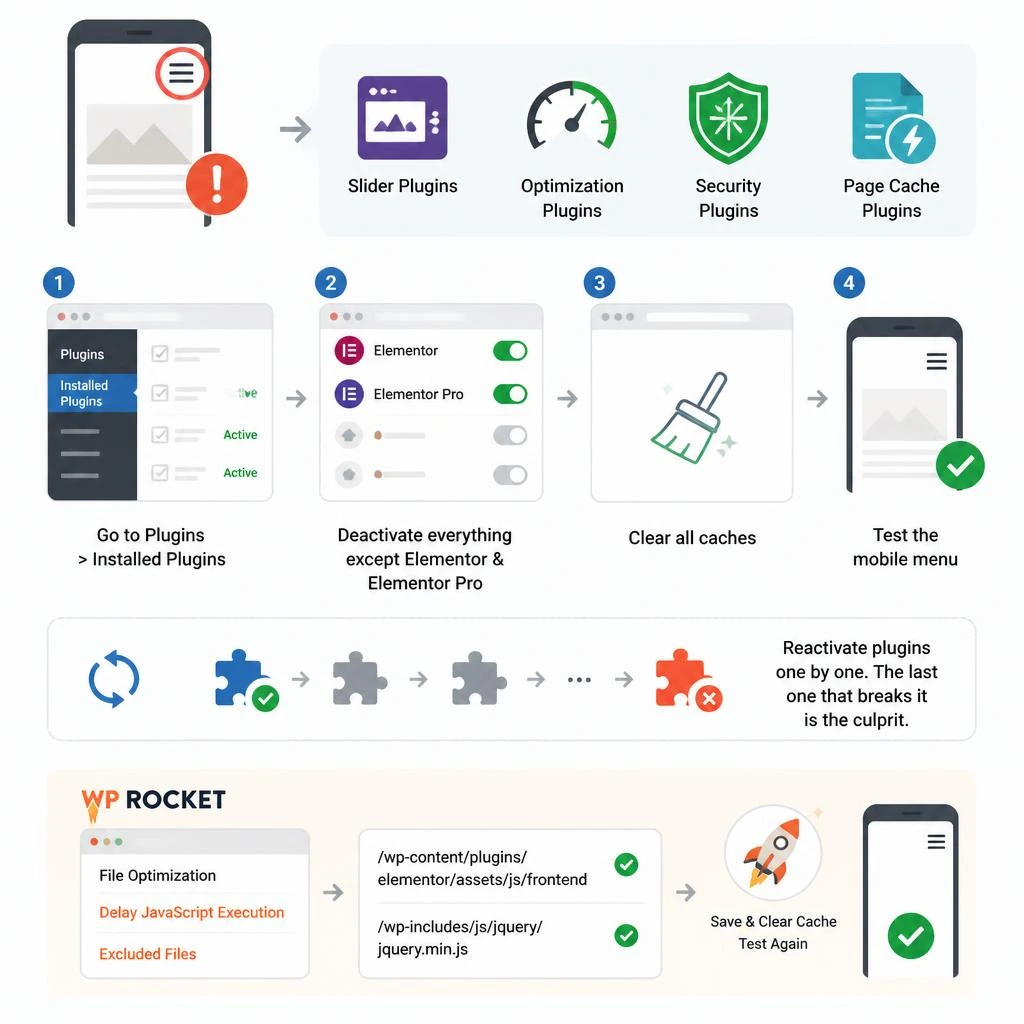
If the hamburger icon appears but does not open when clicked, this is almost always a JavaScript conflict. Another plugin is loading a script that either overwrites or breaks Elementor’s frontend toggle behavior.
Common offenders include:
- Slider plugins (Revolution Slider, Smart Slider 3) – these bundle their own version of jQuery or jQuery UI and sometimes cause version conflicts
- Optimization plugins (Autoptimize, WP Rocket’s JS deferral) – when set to defer or combine all JavaScript files, they can break the loading order that Elementor’s toggle script depends on
- Security plugins (Wordfence, iThemes Security) – occasionally block or delay script loading
- Page cache plugins with aggressive minification enabled
The Fast Way to Confirm a Plugin Conflict
Go to Plugins > Installed Plugins. Filter by active plugins. Deactivate everything except Elementor and Elementor Pro. Clear all caches. Test the mobile menu.
If it works, you have a plugin conflict. Reactivate plugins one by one, testing the mobile menu after each one, until it breaks again. The last plugin you activated is the culprit.
Fixing WP Rocket JavaScript Deferral Conflicts (Most Common Case)
If WP Rocket’s “Delay JavaScript Execution” feature is breaking your Elementor mobile menu, you do not have to turn off the feature entirely. Go to WP Rocket > File Optimization > Delay JavaScript Execution > Excluded Files. Add the following to the exclusion list:
/wp-content/plugins/elementor/assets/js/frontend
/wp-includes/js/jquery/jquery.min.js
Save changes, clear the WP Rocket cache, and test again.
Solution 5: Fix z-Index and CSS Conflicts

If the hamburger icon appears and you can click it, but the dropdown menu opens behind other content (or does not appear to open at all), the problem is a z-index conflict.
This is very common on sites that have:
- A sticky header with position: fixed
- A hero section with a high z-index
- Full-width Elementor sections with overflow: hidden set
Quick CSS Fix for z-Index
Go to Elementor > Custom CSS (site-wide), or add it via Appearance > Customize > Additional CSS:
css
.elementor-nav-menu–dropdown {
z-index: 9999 !important;
}
.elementor-menu-toggle {
z-index: 9999 !important;
}
Overflow Hidden Breaking the Dropdown
If the parent section of your header has overflow: hidden applied (either in Elementor’s Advanced settings or via a theme stylesheet), the dropdown menu gets clipped as soon as it extends beyond the header’s height.
Fix: In the Elementor editor, click the parent Section or Container of your Nav Menu. Go to Advanced > CSS > and add:
css
overflow: visible;
Or, if you need to keep the overflow hidden for another reason (e.g., to prevent a slider from bleeding), move the Nav Menu widget outside that section into a separate, non-clipped section. Add it via Appearance > Customize > Additional CSS. If you apply this layout patch and notice that your icons or typography still look distorted on responsive viewports, read our troubleshooting guide on Elementor custom fonts not showing to fix underlying styling bugs.
Solution 6: Disable Elementor’s Improved Asset Loading (If Enabled)

Elementor Pro introduced an “Improved Asset Loading” feature that conditionally loads assets only when needed. In some server environments and theme combinations, this can cause Elementor’s frontend JavaScript (the script responsible for the mobile toggle) to not load on certain pages.
How to check:
Go to Elementor > Settings > Advanced tab. Look for “Improved Asset Loading.” If it is enabled, toggle it off.
Clear all caches and test. This is a simple toggle that does not affect your design – it only changes how scripts are loaded.
This fix is particularly relevant on sites where the mobile menu works on the homepage but fails on inner pages. That inconsistency is the signature symptom of conditional asset loading cutting out a required script.
Solution 7: Check for JavaScript Errors in the Browser Console

If none of the above has resolved it, open Chrome DevTools (F12) on your site, switch to the Console tab, and reload the page. Look for any red error messages.
Common errors that cause the Elementor mobile menu to break:
Console Error | What It Means | How to Fix |
jQuery is not defined | jQuery failed to load or loaded too late | Check plugin/theme loading order; disable JS deferral |
Uncaught TypeError: Cannot read properties of null | A script is targeting an element that does not exist | Plugin conflict; deactivate and isolate |
Failed to load resource: net::ERR_BLOCKED_BY_CLIENT | An ad blocker or security tool blocked a script | Test with ad blocker disabled; whitelist Elementor scripts |
elementorFrontend is not defined | Elementor’s main frontend JS did not load | Regenerate Elementor files; check if Improved Asset Loading is on |
Screenshot the error, note which file it references, and search that filename to identify which plugin or theme is responsible. Screenshot the error, note which file it references, and search that filename to identify which plugin or theme is responsible. If these script crashes are happening because your core site setup is heavy or cluttered, running a manual checkup is essential. You can use our comprehensive o audit your site configuration.
Bonus: Elementor Mobile Menu Issues After Theme Switch
If you recently switched your theme and the mobile menu broke immediately after, the most likely cause is that your new theme is outputting its own navigation menu via WordPress’s wp_nav_menu() function – and it is conflicting with or overriding the Elementor header template.
Fix: Go to Elementor > Theme Builder > Header. Check whether your header template’s display conditions are set correctly (should be “Entire Site”). If another theme header is loading on mobile due to a fallback, Elementor’s template may not be rendering at all.
If you switched to a non-Elementor-compatible theme, also check: Appearance > Customize > Site Identity or Navigation – the theme may be injecting its own hamburger menu that conflicts with Elementor’s.
Using Elementor’s own Hello Theme (free) is the cleanest solution since it has zero built-in navigation logic and lets Elementor handle everything. Using Elementor’s own Hello Theme (free) is the cleanest solution since it has zero built-in navigation logic. If you are starting fresh and want to plan a clean layout from day one, make sure to read our framework on to keep your theme footprint as minimal as possible
Elementor Mobile Menu: Free vs Pro Feature Comparison
Feature | Elementor Free | Elementor Pro |
Nav Menu Widget | Not available (use theme menu) | Full Nav Menu widget included |
Custom breakpoints | Single breakpoint (767px) | Multiple custom breakpoints |
Full-screen mobile menu | Not available | Available via dropdown type: Full Screen |
Mobile-specific menu styling | Limited | Full per-breakpoint style controls |
Sticky header on scroll | Not available | Available via Motion Effects |
If you are using Elementor Free, you do not have access to the Nav Menu widget at all. Your mobile menu behavior is entirely controlled by your theme. In that case, the troubleshooting path is different – you need to look at your theme’s menu settings, not Elementor’s widget settings.
Conclusion
The Elementor mobile menu stops working for one of three core reasons: a broken CSS layer, a broken JavaScript layer, or a misconfigured widget setting. The 7 solutions above cover all three – start with cache clearing and CSS regeneration, move to widget settings and plugin conflict testing, then use the browser console and z-index fixes for stubborn cases.
If you have tried all seven and the issue persists, the most reliable reset is recreating the header template from scratch using Elementor’s Hello Theme as the base. For more actionable digital marketing insights, feel free to explore our Homepage.That combination eliminates nearly every external variable and gives you a clean environment to rebuild from.
Need a fully custom Elementor header built cleanly from day one without unexpected glitches? Check out our professional Website Maintenance Services to build fast, mobile-optimized WordPress sites that deliver results on every screen size. If you are facing a persistent critical error or need immediate technical assistance, Contact Us today to get your website optimized by our expert team.
FAQs
1. Why is my Elementor mobile menu hamburger icon not showing?
The icon is likely set to a color that matches your header background, or “Hide On Mobile” is checked on the parent section. Go to the Nav Menu widget Style tab > Toggle Color and set a visible color. Also check Advanced > Responsive on the parent container.
2. Why does the Elementor hamburger icon appear but nothing happens when I click it?
This is a JavaScript conflict. A plugin – most commonly an optimization or slider plugin – is breaking Elementor’s toggle script. Deactivate all non-Elementor plugins, test, then reactivate them one by one to find the conflict.
3. Why does the Elementor mobile menu work on the homepage but not on other pages?
This is the signature symptom of Elementor’s “Improved Asset Loading” feature cutting out required scripts on inner pages. Go to Elementor > Settings > Advanced and disable Improved Asset Loading.
4. How do I make the Elementor mobile menu full screen?
This requires Elementor Pro. In the Nav Menu widget Content tab, set the Dropdown Type to “Full Screen.” You can then style the full-screen overlay via the Dropdown section in the Style tab.
5. Can I fix the Elementor mobile menu without Elementor Pro?
If you are using Elementor Free, the Nav Menu widget is not available. Your mobile menu is theme-controlled. Fix it through your theme’s customizer or by installing a free menu plugin like Max Mega Menu, which works independently of Elementor.
6. Why is the Elementor mobile menu dropdown opening behind other content?
A z-index conflict is causing the dropdown to render below another element. Add .elementor-nav-menu–dropdown { z-index: 9999 !important; } via Elementor Custom CSS or Appearance > Additional CSS.
7. Will regenerating Elementor CSS files delete my designs?
No. Regenerating CSS files only rebuilds Elementor’s styling output – it does not touch your design data, page structure, or content. It is safe to run at any time.
8. How do I test the Elementor mobile menu without a real mobile device?
Use Chrome DevTools. Press F12, click the “Toggle device toolbar” icon (or press Ctrl+Shift+M), and select a device or set a custom width. This accurately simulates mobile viewport width including media query behavior.