

A website should allow visitors to find information, understand content and complete tasks without unnecessary barriers. However, some websites are difficult to use for people with visual, hearing, motor or cognitive disabilities. Learning how to make a website accessible helps businesses create a better experience for visitors who use screen readers, keyboard navigation, captions and other assistive technologies.
Website accessibility is not just about adding a plugin or changing a few colours. It involves improving the way a website is designed, developed and maintained. From readable text and descriptive images to accessible forms and keyboard-friendly menus, small improvements can make a meaningful difference.
For Australian small businesses, accessibility should be considered alongside website design, mobile usability, SEO and performance. The good news is that many common issues can be identified and improved without rebuilding an entire website.
This guide explains the practical steps you can take to make your website easier for more people to use.
Quick Answer: How Do You Make a Website Accessible?
To make a website accessible, improve its content, design and functionality so people with different abilities can use it.
Start with these important steps:
- Add descriptive alternative text to meaningful images.
- Use clear headings and a logical page structure.
- Make menus, buttons and forms work with a keyboard.
- Maintain sufficient colour contrast between text and backgrounds.
- Add captions or transcripts to relevant video and audio content.
- Use descriptive links and clear button labels.
- Make forms easy to understand and complete.
- Test pages with accessibility tools and manual checks.
- Follow the Web Content Accessibility Guidelines (WCAG) 2.2 as a technical reference.
Accessibility is an ongoing process. Review your website regularly, particularly when adding new pages, plugins or interactive features.
Why Is Website Accessibility Important?
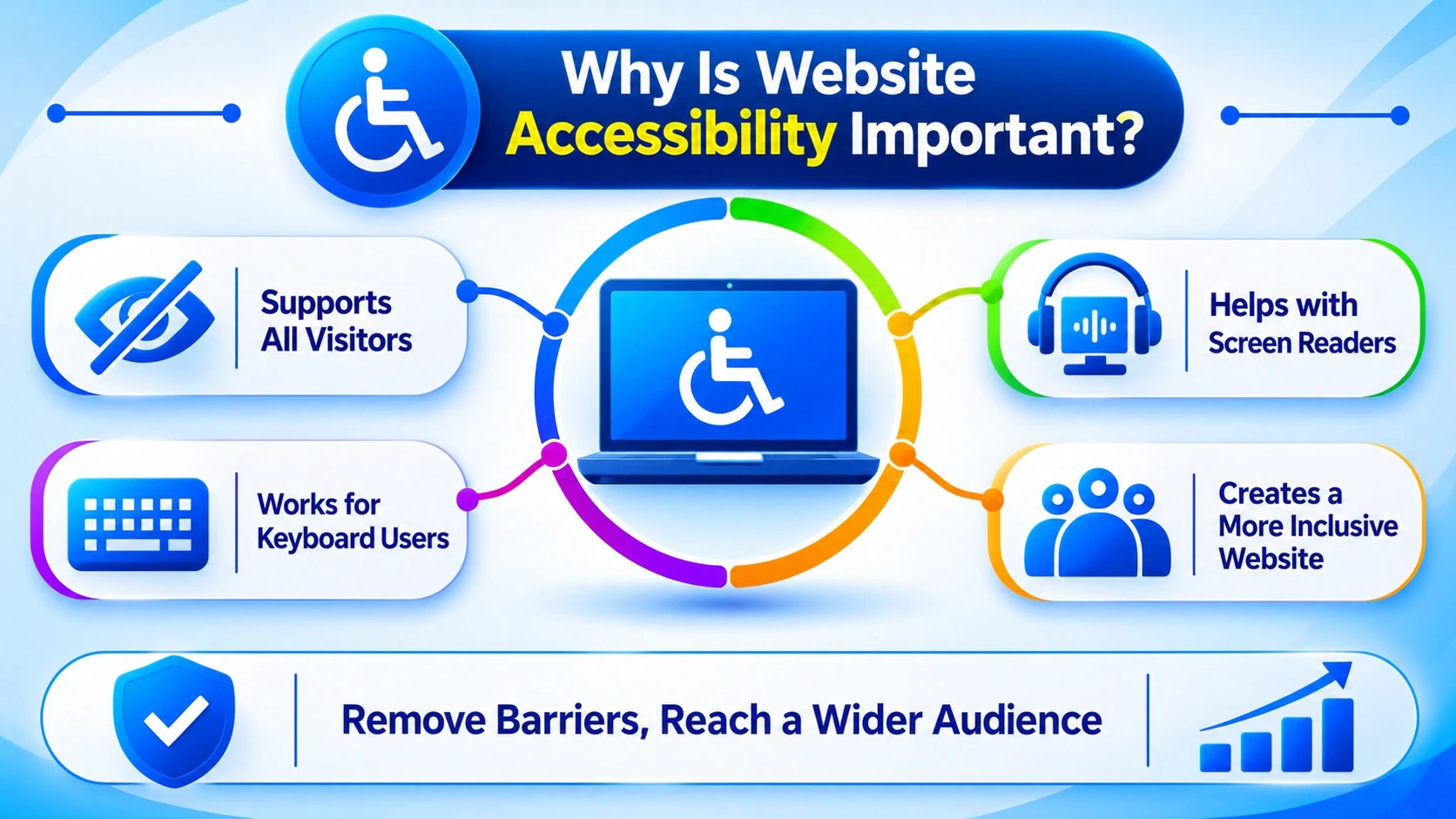
A website may look attractive but still be difficult for some visitors to use. For example, a person using a screen reader may not understand an image without alternative text. Someone who cannot use a mouse may be unable to open a dropdown menu.
These barriers can prevent visitors from accessing information, completing enquiries or purchasing products.
1. Make Your Website Usable for More People
People interact with websites in different ways. Some use screen readers, keyboard controls, screen magnification or voice commands. Others may experience temporary limitations, such as an injured hand or difficulty reading small text.
Accessible design helps reduce unnecessary barriers and gives more visitors an opportunity to use your website.
2. Improve the Customer Experience
Accessibility improvements often benefit all visitors, not only people with disabilities.
For example:
- Clear headings make information easier to scan.
- Readable text helps visitors understand your content.
- Descriptive buttons make actions easier to identify.
- Consistent navigation makes pages easier to explore.
- Accessible forms reduce confusion during enquiries.
These improvements can make the customer journey more straightforward.
3. Support SEO and Website Quality
Accessibility and SEO have several overlapping best practices. Search engines and visitors both benefit from clear content structure, descriptive links and meaningful image descriptions.
Useful improvements include:
- Organising content with relevant headings.
- Writing descriptive image alt text.
- Using meaningful internal link anchor text.
- Creating clear page titles and descriptions.
- Using semantic HTML where appropriate.
These practices can help search engines understand your content while making the website easier to use. However, accessibility alone does not guarantee higher search rankings.
Businesses investing in web design with SEO should consider accessibility as part of the overall website experience.
Understand the WCAG 2.2 Accessibility Guidelines
The Web Content Accessibility Guidelines (WCAG) are developed by the World Wide Web Consortium (W3C). They provide recommendations and testable criteria for making web content more accessible.
WCAG 2.2 is organised around four principles: Perceivable, Operable, Understandable and Robust. These are commonly known as POUR.
1. Perceivable: Make Content Easy to Access
Visitors must be able to perceive the information presented on a webpage.
Practical improvements include:
- Adding alternative text to meaningful images.
- Providing captions for videos.
- Using readable text and sufficient contrast.
- Making content available in different ways where needed.
- Avoiding instructions that depend only on colour.
For example, if a form displays an error using a red border, it should also provide a written explanation. This helps visitors who may not recognise the colour change.
2. Operable: Make Website Navigation Work
Visitors should be able to navigate and interact with website features using different input methods.
Check that:
- Menus work with keyboard navigation.
- Buttons can be activated using a keyboard.
- Focus indicators are visible.
- Visitors can move through forms logically.
- Moving content does not create unnecessary difficulties.
- Important features do not require precise mouse movements.
A website menu that only opens when someone hovers over it may create problems for keyboard users.
3. Understandable: Keep Content Clear
Website content and functionality should be easy to understand.
Use:
- Simple and direct language.
- Consistent navigation labels.
- Clear form instructions.
- Helpful error messages.
- Predictable page layouts.
For example, a contact form should explain which fields are required and what information visitors need to enter.
4. Robust: Build Compatible Website Features
Website content should work reliably across different browsers, devices and assistive technologies.
Developers should use semantic HTML, appropriate form labels and correctly implemented interactive elements. Custom features should also be tested to check that they work with assistive technologies.
Following WCAG 2.2 provides a useful technical foundation, although no single checklist can guarantee that every visitor’s needs are met.
10 Practical Steps to Make Your Website Accessible
Improving accessibility becomes easier when you divide the work into specific website elements.
1. Add Descriptive Alt Text to Images
Alternative text, commonly called alt text, describes the purpose or content of an image.
Screen readers can read this text aloud, helping visitors understand meaningful images.
For example:
- Poor alt text: image001.jpg
- Better alt text: Web developer working on a business website
Write descriptions that explain the image in its context. Avoid adding unnecessary keywords because alt text should help visitors understand the image rather than repeat SEO phrases.
Decorative images that provide no meaningful information can generally use an empty alt attribute so assistive technologies can skip them.
2. Use a Logical Heading Structure
Headings help visitors understand how information is organised.
A clear structure also makes long articles easier to navigate.
Follow these practices:
- Use one clear H1 for the main page topic.
- Use H2 headings for main sections.
- Use H3 headings for related subsections.
- Avoid choosing heading levels only because of their visual size.
- Keep headings descriptive and relevant.
For example, an article about website design might use an H1 for the article title, H2 headings for major topics and H3 headings for individual steps.
A logical heading hierarchy makes content easier to understand and navigate.
3. Improve Colour Contrast and Text Readability
Text should be easy to read against its background.
Low contrast, such as light grey text on a white background, can make important information difficult to see.
WCAG 2.2 Level AA generally recommends:
- 4.5:1 contrast for normal-sized text.
- 3:1 contrast for large text.
Review headings, paragraphs, buttons, navigation links and form labels.
Also consider font size, line spacing and paragraph length. Avoid using very small text for important information.
4. Make Your Website Keyboard-Friendly
Not every visitor uses a mouse. Some people navigate websites using a keyboard or assistive technology.
To improve keyboard accessibility:
- Make links and buttons reachable using the Tab key.
- Use Enter or Space to activate appropriate controls.
- Show a visible focus indicator.
- Keep navigation in a logical order.
- Ensure dropdown menus can be opened and used.
- Avoid keyboard traps that prevent visitors from moving away from an element.
Test your homepage, navigation menu, contact page and important forms without using a mouse.
5. Create Accessible Forms
Forms are essential for businesses that receive enquiries, bookings or customer information online.
An inaccessible form can stop visitors from contacting your business.
Make forms easier to use by:
- Adding visible labels to every field.
- Explaining which fields are required.
- Providing clear instructions.
- Displaying useful error messages.
- Supporting keyboard navigation.
- Showing confirmation after successful submission.
For example, instead of displaying only “Invalid input”, explain which field needs attention and how the visitor can correct it.
6. Add Captions to Videos
Videos may contain important spoken information that is unavailable to visitors who are deaf or hard of hearing.
Adding accurate captions helps make video content more accessible.
Consider providing:
- Captions for spoken dialogue.
- Text transcripts where appropriate.
- Descriptions of important audio information.
- Accessible video controls.
Do not rely only on automatic captions without reviewing them. Incorrect words can change the meaning of the content.
7. Use Descriptive Links and Buttons
Links should explain where they lead, while buttons should communicate the action they perform.
Avoid using vague phrases such as:
- Click here.
- Read more.
- Learn more.
Instead, use descriptive wording such as:
- Explore our web development services.
- Read our WordPress maintenance guide.
- Contact our website development team.
Descriptive link text helps visitors understand links when reading a page or navigating through links with assistive technology.
8. Make Your Website Mobile-Friendly
Accessibility also matters on mobile devices.
Visitors should be able to read content, use navigation and complete forms without unnecessary zooming or horizontal scrolling.
Check that:
- Text remains readable on smaller screens.
- Buttons are easy to select.
- Navigation menus work with touch and keyboard controls.
- Content does not overlap.
- Forms fit the screen.
- Pages remain usable when text is enlarged.
Responsive design should support usability rather than simply make a desktop layout smaller.
9. Avoid Unnecessary Flashing and Auto-Playing Content
Flashing or rapidly changing content can create difficulties for some visitors. Auto-playing audio and video can also interrupt screen reader users or make content harder to control.
Where moving content is used:
- Provide controls to pause or stop it.
- Avoid unnecessary flashing effects.
- Do not force audio to play automatically.
- Give visitors control over important animations.
- Respect reduced-motion preferences where appropriate.
These changes help visitors interact with content more comfortably.
10. Use Clear and Consistent Navigation
Navigation should help visitors understand where they are and how to reach important pages.
Use clear menu labels such as:
- Home
- About Us
- Services
- Blog
- Contact
Keep navigation consistent across the website. Visitors should not have to learn a different menu structure on every page.
For larger websites, a clear page hierarchy and useful internal links can make important information easier to find.
Website Accessibility Checklist
Use this checklist when reviewing your website.
Website element | What to check | Recommended action |
Images | Are meaningful images described? | Add useful alt text. |
Headings | Is the content structure logical? | Use H1, H2 and H3 appropriately. |
Text | Is the content readable? | Improve font size and spacing. |
Contrast | Is text easy to distinguish? | Check WCAG contrast requirements. |
Navigation | Can visitors use the keyboard? | Test menus and links using Tab. |
Forms | Are fields easy to understand? | Add labels and error instructions. |
Videos | Are captions available? | Provide accurate captions. |
Buttons | Are actions clearly labelled? | Use descriptive button text. |
Mobile | Does the layout work on small screens? | Test responsive behaviour. |
Animations | Can moving content be controlled? | Provide pause and stop options. |
How to Test Website Accessibility
After making improvements, test your website to identify remaining problems. Automated tools are useful, but they cannot detect every issue. Combine automated checks with manual testing.
1. Google Lighthouse
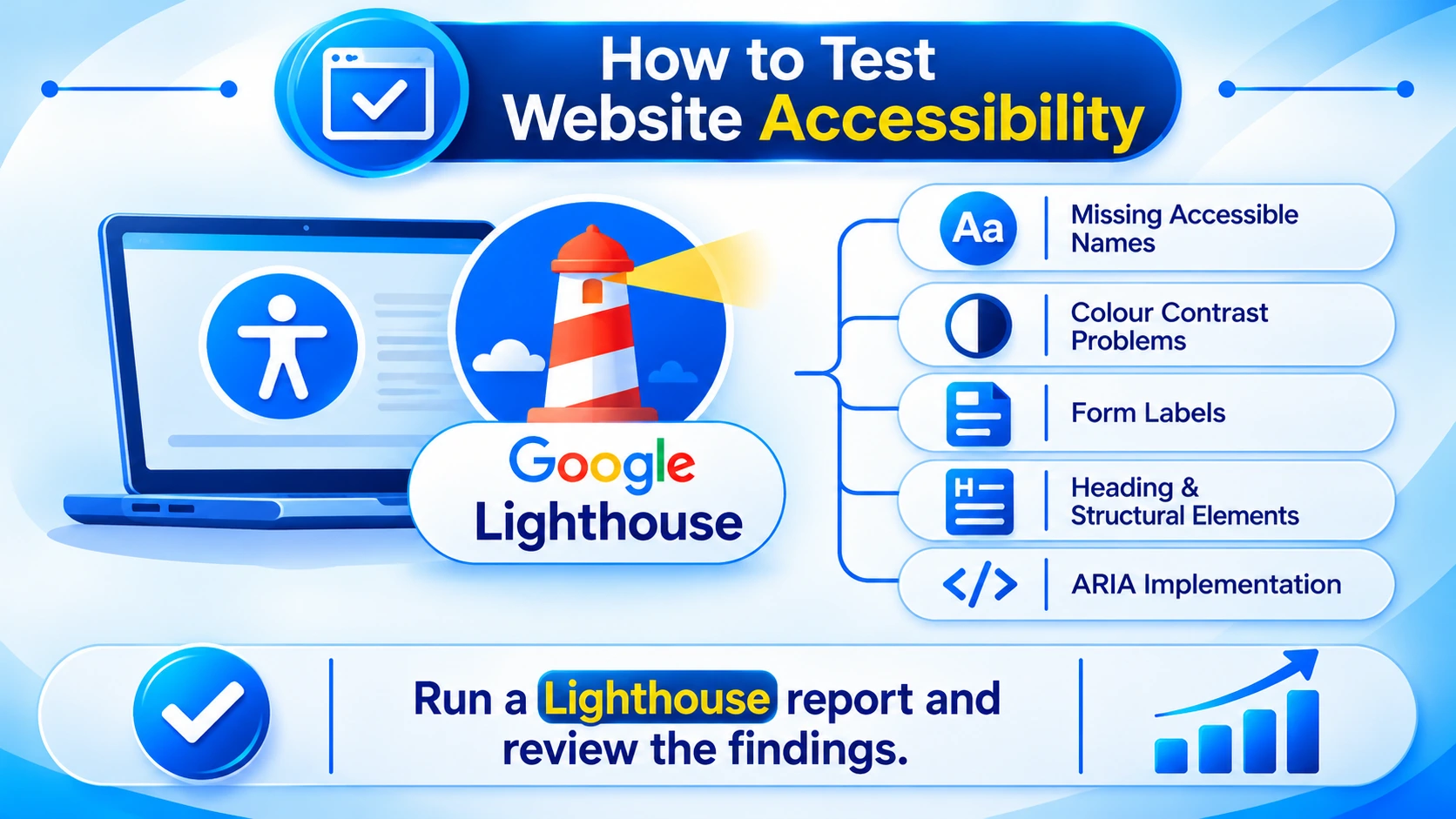
Google Lighthouse includes accessibility checks in Chrome DevTools.
It can identify certain issues involving:
- Missing accessible names.
- Some colour contrast problems.
- Form labels.
- Heading and structural elements.
- ARIA-related implementation.
Run a Lighthouse report on important pages and review the accessibility findings.
2. WAVE Accessibility Evaluation Tool
WAVE provides visual feedback about potential accessibility issues.
It can help identify missing alt text, heading problems, form label issues and contrast errors.
Use the results to investigate problems rather than assuming every alert represents a confirmed accessibility barrier.
3. axe DevTools
axe DevTools helps developers identify accessibility issues related to HTML, accessible names, ARIA attributes and other technical requirements.
It can be useful during website development and when reviewing existing pages.
4. Manual Keyboard Testing
Automated tools cannot replace manual testing.
Try these steps:
- Open your website in a browser.
- Press Tab to move between interactive elements.
- Check whether the focus indicator is visible.
- Use Enter or Space to activate buttons and links.
- Test dropdown menus and forms.
- Check whether you can navigate through the page without a mouse.
If important features cannot be accessed using a keyboard, investigate the underlying design or code.
How to Make a WordPress Website Accessible
WordPress provides tools for building websites, but installing WordPress does not automatically make a website accessible.
Accessibility depends on the theme, plugins, page builder, content and custom development.
Choose a Suitable WordPress Theme
Select a theme that supports semantic HTML, keyboard navigation and clear page structures.
Review its menus, buttons, forms and interactive components. A visually attractive theme may still contain accessibility problems.
Review Elementor and Other Page Builder Elements
Page builders make website design easier, but custom elements can introduce barriers.
Review:
- Buttons and call-to-action sections.
- Accordion and tab elements.
- Dropdown menus.
- Image galleries.
- Pop-ups and forms.
Check that visitors can operate these elements with a keyboard and understand their purpose.
Keep Plugins and Themes Updated
Outdated plugins and themes can create technical and compatibility problems.
Keep your WordPress installation updated, but test updates before applying them to a live website. This is particularly important when the website uses custom features or several plugins.
For ongoing website care, WordPress maintenance for small businesses can help keep websites updated and functioning properly.
Review Accessibility After Publishing
Accessibility should be part of your regular content publishing process.
Before publishing a new page, check its headings, image descriptions, links, contrast and interactive elements. This helps prevent new accessibility problems from being introduced as the website grows.
Common Website Accessibility Mistakes to Avoid
Some accessibility problems are easy to overlook during website development.
Common mistake | Why it creates a problem | Better approach |
Missing image alt text | Screen reader users may miss image information. | Add meaningful descriptions. |
Poor colour contrast | Text may be difficult to read. | Check contrast ratios. |
Unlabelled forms | Visitors may not understand form fields. | Add visible labels. |
Mouse-only menus | Keyboard users may be unable to navigate. | Support keyboard controls. |
Vague link text | Link destinations are unclear. | Use descriptive wording. |
Incorrect heading order | Content structure becomes confusing. | Organise headings logically. |
Relying only on plugins | Underlying accessibility issues may remain. | Review design, content and code. |
An accessibility plugin or overlay should not be considered a complete replacement for fixing the website itself.
How RyDesk Can Help Improve Website Accessibility
A professional website should be easy to navigate, understandable and useful for its visitors. Accessibility can be considered alongside website design, development, mobile usability and technical performance.
RyDesk helps businesses build and improve websites with practical business requirements in mind.
Depending on the website’s needs, improvements may include:
- Reviewing website layouts and page structure.
- Improving navigation and heading hierarchy.
- Making forms and buttons easier to use.
- Reviewing image descriptions and content presentation.
- Checking responsive layouts across devices.
- Identifying technical issues that affect usability.
- Supporting ongoing WordPress improvements.
If you are planning a new website or improving an existing one, consider accessibility during the design and development process rather than waiting until the website is finished.
Explore RyDesk’s WordPress website design services or learn more about its Frequently Asked Questions
1. How to make a website accessible for beginners?
Start by adding useful image alt text, improving heading structure, checking colour contrast and making navigation keyboard-friendly. Then review forms, links and videos. Use accessibility testing tools to identify additional issues.
2. What are the four principles of website accessibility?
The four WCAG principles are Perceivable, Operable, Understandable and Robust. They explain how website information and functionality should be presented, operated, understood and interpreted by different technologies.
3. What is the WCAG 2.2 standard?
WCAG 2.2 is an international set of web accessibility guidelines developed by the W3C. It includes testable success criteria at Level A, AA and AAA to help improve website accessibility.
4. Can I make my WordPress website accessible?
Yes. You can improve a WordPress website by choosing a suitable theme, reviewing page builder elements, adding image alt text, improving forms and testing keyboard navigation. Some technical problems may require developer support.
5. Do accessibility plugins make a website fully accessible?
No. Plugins may provide useful features, but they cannot automatically fix every problem in website design, content or code. A complete review should include automated testing and manual checks.
6. Does website accessibility help SEO?
Accessibility and SEO share practices such as descriptive headings, useful alt text, clear links and structured content. These improvements can support usability and content understanding, but accessibility does not guarantee higher search rankings.
7. How often should I test website accessibility?
Review accessibility whenever you add major content, change themes, install plugins or introduce new interactive features. It is also useful to perform regular checks on important pages, especially contact and enquiry forms.
8. Is website accessibility important for Australian businesses?
Yes. Australian businesses should consider accessibility when providing online information and services. The Disability Discrimination Act 1992 is relevant to disability discrimination in areas of public life, including services. Businesses should review the Australian Human Rights Commission’s guidance and seek qualified advice about their circumstances.
Final Thoughts: Build a Website Everyone Can Use
Making a website accessible is an ongoing process that involves improving content, design and functionality. From descriptive image alt text and readable text to keyboard-friendly navigation and accessible forms, every improvement can help visitors interact with your website more easily.
Start with the most important pages, test your website using accessibility tools and review the results manually. Use WCAG 2.2 as a practical reference and continue checking accessibility whenever your website changes.
Need help improving your website? Explore to discuss website design, WordPress improvements and a more accessible experience for your visitors.