
Quick Answer
# | Tip | Why It Matters |
1 | Update Core, Themes & Plugins Fast | 91% of breaches originate in plugins, not WordPress core |
2 | Vet Plugins Against Supply-Chain Attacks | 25+ compromised plugins exposed 800,000+ sites in April 2026 |
3 | Strengthen Authentication & Access Control | 81% of hacked sites involved weak or stolen credentials |
4 | Enable Multi-Factor Authentication | Blocks access even if a password is stolen |
5 | Lock Down Your Admin Portal | /wp-login.php is the most bot-targeted URL on any WP site |
6 | Harden Security Headers & Server Config | 93.2% of sites are missing basic headers like HSTS and CSP |
7 | Run Continuous Malware Scanning | Attackers now inject code into legitimate files, not just new ones |
8 | Install a Security Plugin + WAF | Hosting alone blocks only ~26% of attacks |
9 | Maintain Tested Backups & Vulnerability Monitoring | An untested backup is not a real backup |
10 | Secure Hosting & Enable SSL | Application-layer attacks bypass hosting-level protection alone |
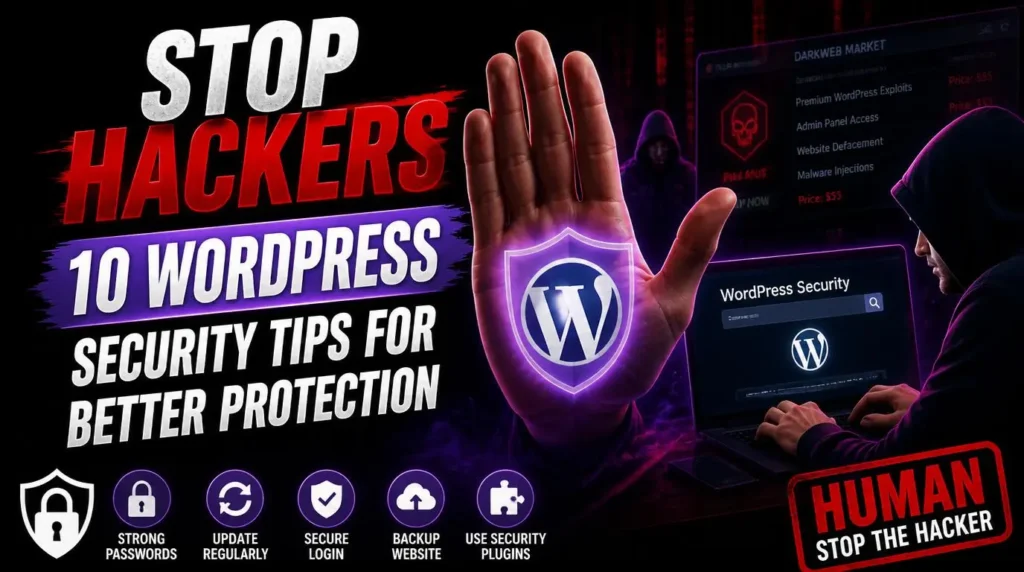
Stopping hackers on WordPress in 2026 comes down to ten layers working together: fast patching, plugin vetting, strong access control, MFA, admin hardening, security headers, malware scanning, a WAF, tested backups, and secure hosting with SSL. Skip even one, and you’re statistically more likely to join the roughly 13,000 WordPress sites hacked every single day.
WordPress now powers more than 43% of all websites on the internet – which makes it the single most economically attractive target for cybercriminals. Attackers don’t need to be clever; they just need one automated scanner pointed at the web, because nearly every other site it hits will be running WordPress.
The number that should worry every site owner: the weighted median time from a vulnerability being disclosed to it being actively exploited at scale is just 5 hours. Add in 11,334 new vulnerabilities disclosed in 2025 alone – a 42% year-over-year increase – and it’s clear that occasional, manual security checks no longer cut it. Security, in fact, is just one piece of the larger picture – as we cover in why website maintenance matters for your site’s long-term health, speed, uptime, and protection all depend on the same ongoing care. Here are the 10 tips that actually move the needle.
1. Update Core, Themes & Plugins Fast

With a 5-hour median exploitation window, a weekly update cycle can leave a known vulnerability open for days. 90%+ of compromised WordPress sites had at least one outdated plugin at the time of the breach.
- Enable auto-updates for minor core releases (security patches ship this way).
- Review plugin changelogs before major updates – don’t blind-update on production.
- Remove plugins you’re not actively using.
- Aim for under 24 hours turnaround on critical/high-severity disclosures.
If your team doesn’t have the bandwidth to monitor patches daily, this is exactly what our RyDesk Maintenance clients get handled automatically – patch monitoring, staging tests, and same-day deployment for critical fixes.
Best WordPress Maintenance Services for Growing Businesses
Staying on top of updates, security patches, and plugin audits every single week is a full-time job on its own – and it’s usually the first thing that gets deprioritized when a growing business is focused on sales and growth instead of server logs. This is exactly the gap a dedicated maintenance partner fills. WordPress maintenance services built for small and growing businesses handle the entire update-and-patch cycle, plugin vetting, and security monitoring on your behalf, so your site stays protected without pulling your team’s attention away from running the business. It’s the kind of ongoing coverage that turns “we’ll get to it eventually” into “it’s already handled.”
2. Vet Plugins Against Supply-Chain Attacks
This is the threat category most “WordPress security tips” articles miss entirely – and it’s the most dangerous shift of 2026.
Over a 72-hour window in April 2026, attackers gained push access to more than 25 plugins on the official WordPress.org repository. Some were sold to malicious buyers, some developer accounts were credential-stuffed, others compromised through a shared CI provider. The pushed “minor updates” contained obfuscated PHP that created hidden admin users and phoned home to a command-and-control server. Total exposure: 800,000+ sites.
- Check a plugin’s update history – long gaps or a sudden ownership change are red flags.
- Avoid installing major-version jumps immediately without checking community reports.
- Limit total plugin count to reduce blast radius if one is compromised.
Deciding which updates are safe to push live is exactly the judgment call our maintenance clients lean on us for – we review before anything auto-deploys.
3. Strengthen Authentication & Access Control
81% of hacked WordPress sites had weak or stolen credentials as a contributing factor.
- Enforce 12+ character passwords with complexity requirements.
- Use a password manager – never reuse credentials across sites.
- Apply the principle of least privilege: most users don’t need Administrator access.
- Audit user roles quarterly and remove former employees/contractors immediately.
4. Enable Multi-Factor Authentication (MFA)

MFA is the cheapest, highest-impact control on this list. Even a stolen password is useless to an attacker without the second factor.
- Use an authenticator app rather than SMS, which is vulnerable to SIM-swapping.
- Enforce MFA for every role with publishing or admin access, not just the owner.
- Pair MFA with login attempt limits for layered protection (see Tip 5).
5. Lock Down Your Admin Portal
/wp-admin and /wp-login.php are the most bot-targeted URLs on any WordPress site.
- Custom login URLs – move your login page off the default path to dodge most automated bot scans.
- Login attempt limits – lock out an IP after 3-5 failed attempts.
- CAPTCHA protection – stops automated credential-stuffing tools cold.
- IP restrictions – whitelist known office/VPN IPs and block everything else from reaching /wp-admin.
6. Harden Security Headers & Server Config
This is where most security checklists stop short – and where real technical depth matters.
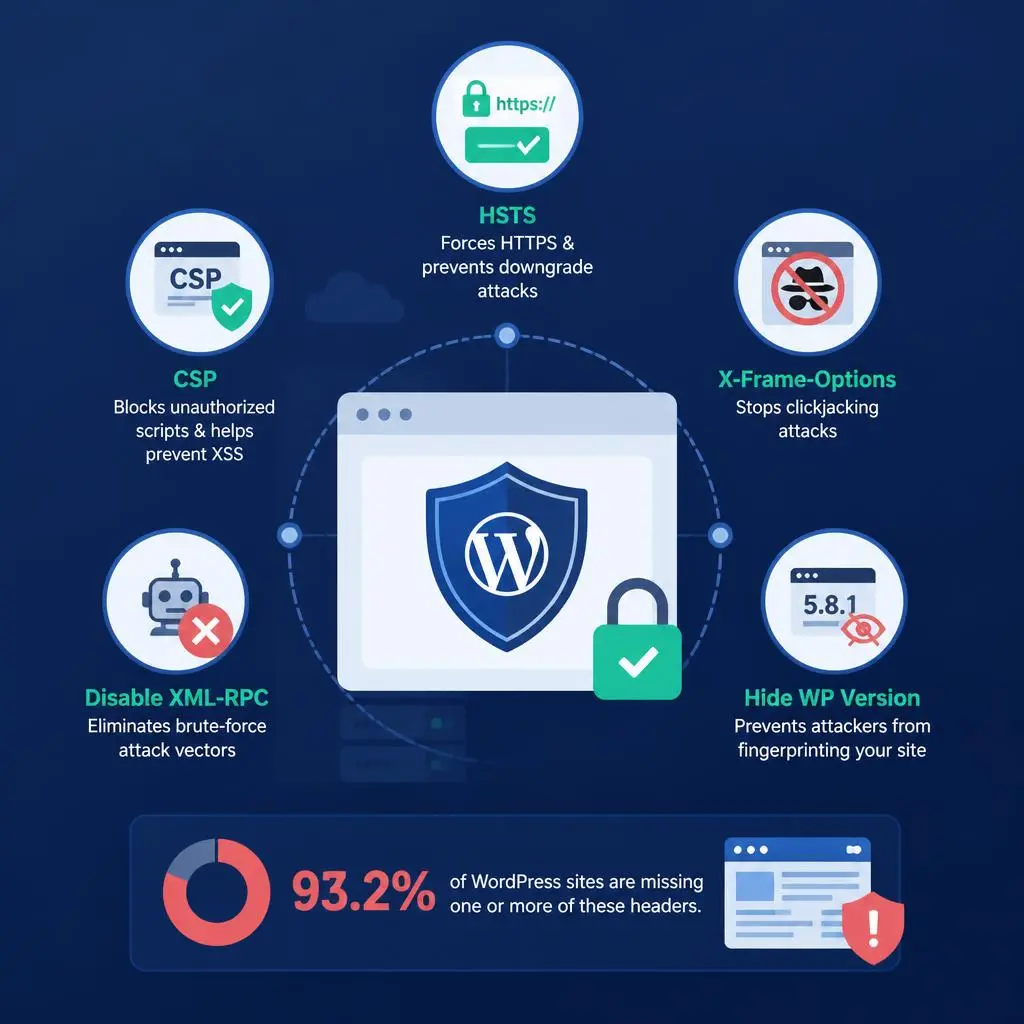
- HSTS forces browsers to only connect via HTTPS, blocking downgrade attacks.
- CSP (Content Security Policy) restricts which domains can execute scripts, directly blocking XSS attacks – which account for over 47% of all WordPress vulnerabilities.
- X-Frame-Options prevents your site from being loaded in a hidden iframe (clickjacking).
- Disable XML-RPC if unused – still enabled on 35.8% of sites and a classic brute-force vector.
- Hide your WordPress version number – 55.9% of sites still leak it, giving attackers a direct fingerprint.
Currently, 93.2% of WordPress sites are missing one or more of these headers. This kind of hardening works best when it’s built in from the start rather than bolted on later – it’s a core part of what separates a genuinely SEO-friendly website design from one that just looks good. If header configuration and server hardening feels too technical to implement yourself, this is precisely what our full-stack security maintenance at RyDesk handles for business sites.
7. Run Continuous Malware Scanning
A critical 2026 shift: attackers increasingly inject code directly into legitimate core, plugin, and theme files rather than dropping obvious foreign files. Traditional “scan and delete” tools that only look for new files can miss this entirely.
- Run automated daily scans, not weekly.
- Use a scanner that checks file integrity against known-good checksums.
- Set real-time alerts for unauthorized admin user creation – a hallmark of 2026-style supply-chain attacks.
If this feels too technical, our team at RyDesk handles full-stack security maintenance for business sites – daily scans, integrity checks, and rapid response if something slips through.
8. Install a Security Plugin + Deploy a WAF

A security plugin and a WAF cover different layers – you need both.
Plugin | Best For | Key Strength |
Wordfence | All-around protection | Built-in WAF + scanner + login security in one |
Sucuri | Post-compromise cleanup | Strong malware remediation support |
SolidWP (iThemes) | Access-control-focused teams | Granular user permissions |
A WAF sits between your site and incoming traffic, filtering malicious requests before they reach WordPress – this matters because hosting-level protection alone blocks only around 26% of attacks. Cloud-based WAFs (Cloudflare, Sucuri) stop DDoS and bot traffic at the edge; plugin-based WAFs (Wordfence) apply WordPress-specific rules. For business-critical sites, layer both.
9. Maintain Tested Backups & Vulnerability Monitoring
A backup you haven’t tested is not a real backup.
- Run automated daily backups, stored off-server.
- Test your restore process quarterly.
- Keep at least 30 days of backup history so you can roll back before an infection took hold.
- Subscribe to a vulnerability intelligence feed rather than checking manually.
- If a patch isn’t available yet, deactivate the affected plugin until one ships.
This matters even more for online stores, where a bad restore can mean lost orders and customer data – our ecommerce website development checklist covers what a secure, backup-ready store setup should include from day one.
10. Secure Hosting & Enable SSL

- Choose managed WordPress hosting with server-level malware scanning and isolated environments.
- Run PHP 8.2 or later – outdated versions no longer receive security patches.
- Install SSL/TLS on every domain and subdomain, including staging.
- Combine SSL with HSTS (Tip 6) so browsers never attempt an insecure connection.
- Monitor certificate expiration – a lapsed SSL certificate is both a security gap and a conversion killer.
Good hosting also pays off in performance, not just security – slow, unoptimized servers and weak security configs tend to go hand in hand. If your store feels sluggish alongside these concerns, our ecommerce website speed optimization guide is a natural next read. Remember: hosting security is necessary but not sufficient alone – pair it with the application-layer controls in Tips 1-9.
Why Managed Security Matters for Startups
For a startup or small business, every one of the ten layers above – patching, plugin vetting, MFA, header hardening, malware scanning – is real work, and it’s work most founding teams simply don’t have a dedicated person for. That’s usually how security gets skipped, not because it isn’t understood, but because there isn’t time to own it alongside everything else running the business.
This is exactly the gap RyDesk’s Best WordPress Maintenance Services for Startups is built to close. Instead of a founder or a single overloaded developer trying to track CVE feeds, test updates, and monitor for intrusions on top of shipping product, the entire technical security burden – core updates, plugin monitoring, malware scans, firewall management, and backups – gets handled proactively in the background. It means the ten tips in this guide stop being a to-do list you have to maintain yourself, and start being something that’s simply already taken care of, so your team can stay focused on growth instead of server logs.
Bonus: What to Do If Your Site Is Already Hacked

If you suspect a compromise, resist the instinct to “clean everything up” immediately – acting too fast can destroy the evidence needed to understand how the breach happened.
- Isolate the site – take it offline or into maintenance mode.
- Preserve logs before making changes.
- Change all credentials – admin, database, hosting, FTP/SFTP.
- Scan for injected code, not just foreign files.
- Restore from a clean, tested backup predating the infection.
- Patch the entry point before bringing the site back online.
If you’re dealing with an active hack right now, reach out to our RyDesk team directly – we’ll run a diagnostic audit and get your site back online safely.
WordPress Security Checklist 2026
# | Task | Frequency |
1 | Update WordPress core, themes, and plugins | Within 24-48 hrs of patch |
2 | Vet new plugin installs and updates | Before every install |
3 | Review user roles and remove inactive accounts | Monthly |
4 | Confirm MFA is enforced for all admin/editor roles | Monthly |
5 | Check login attempt limits and CAPTCHA are active | Quarterly |
6 | Check security headers (HSTS, CSP, X-Frame-Options) | Quarterly |
7 | Run malware/file-integrity scan | Daily |
8 | Review WAF logs for blocked attack patterns | Monthly |
9 | Test backup restore process | Quarterly |
10 | Confirm SSL certificate validity and hosting PHP version | Monthly |
Conclusion
Stopping hackers isn’t about one plugin or a one-time setup – it’s these 10 layers working together continuously, against threats that now move in hours, not weeks. Between rising supply-chain attacks and a 5-hour exploitation window, the margin for delay has essentially disappeared.
If you’d rather have a dedicated team handling this continuously instead of tracking it all yourself, explore homepage to see our full range of web solutions, check out our WebsiteMaintenance Services or contact us directly for a free security audit of your site.
FAQs
1.Is WordPress safe to use in 2026?
Yes – WordPress core remains well-maintained, with only two core vulnerabilities found in all of 2025. Most risk comes from the plugin ecosystem, which is why plugin vetting and update discipline matter more than the platform choice.
2.How often should I update WordPress plugins?
Critical and high-severity patches should be applied within 24-48 hours given the 5-hour median exploitation window. Routine updates can follow a weekly review cycle after staging tests.
3.What is the biggest WordPress security threat in 2026?
Supply-chain attacks on plugins, where attackers compromise a legitimate plugin at the source and push malicious code through normal update channels – as seen in the April 2026 incident affecting 25+ plugins.
4.Do I need both a security plugin and a WAF?
Yes. A security plugin typically handles scanning and login protection at the application layer, while a cloud-based WAF filters malicious traffic before it reaches your server. They cover different layers.
5.Can hosting alone keep my WordPress site secure?
No. Hosting-level protections block only around 26% of vulnerability attacks, since most WordPress-specific exploits target the application layer, which sits outside hosting-level firewalls.