


You run a speed test. Desktop scores a green 90+ on PageSpeed Insights. Mobile? A painful 38 in red. Same website. Same content. Wildly different results.
This is not a glitch. It is one of the most common and misunderstood problems in web performance – and the gap between your mobile and desktop speed tells you something important about how your site was built and who it was actually built for. If you want to avoid these issues from the very start, it is highly recommended to learn how to choose a web designer who understands mobile-first optimization perfectly.
In this guide, we will break down exactly why mobile website speed is slower than desktop, starting with the real technical reasons and ending with practical fixes you can apply right now, no developer degree required. If you want a permanent fix or professional setup, check out our Technical WordPress Optimization Services
The Speed Gap Is Real – And It’s Bigger Than You Think

According to data from Google, mobile browsing has historically been around 1.5x slower than desktop browsing, even as mobile networks have improved over the years. On many real-world websites, the gap is even wider – mobile load times are often two to three times slower than desktop equivalents.
This matters more than ever because Google now uses mobile-first indexing. That means Google ranks your website based on how it performs on mobile, not desktop. A fast desktop site with a slow mobile version will still rank poorly.
So if your desktop score is great and your mobile score is not, you are effectively running a sports car on one road and a broken-down vehicle on another – and Google is only watching the second road.
To tackle this, businesses often implement a complete website speed optimization checklist to clean up performance bottlenecks
Reason 1 – Mobile Devices Have Weaker Hardware

The most fundamental reason mobile sites load slower is that mobile devices are simply less powerful than desktop computers. This is not a controversial opinion – it is physics and engineering.
CPU and RAM Limitations
A typical mid-range laptop has a multi-core processor running at speeds of 2–4 GHz and 8 to 16 GB of RAM. A mid-range Android phone – the kind that represents the majority of real users in most markets – might have a processor running at 1.8 GHz and 3 to 4 GB of RAM, much of which is already being used by the operating system and background apps.
When your website loads, the browser needs to download resources, parse HTML, execute JavaScript, apply CSS, and paint pixels to the screen. On a desktop machine, this pipeline moves fast. On a budget smartphone, each of these steps takes measurably longer. This is why complex platforms require specific ecommerce website speed optimization strategies to keep the user experience seamless.
How JavaScript Suffers Most
JavaScript is the heaviest part of this equation. A JavaScript file that executes in 50 milliseconds on a MacBook Pro can take 300–500 milliseconds on a mid-range Android phone. That is not an exaggeration – Google’s own testing data confirms this. If your site sends 400 KB of JavaScript to mobile users (which is common on e-commerce sites and WordPress blogs with many plugins), you are asking a mobile CPU to do a lot of heavy lifting before the user sees anything useful on screen.
Real-world example: Think of it like this. You ask two people to carry the same 50-pound box up a flight of stairs. A fit adult does it in 20 seconds. An elderly person with a bad knee takes 90 seconds. The box is the same. The staircase is the same. The capability of the carrier is the variable that changes everything.
Reason 2 – Mobile Networks Are Inconsistent
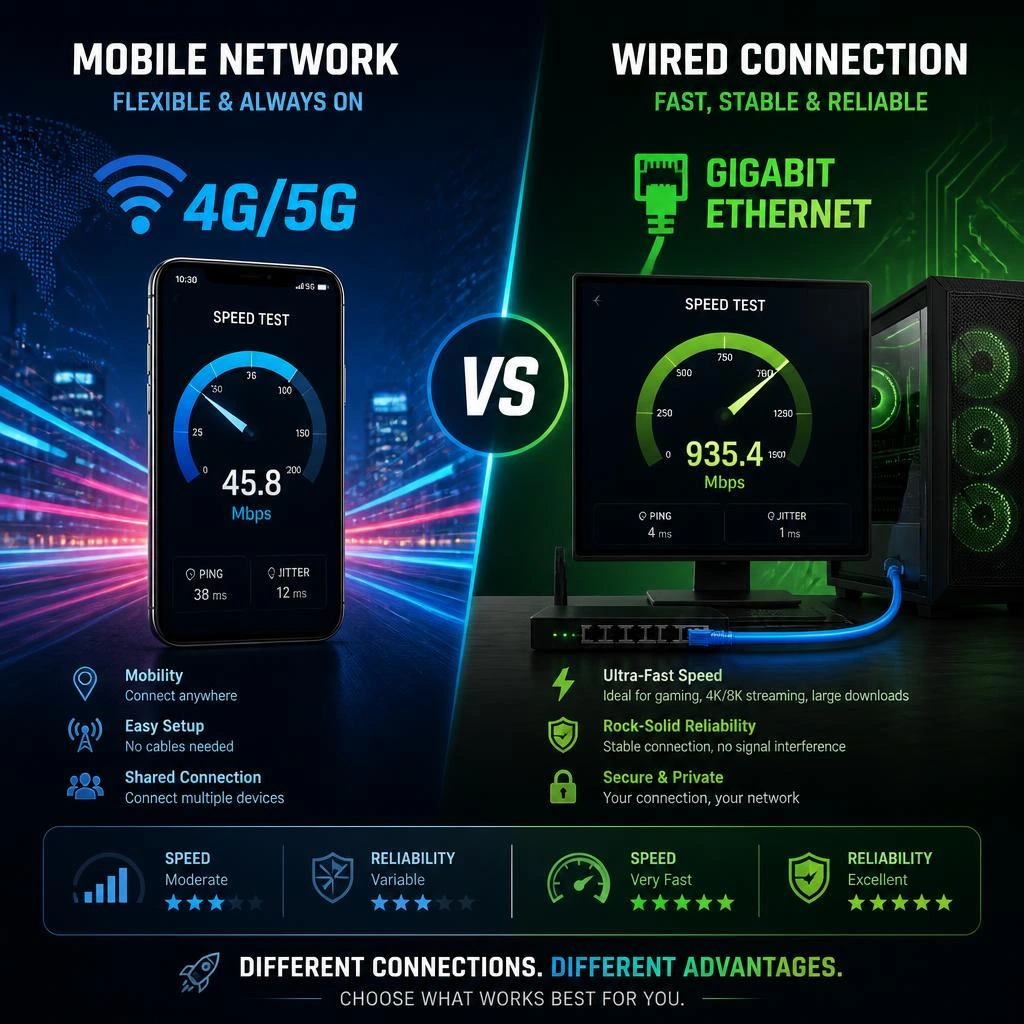
Even if a user has a good smartphone, they are often on a mobile network that varies in quality based on where they are standing, how many people are nearby, and whether a cell tower is overhead or two miles away.
The 3G Simulation Problem in Google PageSpeed
Here is something many site owners do not realize: Google PageSpeed Insights and Lighthouse simulate mobile loading on a throttled 3G connection – even if the person running the test is sitting next to a fiber Wi-Fi router. The desktop test, by contrast, uses a simulated fast connection.
This single difference in testing methodology accounts for a large portion of the score gap you see between mobile and desktop. It is not purely about your site – it is about the conditions Google uses to test it.
Why does Google do this? Because a significant percentage of real mobile users around the world are still on 3G or inconsistent 4G connections. Google optimizes for the worst-case realistic scenario, not the best case.
Wi-Fi vs. Mobile Data: The Reliability Gap
Even with 4G or 5G connections, mobile network performance fluctuates. Signal strength drops when you move between areas, congestion spikes during peak hours, and switching between cell towers introduces brief interruptions. A desktop on a wired Ethernet connection experiences almost none of these issues.
If your website makes 80 separate HTTP requests to load – which is common with unoptimized WordPress sites – each one of those requests has to negotiate a connection on a network that may be slightly unstable. The cumulative delay adds up fast. If you manage a store, following an ecommerce website development checklist can help you minimize these requests from day one.
Reason 3 – Your Images Are Still Built for Desktop

Images are usually the heaviest assets on any webpage, and they are one of the top reasons mobile sites underperform. Most websites serve the exact same images to all devices – a 2400px wide hero image gets delivered to a phone with a 390px screen. The phone downloads the full image, then shrinks it down. That is pure wasted bandwidth.
Serving Desktop-Sized Images to Mobile Users
Imagine ordering a catering-sized tray of food for one person and then only eating a small plate’s worth. The rest is waste. Unoptimized images work the same way on mobile. A hero image that is 1.2 MB on desktop might only need to be 180 KB for a mobile display. If you are not using responsive images or a modern image CDN, your mobile users are downloading 6 to 7 times more image data than they need.
The Fix: Responsive Images and WebP Format
Two changes here make an immediate difference:
First, serve images in WebP format. WebP files are typically 25 to 35 percent smaller than equivalent JPEGs with no visible quality loss. Most modern browsers support it, and WordPress 5.8+ can handle it natively with the right setup.
Second, use the srcset and sizes HTML attributes (or a plugin that does this for you) to serve appropriately sized images based on screen width. A 390px phone screen should get a 400px wide image. A 1440px desktop should get a 1400px image. This single change can shave 1 to 3 seconds off mobile load time on image-heavy pages.
Reason 4 – JavaScript Is Blocking Your Mobile Render

Render-blocking JavaScript is one of the most common speed killers on mobile – and one of the least understood.
What “Render-Blocking” Actually Means
When a browser encounters a <script> tag in the HTML, it stops everything and runs that script before moving on. The page literally cannot display anything to the user until the script finishes executing. On a fast desktop CPU, this might take 30 milliseconds. On a mobile device with limited processing power, the same script might pause the page for 800 milliseconds or more.
Many websites load 10, 15, or even 20 JavaScript files – analytics, chat widgets, A/B testing tools, heatmap scripts, pop-up managers – all of which block rendering. If you feel that managing these code optimization tasks is getting out of hand, it might be time to outsource website design and technical maintenance to professionals who can clean it up for you.
The fix is to add defer or async attributes to non-critical scripts, or to move them to the bottom of the page. Better yet, audit whether you actually need all of them on every page.
Long Tasks and INP (The New Core Web Vital)
In March 2024, Google replaced the old First Input Delay (FID) metric with Interaction to Next Paint (INP). INP measures how responsive your page is to every user interaction – taps, swipes, keyboard input – not just the first one.
On mobile, poor INP is almost always caused by long JavaScript tasks that block the browser’s main thread. If a user taps a menu button and the page does not respond for 600 milliseconds because JavaScript is still processing something in the background, that is a direct INP failure. Google considers anything over 200 milliseconds to be poor.
This is especially damaging on mobile because mobile CPUs process JavaScript tasks more slowly, making long tasks even longer.
Reason 5 – Third-Party Scripts Hit Mobile Hardest
Third-party scripts are code from external providers – Google Analytics, Facebook Pixel, chat tools like Intercom, A/B testing platforms, ad networks – that load alongside your own content. Every one of these scripts adds HTTP requests, additional JavaScript execution, and potential network delays.
On desktop, these scripts often load fast enough that users barely notice. On mobile, where both the network and the CPU are under more strain, the impact compounds. A Facebook Pixel that takes 50 ms on desktop might take 300 ms on a mobile device on a spotty 4G connection. Add five or six of these scripts together, and you have a significant chunk of your load time going to code that does not directly benefit your visitors at all.
The practical approach is to audit your third-party scripts regularly. Tools like Request Map (requestmap.webperf.tools) will visually show you every external request your page makes. If you see scripts from providers you no longer use, remove them. If a script is not critical for the initial page load, load it lazily after the page is interactive.
Reason 6 – Layout Shifts (CLS) Are Worse on Mobile

Cumulative Layout Shift (CLS) is a Core Web Vital that measures how much page elements move around as the page loads. You have experienced this: you go to tap a link, and a banner ad pops in just before your finger lands, so you tap the ad instead.
On mobile, CLS is typically worse than on desktop for a specific reason: narrow viewports respond differently to dynamic content. An ad slot that expands after loading might push only a few pixels of content on a wide desktop screen, but on a 390px phone screen, that same expansion can shove your headline completely out of view.
Common CLS culprits on mobile include images without explicit width and height attributes, dynamically loaded ad slots, web fonts that swap in late (causing text to reflow), and cookie consent banners injected at the top of the page after render has already started.
A CLS score above 0.1 is considered poor by Google. To fix it, always define width and height on images and video embeds, pre-reserve space for ads, and use font-display: swap carefully alongside font preloading.
Reason 7 – Your Hosting and Server Response Time
No amount of front-end optimization can fully compensate for a slow server. Time to First Byte (TTFB) – the time it takes for your server to respond to a request – is the starting gun for everything else. If your server takes 2 seconds to respond, the user will wait at least 2 seconds before anything starts loading, regardless of how optimized your code is. Keeping your site optimized requires consistent monitoring, which is why utilizing a professional website maintenance checklist is essential for long-term speed.
On desktop, a slow TTFB is annoying but tolerable because everything else loads fast. On mobile, a slow TTFB stacks on top of slower network speeds and slower JavaScript execution, compounding into a genuinely bad user experience.
Shared hosting is the most common culprit here. When your website shares server resources with hundreds of other sites, your response time fluctuates based on what everyone else on the server is doing. A VPS or managed hosting plan with proper caching will dramatically improve TTFB.
If you are on WordPress, a caching plugin like WP Rocket or LiteSpeed Cache will generate static HTML files that your server can deliver almost instantly, bypassing the need to query the database for every request. This alone can reduce TTFB from 1.5 seconds to under 200 milliseconds.
How to Test Your Mobile Speed the Right Way

Before fixing anything, you need an accurate picture of where you stand. Here are the tools that actually matter:
Google PageSpeed Insights (pagespeed.web.dev) – Run your URL and look at the mobile tab specifically. Focus on Core Web Vitals: Largest Contentful Paint (LCP), Interaction to Next Paint (INP), and Cumulative Layout Shift (CLS). The field data (real user data) is more important than the lab data if you have enough traffic.
Google Search Console – The Core Web Vitals report in Search Console shows real-world performance data from actual users on your site. This is the number that actually affects your rankings.
WebPageTest (webpagetest.org) – More detailed than PageSpeed. You can choose a specific mobile device (like a real Moto G4, which is Google’s standard throttled mobile test device) and see a waterfall chart of every request your page makes. This is where you spot slow third-party scripts and render-blocking resources.
Chrome DevTools – In desktop Chrome, press F12, go to the Network tab, and enable throttling to “Slow 3G.” Then reload your page. You will see exactly what a mobile user on a poor connection experiences.
One important note:
if you run Lighthouse in a regular browser window, browser extensions will affect your score. Always run it in Incognito mode for accurate results.
The 6 Fastest Fixes You Can Apply Today

You do not need to rebuild your entire website to see meaningful improvement. These six changes deliver the highest return for the effort invested:
- Convert images to WebP and compress them
Use a tool like Squoosh.app to convert existing images, or install a plugin like ShortPixel or Imagify on WordPress to handle this automatically. Target under 100 KB for most images on mobile.
- Enable lazy loading for images and videos
Add loading=”lazy” to any image or iframe that appears below the fold. The browser will skip downloading these assets until the user scrolls toward them, cutting your initial page weight dramatically.
- Defer non-critical JavaScript
Add the defer attribute to script tags that are not needed for the initial page render. If you are on WordPress, WP Rocket or Asset CleanUp can handle this with a few checkbox settings.
- Enable server-side caching
Set up a caching plugin (WordPress) or enable your hosting provider’s built-in caching. This reduces TTFB and lightens the load on your server for every subsequent visitor.
- Self-host Google Fonts
When you load fonts from Google’s servers, the browser has to make an external DNS lookup and connection. Self-hosting eliminates this. The Google Fonts Helper tool (google-webfonts-helper.herokuapp.com) makes it simple to download and self-host any Google Font.
- Audit and remove unused plugins and scripts
In WordPress, every active plugin can add scripts and stylesheets to every page, whether they are needed or not. Disable and delete plugins you are not actively using. For the ones you keep, check whether they are loading scripts site-wide or only on relevant pages.
How to Fix it
To ensure your mobile visitors don’t bounce due to poor loading speeds, you must actively maintain your site’s codebase, update configurations, and optimize assets.
Looking for Professional Speed & Maintenance Support? Explore our comprehensive Website Maintenance Services to keep your site fast, secure, and fully updated.
Ready to Optimize Your Entire Digital Presence? Go back to our Homepage to see our complete web solutions.
Have Questions About Your Mobile Performance? Contact Us today, and our expert team will run a diagnostic audit for your website!
Related Reading:
Apart from server-side optimization, poor mobile rendering can also happen when page builders fail to sync dynamic styles. If your site’s layout breaks or changes on mobile devices after clearing your cache, check out our step-by-step checklist to fix Elementor CSS not updating live to restore your design instantly.
FAQs
Why is my website fast on desktop but slow on mobile?
The most common reasons are that your images are not optimized for smaller screens, your JavaScript takes longer to execute on mobile CPUs, and the Google PageSpeed tool tests mobile on a throttled 3G connection while desktop is tested on a faster simulated connection. Your site is not broken – it just has not been specifically optimized for the conditions mobile users actually face.
Does mobile website speed affect SEO rankings?
Yes, significantly. Google uses mobile-first indexing, which means it evaluates and ranks your website based on its mobile version. Core Web Vitals – LCP, INP, and CLS – are confirmed ranking signals. A slow mobile site can directly suppress your search rankings even if your content is excellent.
What is a good mobile page speed score on PageSpeed Insights?
A score of 90 or above is considered good. 50 to 89 is needs improvement. Below 50 is poor. More importantly than the overall score, focus on your Core Web Vitals: LCP under 2.5 seconds, INP under 200 milliseconds, and CLS under 0.1.
Why does Google PageSpeed show a much lower score for mobile than desktop? PageSpeed Insights simulates mobile testing on a throttled 3G connection and uses a slower virtual device to represent real-world mobile users. Desktop tests use a faster simulated connection. This testing difference accounts for much of the score gap, though a genuinely slow mobile experience will still score poorly even accounting for this.
Can a slow mobile site hurt my conversion rate?
Absolutely. Studies consistently show that every extra second of load time on mobile reduces conversions. A one-second delay in mobile load time can reduce conversions by 20 percent or more. Users are less patient on mobile than on desktop, and they will leave before a slow page finishes loading.
What is the single biggest cause of slow mobile website speed?
For most websites, unoptimized images are the leading cause. Large, uncompressed images served at desktop resolution to mobile users waste bandwidth and delay rendering. Fixing images alone – converting to WebP, compressing properly, and using responsive srcset – often produces the biggest single improvement.
How does JavaScript affect mobile speed differently than desktop?
JavaScript takes longer to download, parse, and execute on mobile devices because they have slower processors and less RAM than desktop computers. A script that runs in 50 ms on a laptop can take 400+ ms on a mid-range smartphone. This is why render-blocking JavaScript is particularly damaging on mobile – it can add multiple seconds of delay before the user sees any content.
What is INP and why does it matter for mobile performance?
INP stands for Interaction to Next Paint, a Core Web Vital Google introduced as a ranking factor in March 2024. It measures how quickly your page responds to all user interactions – taps, swipes, and inputs. On mobile, poor INP is almost always caused by heavy JavaScript tasks blocking the main thread. Google considers anything above 200 milliseconds to be poor, and it matters especially on mobile where everything takes longer to execute.