

Quick Summary: Core Overview of the Topic
Your WooCommerce store placed 47 orders overnight – but not a single customer received a confirmation email. No order receipts. No shipping notifications. No password reset emails. That’s not just a technical glitch – that’s real revenue trust evaporating in real time.
WooCommerce emails fail for several distinct reasons, and most guides only cover one or two of them. This post walks you through all 9 root causes with exact fix steps, so you stop guessing and start resolving.
Problem | Root Cause | Fix Method | Difficulty |
Emails never arrive | PHP mail() blocked by host | Install SMTP plugin + connect external mailer | Easy |
Emails show disabled in WooCommerce | Plugin filter returning false | Add priority-999 filter override or remove plugin | Moderate |
Emails land in spam | Missing SPF/DKIM/DMARC | Add DNS authentication records | Moderate |
Delayed or random emails | WP-Cron not firing reliably | Replace with real server cron job | Moderate |
Why WooCommerce Emails Fail: The Real Picture

WooCommerce does not have its own mail server. It relies on WordPress’s wp_mail() function, which by default uses PHP’s native mail() function. Most shared hosting providers either block this outright or let it through in a way that makes your emails look like spam to Gmail, Outlook, and Yahoo.
On top of that, WooCommerce email status can be silently disabled by third-party plugins using WordPress filters – with zero error messages shown in your dashboard. You can have SMTP configured perfectly and still see no emails going out because a filter somewhere is returning false before the mail function even runs. If your WordPress site is already running into other silent errors, it is worth checking our guide on how to fix WordPress critical error which covers similar background conflicts that are hard to spot.
Understanding this two-layer architecture – WordPress’s mail system plus WooCommerce’s filter system – is the key to diagnosing the issue correctly.
Fix 1: Verify WooCommerce Email Settings Are Actually Enabled

Before touching any plugin or server setting, confirm that WooCommerce’s own email toggles are on. A plugin update or WooCommerce core upgrade can silently reset these.
Steps:
- Go to WooCommerce → Settings → Emails
- You’ll see a list of all email types: New Order, Processing Order, Completed Order, Customer Invoice, Password Reset, New Account, etc.
- Each email shows a tick (enabled) or cross (disabled) icon in the overview column
- Click Manage on any email showing a cross
- Confirm the Enable this email notification checkbox is ticked
- Save changes
Important: There is a known WooCommerce bug where the overview page shows an email as disabled even though the Manage screen shows it as enabled. If you see this contradiction, a plugin or custom code is overriding the filter in the background. Jump to Fix 5 for that scenario.
Fix 2: Send a Test Email to Confirm the Problem
Always reproduce the issue on your own terms before debugging. WooCommerce has a built-in test email tool that many store owners overlook.
Steps:
- Go to WooCommerce → Settings → Emails
- Click Manage on any email, such as Processing Order
- Scroll to the bottom of that email’s settings page
- Enter your personal email address in the Send a test email field
- Click Send test email
- Check your inbox, spam folder, and promotions tab
If the test email arrives – your WooCommerce setup is fine and the problem is likely in your order workflow or a specific trigger. If it does not arrive – you have a confirmed delivery failure and need to proceed with the fixes below. Before diving deeper, it also helps to have a proper ecommerce website development checklist in place so email configuration is verified at the time of launch, not after problems appear.
Fix 3: Install an SMTP Plugin (The Most Common Fix)
PHP’s default mail() function is unreliable on shared hosting. Most major email providers reject mail sent this way because it has no proper authentication. Installing an SMTP plugin replaces PHP mail with an authenticated connection to a real mail server.
Recommended SMTP Plugins:
- WP Mail SMTP (most popular, 3M+ active installs)
- FluentSMTP – free, no feature paywalls
- Easy WP SMTP – lightweight option
Setup Walkthrough: WP Mail SMTP with Gmail
- Install and activate WP Mail SMTP from the WordPress plugin directory
- Go to WP Mail SMTP → Settings
- Set the From Email to a domain-based address like orders@yourstore.com – never use a personal Gmail here
- Set the From Name to your store name
- Under Mailer, select Google / Gmail or your preferred SMTP provider
- Follow the OAuth flow or enter your SMTP credentials
- Use the built-in Test Email tab to confirm delivery
Better Alternative: Dedicated Transactional Email Services
For stores processing more than 50 orders per month, a dedicated transactional email provider is more reliable than routing through personal Gmail. Top free-tier options:
- Brevo (formerly Sendinblue) – 300 emails/day free, excellent deliverability
- Mailgun – 1,000 emails/month free, developer-friendly
- SendGrid – 100 emails/day free, integrates with WP Mail SMTP
Real-world example: A WooCommerce store on Hostinger moved from PHP mail to Brevo SMTP and saw their email delivery rate go from around 40% to 99.2% within 24 hours – a change that took under 15 minutes to configure. Choosing the right platform for your store from the beginning also matters – see our breakdown of the best ecommerce platform for startups to avoid infrastructure problems down the line.
Fix 4: Add SPF, DKIM, and DMARC DNS Records
Even with SMTP configured, your emails may land in spam or get silently rejected if your domain lacks proper authentication records. These three DNS records tell receiving mail servers that your domain is authorized to send email.
What Each Record Does:
- SPF (Sender Policy Framework): Lists which mail servers are allowed to send email on behalf of your domain
- DKIM (DomainKeys Identified Mail): Adds a cryptographic signature proving emails have not been tampered with in transit
- DMARC: Tells receiving servers what to do when SPF or DKIM fails, and sends you reports about unauthorized use of your domain
How to Add Them:
- Log into your domain registrar (GoDaddy, Namecheap, Cloudflare, etc.)
- Go to DNS Management
- Add the exact records your email provider gives you – every SMTP provider (Brevo, Mailgun, SendGrid, Google Workspace) provides the values in their dashboard
Example SPF Record for Brevo:
Type: TXT | Host: @ | Value: v=spf1 include:spf.sendinblue.com ~all
Example DMARC Record (Basic):
Type: TXT | Host: _dmarc | Value: v=DMARC1; p=none; rua=mailto:admin@yourstore.com
After adding records, verify them at MXToolbox (mxtoolbox.com). DNS changes take 15 minutes to 48 hours to propagate globally. Proper DNS setup is also a key part of overall ecommerce website speed optimization – a well-configured domain improves both deliverability and site performance at the same time.
Fix 5: Find and Remove Plugin Filter Conflicts
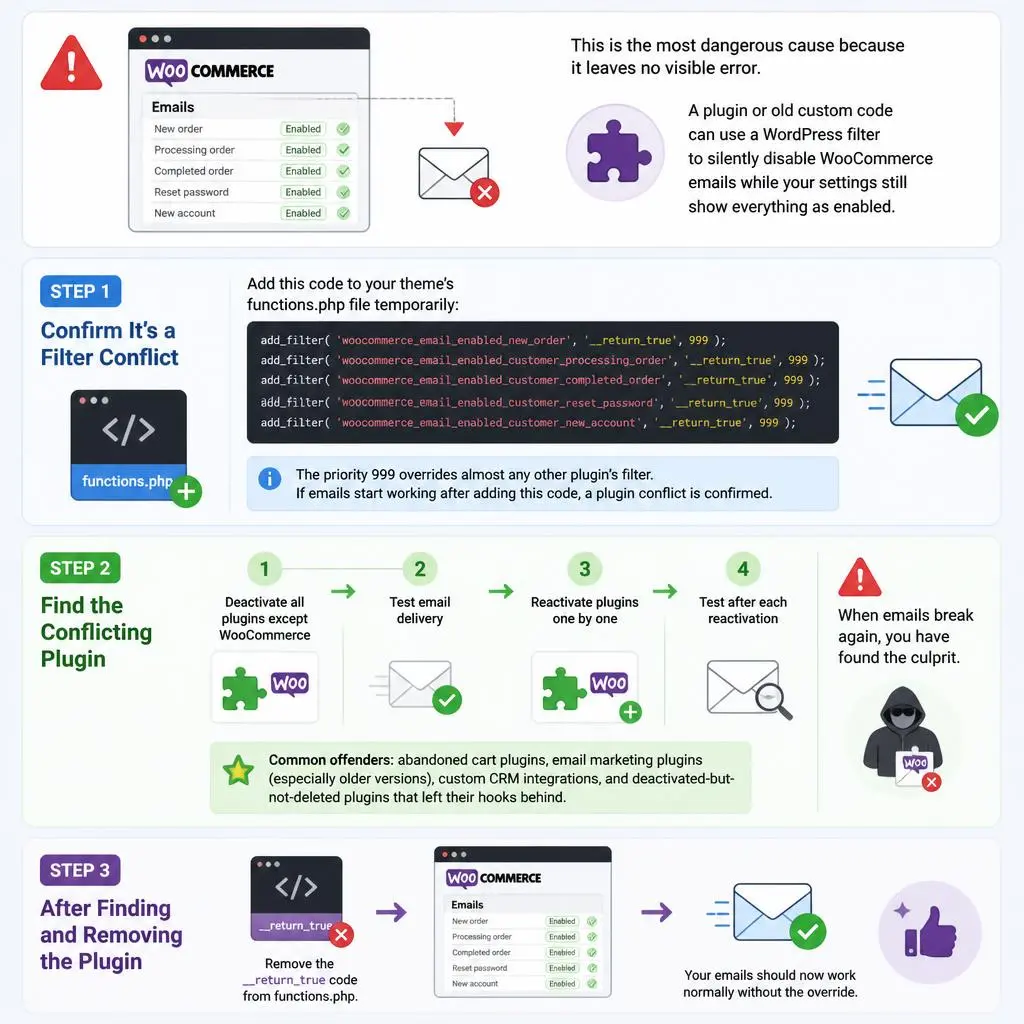
This is the most dangerous cause because it leaves no visible error. A plugin or old custom code can use a WordPress filter to silently disable WooCommerce emails while your settings still show everything as enabled.
How It Happens:
WooCommerce uses filters like woocommerce_email_enabled_new_order to decide whether to send each email. Any plugin can hook into this filter and return false, which disables the email entirely – regardless of what your WooCommerce settings say.
Step 1 – Confirm It’s a Filter Conflict:
Add this code to your theme’s functions.php file temporarily:
add_filter( ‘woocommerce_email_enabled_new_order’, ‘__return_true’, 999 ); add_filter( ‘woocommerce_email_enabled_customer_processing_order’, ‘__return_true’, 999 ); add_filter( ‘woocommerce_email_enabled_customer_completed_order’, ‘__return_true’, 999 ); add_filter( ‘woocommerce_email_enabled_customer_reset_password’, ‘__return_true’, 999 ); add_filter( ‘woocommerce_email_enabled_customer_new_account’, ‘__return_true’, 999 );
The priority 999 overrides almost any other plugin’s filter. If emails start working after adding this code, a plugin conflict is confirmed. This same plugin conflict pattern also causes layout issues – if you have ever dealt with a broken page builder after an update, our guide on Elementor layout broken after update explains exactly how these conflicts work and how to isolate them.
Step 2 – Find the Conflicting Plugin:
- Deactivate all plugins except WooCommerce
- Test email delivery
- Reactivate plugins one by one
- Test after each reactivation
- When emails break again, you have found the culprit
Common offenders: abandoned cart plugins, email marketing plugins (especially older versions), custom CRM integrations, and deactivated-but-not-deleted plugins that left their hooks behind.
Step 3 – After Finding and Removing the Plugin:
Remove the __return_true code from functions.php. Your emails should now work normally without the override.
Fix 6: Fix a Broken WP-Cron Configuration

WooCommerce relies on WP-Cron for scheduling certain email-related background tasks. WP-Cron is not a real cron job – it only fires when someone visits your website. On low-traffic stores, this means scheduled emails can be delayed by hours or never sent at all.
Signs This Is Your Problem:
- Emails send occasionally but not consistently
- Delays of 30 minutes to several hours between order placement and confirmation email
- Email delivery improves right after someone visits the site
Fix – Replace WP-Cron with a Real Server Cron:
- Add this line to your wp-config.php file to disable the built-in WP-Cron:
define(‘DISABLE_WP_CRON’, true);
- Set up a real cron job on your server. In cPanel, go to Cron Jobs and add:
*/5 * * * * wget -q -O – https://yourstore.com/wp-cron.php?doing_wp_cron > /dev/null 2>&1
This fires every 5 minutes regardless of traffic, which is far more reliable than WP-Cron’s visitor-triggered system.
- On managed WordPress hosts like Kinsta, WP Engine, or Flywheel, real cron is often already configured – check your hosting dashboard under Cron Jobs or ask support to confirm.
Fix 7: Check Hosting Provider Email Restrictions
Some hosting providers – particularly budget shared hosting – block outgoing port 25 (standard SMTP) entirely, or throttle the number of emails your account can send per hour.
How to Check:
- Contact your hosting support and ask: “Is outgoing port 25 blocked on my account? Is there a limit on outbound emails per hour?”
- If port 25 is blocked, use port 587 (STARTTLS) or port 465 (SSL) in your SMTP plugin settings instead
- If there is a sending limit, upgrade your plan or move email sending to a dedicated transactional service
Hosting Providers Known to Restrict PHP Mail:
- GoDaddy (shared hosting) – blocks port 25, requires SMTP
- Bluehost – throttles PHP mail on entry-level plans
- Most budget shared hosting providers – restrict outbound port 25 by default
Moving to SMTP (Fix 3) typically resolves hosting restrictions because transactional email services use port 587, which is rarely blocked. Hosting restrictions also tend to slow down your store – if you are seeing performance issues alongside email problems, our website speed optimization checklist covers the server-side fixes that help both issues at once.
Fix 8: Resolve Caching and Security Plugin Interference

Security plugins and caching plugins are the second most common silent killers of WooCommerce emails. They can intercept WordPress hooks, block outgoing HTTP requests used by SMTP plugins, or prevent WooCommerce from triggering email actions properly.
Caching Plugin Issues:
If you are using WP Rocket, W3 Total Cache, or LiteSpeed Cache, make sure WooCommerce pages are excluded from caching. A cached checkout page can prevent the order hook from firing, which means no email gets triggered.
In WP Rocket: Go to Settings → Advanced Rules → Never Cache URLs and add /checkout/, /my-account/, /cart/
Security Plugin Issues:
Wordfence and iThemes Security (now Solid Security) can block outgoing HTTP requests that SMTP plugins use to connect to external mail servers.
In Wordfence: Go to Firewall → All Firewall Options and check if any rules are blocking outgoing connections. Whitelist your SMTP provider’s IP range if needed.
Testing approach: Temporarily deactivate your caching and security plugins, then send a test email. If it works, adjust settings rather than keeping the plugins off permanently.
Fix 9: Fix the From Email Address Mismatch
If the From email in WooCommerce does not match your hosting account’s email domain, many servers will reject the email outright or mark it as spam.
Common Mistake:
WooCommerce’s default From Email is often set to wordpress@yoursite.com – an address that does not exist and has no SPF or DKIM records. Gmail and Outlook reject this almost every time.
How to Fix:
- Go to WooCommerce → Settings → Emails
- At the top of the page, find Email Sender Options
- Change From Email to a real, domain-based address: orders@yourstore.com or noreply@yourstore.com
- Make sure this email address matches the domain you have set up SPF and DKIM for
- Save changes and send a test email
Also check your SMTP plugin’s From Email setting – it must match the WooCommerce From Email exactly. A mismatch between these two settings causes some SMTP providers to reject the email silently. If your store also handles payments, make sure your payment gateway integration is using the same verified domain email so transaction receipts come from a consistent, trusted sender address.
How to Prevent WooCommerce Email Failures Long-Term
Use an email logging plugin. WP Mail Log or WP Mail SMTP’s built-in log shows every email WordPress attempts to send, whether it succeeded, and any error message. This turns invisible failures into visible, actionable data.
Test after every major plugin update. Plugin updates frequently change filter hooks and can re-introduce email conflicts. A 30-second test email after updating any email-related plugin saves hours of debugging later.
Use a domain email, always. orders@yourdomain.com gets delivered. yourstorename@gmail.com as the WooCommerce From Email gets flagged or rejected. This is non-negotiable.
Monitor deliverability. Tools like Postmark or SparkPost offer delivery reports showing open rates, bounce rates, and spam complaints – data that makes future problems visible before customers start complaining. Keeping your entire store in good health requires regular attention – our website maintenance checklist is a good resource to bookmark for monthly store health checks.
WooCommerce Email Diagnosis Checklist
Use this before spending hours debugging:
- WooCommerce email notifications are enabled in Settings → Emails
- Test email sent and received successfully
- SMTP plugin installed and configured with a transactional email service
- From Email is a domain-based address (not Gmail, Yahoo, or Outlook)
- SPF, DKIM, and DMARC DNS records are present and verified
- No plugin is hooking into woocommerce_email_enabled_* filters and returning false
- WP-Cron is firing reliably or replaced with a real server cron
- Hosting provider is not blocking outgoing port 25
- Caching plugins are not caching WooCommerce pages
- Email log plugin is installed for ongoing monitoring
Conclusion
WooCommerce email failures look complicated on the surface but almost always come down to one of these nine causes – a misconfigured SMTP setup, a plugin silently overriding filters, missing DNS records, or an unreliable WP-Cron setup. Work through the diagnosis checklist from top to bottom and you will find the issue without wasting hours guessing.
If your store needs professional help with WooCommerce setup, email configuration, or any other technical issue, RyDesk is here to help. We build and maintain WordPress and WooCommerce stores that actually work. Check out our Website Maintenance Services or Contact Us directly – we would love to help you fix this and build something solid.
FAQ
Q1: Why are my WooCommerce emails enabled but not sending?
A plugin or custom code is using a WordPress filter to disable emails silently. WooCommerce settings can show emails as enabled while a background filter returns false. Add a priority-999 return true filter to confirm, then find and remove the conflicting plugin.
Q2: Does WooCommerce have a built-in SMTP option?
No. WooCommerce uses WordPress’s wp_mail() function which defaults to PHP’s unreliable mail(). You need a separate SMTP plugin like WP Mail SMTP or FluentSMTP connected to a dedicated mail service.
Q3: Which SMTP service is best for WooCommerce in 2026?
Brevo and Mailgun are the top choices for small-to-medium WooCommerce stores. Both offer free tiers, excellent deliverability, and easy integration with WP Mail SMTP or FluentSMTP.
Q4: Why do WooCommerce emails go to spam?
Missing SPF, DKIM, or DMARC records are the main cause. Also ensure your From Email is domain-based, not a free Gmail or Yahoo address. Verify your DNS records using MXToolbox after adding them.
Q5: What is WP-Cron and how does it affect WooCommerce emails?
WP-Cron handles WordPress scheduled tasks including email triggers. It only fires when someone visits your site, so on low-traffic stores, emails can be significantly delayed. Replacing it with a real server cron job fixes this.
Q6: How do I check if a plugin is blocking WooCommerce emails?
Deactivate all plugins except WooCommerce, test email delivery, then reactivate one by one. Alternatively, add return true filters at priority 999 – if emails start working, a filter conflict is confirmed.
Q7: Why does WooCommerce show email as disabled in overview but enabled in settings?
A plugin or theme is hooking into WooCommerce’s email-enabled filters and returning false. The settings UI shows what you configured; the overview reflects what filters actually return at runtime – these can contradict each other.
Q8: Do I need to configure emails separately for every WooCommerce email type?
Yes. Each email type has its own enable/disable toggle and can be independently affected by plugin conflicts. Always check each email type individually when diagnosing WooCommerce email failures.