

Quick Answer :
If your website is down and showing the “The site is experiencing technical difficulties” or critical error message, here is how to get it back online in less than 2 minutes without breaking anything:
Check Your Admin Email: WordPress automatically sends a security email to your admin address. This email contains the exact plugin or theme causing the crash, along with a secure “Recovery Mode Link”.
Use the Recovery Link: Click that link, log into your temporary dashboard, and simply Deactivate the broken plugin or theme. Your live website will instantly start working again!
No Email? Isolate via File Manager: If you didn’t receive the email, log into your Hosting cPanel > File Manager. Navigate to
/wp-content/and rename thepluginsfolder toplugins_old. This forces your site back online.
If these quick steps don’t solve your specific issue, don’t worry. Keep scrolling down to follow our 7 Detailed Step-by-Step Methods below to diagnose and fix the root cause permanentally.
You open your website and see a blank screen with a cold line of text: “There has been a critical error on this website.”
Your site is down, traffic is dropping, and you are locked out. But don’t panic. This isn’t a sign of lost data or a permanently broken server-it is simply a safety valve. When a plugin or theme script hits a major roadblock, WordPress halts execution to protect your database from corruption.
In 2026, with the growth of dynamic block architectures, page builders, and automated API scripts, server resource collisions are more common than ever.
Fortunately, fixing a critical error is incredibly straightforward. Whether you have your dashboard access token or are completely locked out of your server, this step-by-step developer framework will help you isolate the broken script, increase your system limits, and restore your site in under 15 minutes . If you want a permanent fix or professional setup, check out our Technical WordPress Optimization Services .
What Does “There Has Been a Critical Error on This Website” Mean?

When WordPress displays this message, it means a fatal PHP error has stopped your site from loading entirely.
Unlike minor WordPress notices or warnings that appear in the admin but don’t break anything, a fatal error halts PHP execution mid-process. The server can’t finish building the page, so it serves an error message instead.
WordPress introduced this friendlier message in version 5.2 to replace the dreaded “White Screen of Death” – a blank white page with no explanation. Both errors stem from the same root cause: PHP crashing before WordPress can finish loading.
When it happens, WordPress does two things automatically:
- Visitors see: “There has been a critical error on this website.”
- You receive: An admin email with a special debug/recovery link (?wp_error_nonce=…) that lets you enter WP Admin even while the site is broken.
That recovery email is your fastest path to a fix. Always check it first.
First 60 Seconds – What to Do Right Now
Before you touch any files or settings, do these three things immediately:
- Open your admin email inbox. Look for a message from WordPress with the subject line “Your Site is Experiencing a Technical Difficulty.” It contains a recovery link. Click it – it gives you limited WP Admin access to identify the problem.
- Check the exact error message. If you can see a more detailed error (either in the recovery email or by temporarily enabling debug mode), note it down. The file name and line number in the error message cuts your diagnosis time by 80%.
- Don’t panic-click “Update All.” If your site broke right after an update, running more updates will not help. Stop and diagnose first.
What Causes a WordPress Critical Error?

Plugin conflicts are responsible for roughly 65% of WordPress critical errors, but there are six other common causes worth knowing. Understanding the full list helps you fix the current problem faster – and prevent the next one.
Plugin Conflicts
The most common trigger by far. A conflict happens when two plugins use the same function names, override each other’s hooks, or try to load incompatible versions of the same library. This almost always surfaces immediately after installing or updating a plugin.
The WordPress ecosystem is growing fast in both size and risk. In 2025 alone, over 11,000 new plugin vulnerabilities were recorded – a 42% year-over-year increase – with the vast majority found in third-party plugins. Caching plugins, security suites, and page builders like Elementor and Divi are frequent culprits because they hook deeply into WordPress’s core request lifecycle.
If you notice your styling completely breaks or layout sections vanish right after a builder update, check our technical guide on how to fix Elementor custom fonts missing step-by-step to debug layout rendering errors.
Real-world example: You update WooCommerce from version 8.x to 9.x. A payment gateway plugin you’ve been using for two years was built against the old WooCommerce hooks and now throws a fatal error on every checkout page.
PHP Memory Exhaustion
WordPress sets a default PHP memory limit of 40MB for standard installations and 64MB for multisite. Resource-heavy plugins can blow past this ceiling during peak traffic. When PHP runs out of memory mid-execution, it terminates the script and throws a fatal error.
The error message in your debug log will look exactly like:
Fatal error: Allowed memory size of 134217728 bytes exhausted (tried to allocate 4096 bytes)
The fix is straightforward: increase the memory limit to 256MB (covered in Method 4 below).
Outdated or Incompatible PHP Version
Running PHP 7.4 or below significantly increases your critical error risk. Most actively maintained plugins have dropped support for older PHP branches because modern PHP uses syntax that older interpreters simply can’t parse. When a plugin calls a function that doesn’t exist in your PHP version, it throws a fatal error.
As of 2026, WordPress officially recommends PHP 8.1 or higher. If you’re below that threshold, a one-click PHP version upgrade in your hosting control panel can resolve an entire class of errors in minutes.
Theme Conflicts
A poorly coded or outdated theme can clash with your active plugins or with WordPress core. This typically surfaces when you activate a new theme or after a major theme update. The error pattern here is similar to a plugin conflict – PHP finds incompatible code and terminates.
Switching to a default WordPress theme (Twenty Twenty-Four or Twenty Twenty-Five) is the fastest way to rule out your theme as the source. Sometimes, a critical layout failure isn’t a server crash but a styling glitch caused by page builders. If your site structure looks broken after an update, follow our guide on how to fix Elementor CSS not updating to restore your styles instantly.
Corrupted WordPress Core Files
Core WordPress files can become corrupted through failed updates, incomplete FTP uploads, or – in more serious cases – malware injection. When a core file is missing or altered, WordPress can’t bootstrap itself and throws a critical error before the admin panel ever loads. The fix is a clean core reinstall (Method 6).
Database Connection Problems
A misconfigured wp-config.php file, a changed database password at the hosting level, or a crashed MySQL table can all prevent WordPress from reaching its database. When this happens, every page on your site returns a critical error regardless of which plugin or theme is active. A corrupted database loop can cause systemic faults during API handshakes or secure payment checkouts. For specialized e-commerce web systems experiencing server drops during live operations, follow our engineering blueprint on Payment Gateway Integration Guide to isolate the communication breakdown.
Signs this is the cause: the error appears on every page without exception, and the WP Admin login page also fails to load.
Bad Code in functions.php
Adding custom code directly to your theme’s functions.php is one of the most common self-inflicted causes of this error. A single unclosed bracket, a missing semicolon, or an undefined function call is enough to take down the entire site and lock you out of WP Admin.
If this is the cause, the debug log will point directly to functions.php with a specific line number.
Cause vs. Symptom Quick Reference Table
Cause | When It Typically Appears | Key Symptom |
Plugin conflict | Right after installing/updating a plugin | Error appears on front end and WP Admin |
PHP memory exhaustion | During high traffic or after adding heavy plugins | Error message mentions “memory size exhausted” |
Outdated PHP version | After updating a plugin or theme | Debug log shows “Call to undefined function” |
Theme conflict | After activating or updating a theme | Error disappears when switching to default theme |
Corrupted core files | After a failed update or malware attack | Error appears even with all plugins/themes disabled |
Database connection issue | After migrating or changing hosting credentials | “Error establishing database connection” message |
Bad functions.php code | Right after adding a custom code snippet | Debug log points directly to functions.php |
How to Fix WordPress Critical Error – 7 Methods (Step-by-Step)
Work through these methods in order. Most sites are restored by Method 1 or 2.
Method 1 – Use the WordPress Recovery Email Link (Easiest)

Difficulty: Beginner | Time: 2–5 minutes | Requires FTP: No
WordPress emails your site admin the moment a critical error fires. Open that email and look for the recovery link. Clicking it opens WP Admin in a restricted “safe mode” where WordPress has already identified the problematic plugin or theme.
From there:
- Click “Deactivate” next to the flagged plugin or theme.
- Close the safe mode session.
- Reload your site.
That’s it. If the site loads, you’ve found your culprit. Contact the plugin developer, check for an update, or roll back to an earlier version.
Important: The recovery link expires after a short period. If it no longer works, move to Method 2.
Method 2 – Disable All Plugins via FTP or File Manager

Difficulty: Beginner–Intermediate | Time: 10–15 minutes | Requires FTP: Yes (or File Manager)
This is the most reliable fix for plugin-related critical errors.
Step 1: Connect to your server via FTP using FileZilla (free) or log into your hosting account and open the built-in File Manager.
Step 2: Navigate to wp-content/plugins/.
Step 3: Rename the entire plugins folder to plugins_disabled. This deactivates all plugins at the server level without deleting anything.
Step 4: Reload your website. If it comes back, a plugin was definitely the cause.
Step 5: Rename the folder back to plugins.
Step 6: Go to WP Admin → Plugins and reactivate your plugins one at a time, reloading your site after each activation.
Step 7: The last plugin you activated before the error returned is your culprit. Leave it deactivated and either contact the developer or look for an updated version.
Pro tip: Start reactivating with the plugins you didn’t recently update. The conflict is almost always in a recently changed plugin.
Method 3 – Switch to a Default WordPress Theme
Difficulty: Beginner–Intermediate | Time: 5–10 minutes | Requires FTP: Yes (or File Manager)
If disabling plugins doesn’t fix it, the theme is your next suspect.
Step 1: Via FTP or File Manager, navigate to wp-content/themes/.
Step 2: Rename your active theme’s folder (e.g., rename divi to divi_backup).
Step 3: WordPress will automatically fall back to a default theme such as Twenty Twenty-Four.
Step 4: Reload your site.
If the site loads correctly with the default theme, your original theme contains a PHP error or conflict. Options: contact the theme developer, revert to an older theme version, or switch themes permanently.
Method 4 – Increase the PHP Memory Limit
Difficulty: Beginner | Time: 3–5 minutes | Requires FTP: Yes
If your debug log shows a memory exhaustion error, increasing the PHP memory limit is the fix.
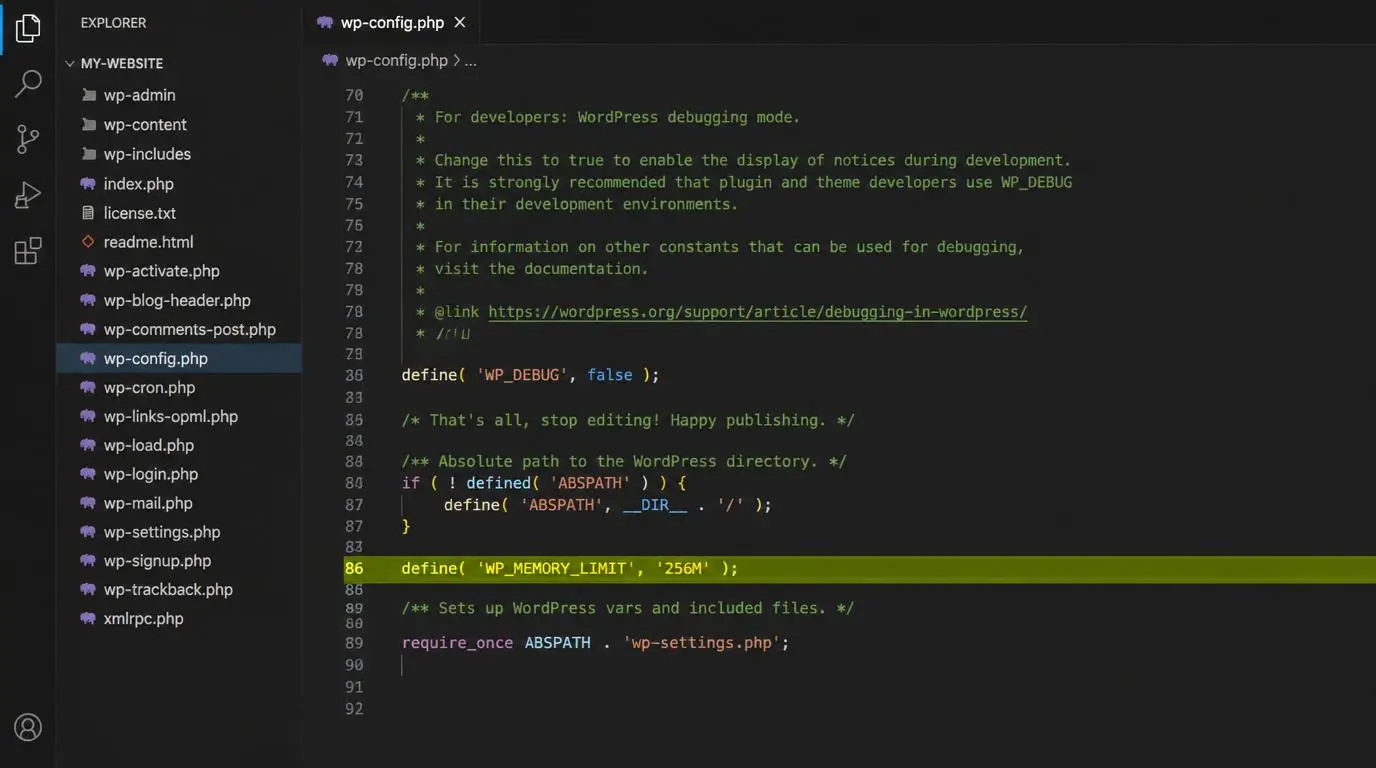
Option A – Edit wp-config.php:
Add this line above the /* That’s all, stop editing! */ comment:
php
define( ‘WP_MEMORY_LIMIT’, ‘256M’ );
Option B – Edit .htaccess:
Add this line to your .htaccess file in the root directory:
php_value memory_limit 256M
Option C – Edit php.ini:
If your host gives you direct access to php.ini:
memory_limit = 256M
Option D – Use your hosting control panel. Most managed WordPress hosts (Kinsta, WP Engine, SiteGround, Cloudways) allow you to adjust the PHP memory limit with a single click from the dashboard – no file editing required.
Recommended baseline: Set your PHP memory limit to 256MB proactively, even before you see this error. It eliminates an entire class of crashes before they happen.
Method 5 – Enable WP_DEBUG to Find the Exact Error

Difficulty: Intermediate | Time: 5–10 minutes | Requires FTP: Yes
When the cause isn’t immediately obvious, WordPress debug mode reveals the exact file and line number throwing the error. This is the most useful diagnostic tool available.
Step 1: Open wp-config.php via FTP.
Step 2: Add these three lines (or update existing ones):
php
define( ‘WP_DEBUG’, true );
define( ‘WP_DEBUG_LOG’, true );
define( ‘WP_DEBUG_DISPLAY’, false );
Setting WP_DEBUG_DISPLAY to false is critical – it writes errors to a private log file instead of displaying them to your site visitors.
Step 3: Reload your site once to trigger the error.
Step 4: Navigate to wp-content/debug.log via FTP. Open the file and look for the Fatal error line. It will show you exactly which plugin file, theme file, or core function is the cause.
Step 5: Once you’ve identified and fixed the issue, set WP_DEBUG back to false immediately. Leaving debug mode enabled in production is a security risk.
Method 6 – Fix a Corrupt WordPress Core (Fresh Reinstall)
Difficulty: Intermediate | Time: 10–15 minutes | Requires FTP: Yes
If Methods 1–5 don’t resolve the issue and your debug log points to a WordPress core file (something inside wp-includes/ or wp-admin/), a corrupted core installation is likely.
A fresh core reinstall replaces the WordPress core files without touching your content, plugins, themes, or wp-config.php.
Step 1: Download the latest version of WordPress from wordpress.org.
Step 2: Unzip the downloaded file on your computer.
Step 3: Delete the wp-content folder from the unzipped package – you do not want to overwrite your plugins, themes, and uploads.
Step 4: Via FTP, upload the remaining files (everything except wp-content) to your server root, overwriting existing files when prompted.
Step 5: Reload your site.
Your content, plugins, and themes are completely untouched. Only the core files have been refreshed.
Method 7 – Restore from a Clean Backup
Difficulty: Beginner (with a managed host) | Time: 5–30 minutes | Requires FTP: No (usually)
If none of the above methods work, or if your site was actively hacked, restoring from a verified clean backup is the safest path forward.
Most managed WordPress hosts offer one-click restore from daily automated backups:
- WP Engine: Sites → Backup Points → Restore
- Kinsta: Sites → Backups → Restore to this backup
- SiteGround: Security → Backups → Restore
Reverting to a previously validated host server snapshot is the absolute safest mitigation protocol when data nodes fail. To convert your backup schedules from a manual panic fix into a structured automated routine, reference our actionable Website Maintenance Checklist.
If you’re on shared hosting without automated backups, tools like UpdraftPlus, BlogVault, or Jetpack Backup provide the same capability if you had them installed before the error occurred.
After restoring, do not immediately re-apply the updates that caused the error. Test them on a staging site first (covered in the prevention section below).
No backup? This is the most painful version of this lesson. Set up automated daily backups today – before you ever need them again.
Bonus: Fix WordPress Critical Error via WP-CLI (For Developers)
If you have SSH access to your server, WP-CLI is the fastest way to diagnose and fix a critical error – no FTP client needed.
Deactivate all plugins at once:
bash
wp plugin deactivate –all
Reactivate plugins one by one:
bash
wp plugin activate plugin-folder-name
Check the error log directly:
bash
wp eval ‘error_log(“Test”);’ && tail -f /path/to/wp-content/debug.log
Update PHP memory limit:
bash
wp config set WP_MEMORY_LIMIT 256M
Reinstall WordPress core files:
bash
wp core download –skip-content –force
WP-CLI is especially useful when FTP access is slow or unavailable, and it’s significantly faster for experienced developers working across multiple sites.
How to Prevent WordPress Critical Errors in the Future

Fixing a critical error once is painful. Preventing it costs almost nothing. Here are the five habits that eliminate the majority of recurring WordPress critical errors.
- Always test updates on a staging site first.
This is the single highest-impact change you can make. Most reputable WordPress hosts (Kinsta, WP Engine, Flywheel, SiteGround) offer a one-click staging environment. Apply plugin, theme, and core updates to staging, verify everything works, then push to production. This catches breaking changes before they ever affect real visitors.
Given that nearly half of disclosed WordPress plugin vulnerabilities had no patch available at the time of disclosure in 2025, a staging-first workflow also gives you time to evaluate whether an update is safe before applying it.
- Keep PHP at version 8.1 or higher.
Check your hosting control panel and confirm your PHP version. Most hosts upgrade it in a single click. Test on staging after any PHP version change – an older plugin may break – but staying on a supported PHP version eliminates a broad category of fatal errors.
- Set PHP memory to 256MB proactively.
Add define( ‘WP_MEMORY_LIMIT’, ‘256M’ ); to your wp-config.php now, before memory exhaustion ever forces your hand. It’s a one-line change that prevents an entire class of crashes.
- Audit your plugin list every quarter.
Remove plugins you no longer use. Every inactive-but-installed plugin is still a potential attack surface. With dozens of new plugin vulnerabilities disclosed every single day, unused plugins sitting in your installation are a liability that provides zero value.
- Run automated daily backups and set up uptime monitoring.
Set up automated daily backups through your host or a plugin like UpdraftPlus. Then add a free uptime monitor like UptimeRobot – it pings your site every 60 seconds and notifies you the moment something goes down. Finding out within a minute beats learning from a customer complaint hours later.
Server architecture overhead affects both application stability and frontend rendering efficiency. Resource bottlenecks don’t just crash platforms—they heavily throttle edge delivery. Discover why is mobile website speed slower than desktop to calibrate your caching arrays. Alternatively, shifting your operational dependencies to tailored, proactive Website Maintenance Services offloads the risk completely.
When Should You Call a WordPress Developer?
You don’t need a developer for the scenarios above – all seven methods can be completed without professional help. But there are situations where calling in an expert saves time and prevents secondary damage:
- The debug log points to custom code (a theme or plugin you or a previous developer wrote) that you can’t interpret or modify safely.
- Your site was actively hacked, and you’re unsure whether any of your backups are clean.
- You’ve worked through all seven methods above and the error persists or returns after a fix.
- The critical error is intermittent – it appears and disappears randomly – making it difficult to reproduce and diagnose consistently.
- The error is affecting a WooCommerce store and every minute of downtime has a direct revenue cost.
For straightforward plugin conflicts and memory issues, the methods in this guide are more than sufficient. For malware, database-level corruption, or complex custom code conflicts, a developer will resolve it faster and more safely.
Conclusion
The WordPress critical error looks alarming, but it’s almost always recoverable – without data loss, without a developer, and usually within 30 minutes. Start with the admin recovery email, move to plugin deactivation via FTP if needed, and work through the seven methods in order.
More importantly, use this moment as a reminder to put preventive systems in place. Staging environments, automated daily backups, proactive PHP memory settings, and a 256MB memory limit aren’t optional extras in 2026 – they’re the baseline for running a stable WordPress site. Set them up today and you’ll be significantly less likely to be back on this page next month.
If you found this guide helpful, bookmark it. The next time a teammate or client hits this error, you’ll have the exact fix ready. If you want to keep your digital platform running smoothly without tracking technical logs yourself, our dedicated engineering team at RyDesk is here to manage your infrastructure. Explore our proactive Website Maintenance & Support Services to stop server crashes before they ever affect your visitors, or reach out to us directly through our official Contact Us page to bring your site back online right now.
Frequently Asked Questions (FAQs)
- What is the most common cause of the WordPress critical error?
Plugin conflicts are the most common cause, accounting for roughly 65% of cases. The typical scenario: you install or update a plugin that conflicts with an existing plugin, your active theme, or your current PHP version. Deactivating all plugins via FTP and reactivating them one by one resolves the majority of cases without touching your content or database.
- Can I fix a WordPress critical error without FTP access?
Yes. WordPress emails your admin address a recovery link the moment a critical error fires. That link opens a limited version of WP Admin where you can deactivate the problematic plugin or theme. Your hosting control panel’s built-in File Manager is another option that doesn’t require a dedicated FTP client. Neither approach requires command-line access.
- Will fixing the WordPress critical error delete my content?
No. Deactivating plugins, switching themes, increasing PHP memory, enabling WP_DEBUG, or reinstalling WordPress core files does not affect your posts, pages, images, or database content. The only scenario where content could be affected is restoring from a backup, and only if you restore to a point before certain changes were saved.
- Why does the WordPress critical error appear after an update?
Plugin and theme updates occasionally introduce code that’s incompatible with your specific configuration – your PHP version, your other active plugins, or your theme. Plugin developers don’t always test across every possible environment combination before releasing an update. Testing updates on a staging site before applying them to production prevents this entirely.
- How do I know if the critical error is caused by a plugin or a theme?
Disable all plugins first (by renaming the plugins folder via FTP). If the error disappears, a plugin is the cause. If the error persists with all plugins disabled, switch to a default WordPress theme. If the site loads after switching themes, your original theme is the problem.
- My recovery email link isn’t working. What do I do?
Recovery links expire after a period of time. If the link has expired, use FTP or your hosting File Manager to rename the wp-content/plugins/ folder to plugins_disabled. This deactivates all plugins at the server level and bypasses the need for WP Admin access entirely.
- What does the WordPress debug log tell me, and where do I find it?
The debug log records detailed PHP error information including the exact file name and line number where the error occurred. After enabling WP_DEBUG (as covered in Method 5), the log is written to wp-content/debug.log. Open it via FTP and look for lines starting with Fatal error – those lines tell you exactly what caused the crash.
- How do I fix a WordPress critical error on a site I can’t access at all – not even WP Admin?
If both the front end and WP Admin are completely inaccessible, your options are FTP-based. Rename the plugins folder to disable all plugins, then rename your active theme folder to force WordPress to fall back to a default theme. If those steps don’t restore access, enable WP_DEBUG via wp-config.php to get the exact error, and consider a core file reinstall or a full site restore from backup.