

Quick Answer
Step | What Happens | Why It Matters |
Local Environment Setup | Install Local WP or XAMPP | Never test code on a live site |
Directory Structure | Create /wp-content/plugins/your-plugin/ | Keeps files organized and update-safe |
Main Plugin File | Add plugin header comment block | WordPress needs this to recognize the plugin |
Hooks (Actions/Filters) | Connect your code to WordPress core events | Lets you extend functionality without editing core |
Security | Prefix, sanitize, escape, use nonces | Prevents conflicts and vulnerabilities |
Testing & Deployment | Activate, debug, zip, upload | Confirms it works before going live |
Custom WordPress plugin development means writing code that adds specific functionality to a WordPress site – without touching core files or relying on a bloated, one-size-fits-all plugin. The process involves setting up a local test environment, structuring a plugin folder correctly, writing a properly headered main file, hooking into WordPress via actions and filters, and following security practices like input sanitization and output escaping before deploying live. Done right, a custom plugin does exactly one job well, loads fast, and doesn’t break with every WordPress update.
What Is Custom WordPress Plugin Development
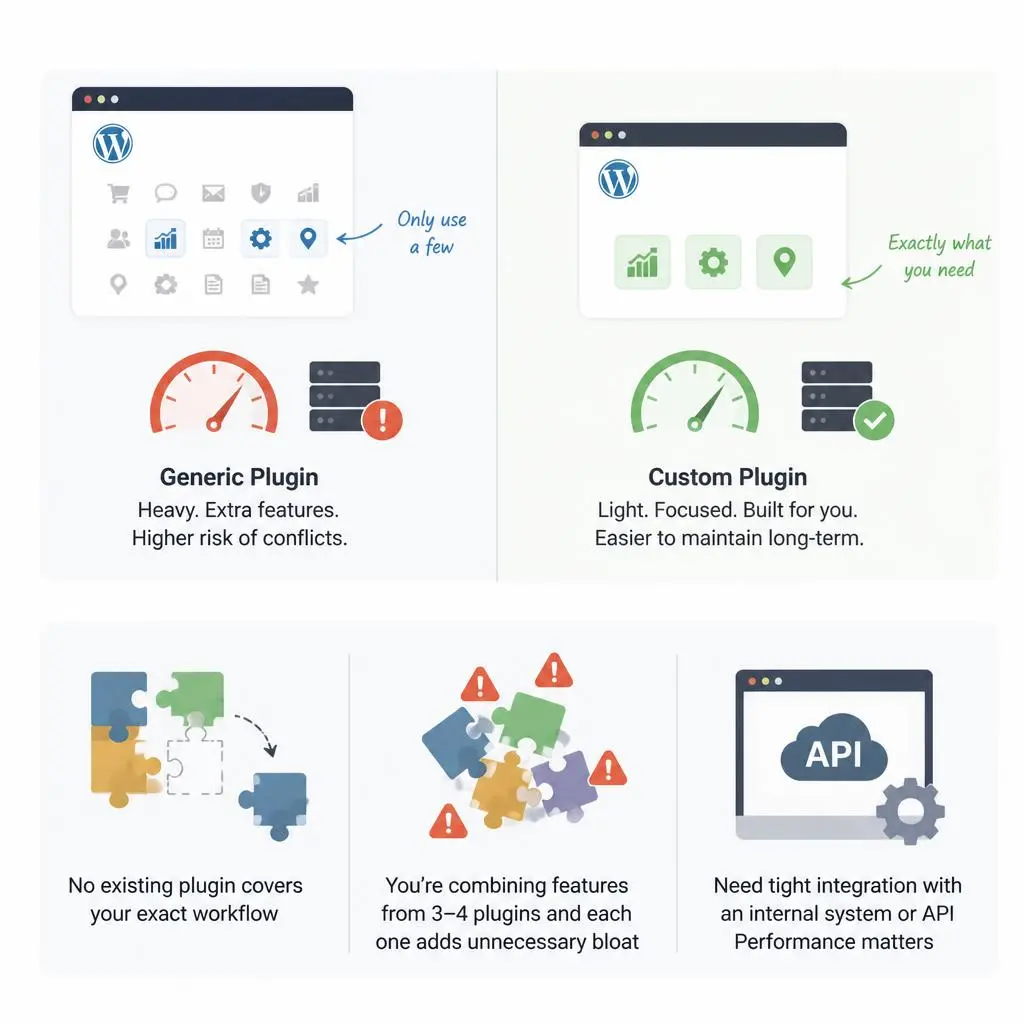
A custom WordPress plugin is code built to do one specific thing your site needs – nothing more. Instead of installing a 200-feature plugin to get the 5 features you actually use, you write exactly what’s required. This keeps your site lighter, faster, and easier to maintain long-term.
The real value shows up over time. A generic plugin update can break your setup because it’s designed for thousands of different use cases at once. A custom plugin only has to keep working for yours.
When You Need a Custom Plugin vs. a Ready-Made One
If a well-reviewed, actively maintained plugin already does what you need – use it. Building custom only makes sense when:
- No existing plugin covers your exact workflow
- You’re combining features from 3–4 plugins and each one adds unnecessary bloat
- You need tight integration with an internal system or API
- Performance matters and you can’t afford the overhead of a general-purpose plugin
Setting Up Your Development Environment
Never write or test plugin code directly on a live website – a single syntax error can trigger a critical site crash and take your entire site down.
- Local Server Engine: Use a tool like Local WP or XAMPP to run WordPress natively on your own machine.
- Code Editor: Visual Studio Code or PhpStorm both work well – you get syntax highlighting and proper file management.
- Debugging Config: Open wp-config.php and set define( ‘WP_DEBUG’, true ); so PHP errors surface immediately instead of failing silently.
Creating the Plugin File Structure
Plugins live inside the wp-content/plugins/ directory. Create a distinct folder for yours using lowercase letters and hyphens – this avoids naming conflicts with other plugins.
A standard, modular layout looks like this:
wp-content/plugins/my-custom-plugin/
├── my-custom-plugin.php # Main execution file
├── uninstall.php # Clean-up script during deletion
├── assets/
│ ├── css/ # Custom stylesheets
│ └── js/ # JavaScript frontend scripts
└── includes/ # Specialized core PHP logic files
Keeping this structure from day one saves hours later – once a plugin grows past a few hundred lines in a single file, finding anything becomes painful.
Writing the Main Plugin File
Your main file needs a standardized plugin header comment block at the very top. Without this exact metadata, WordPress won’t recognize or display your plugin in the admin dashboard – no error message, it just silently won’t show up.
php
<?php
/**
* Plugin Name: My Custom Plugin
* Plugin URI: https://example.com
* Description: A tailored plugin engineered to execute specific tasks.
* Version: 1.0.0
* Author: Your Name
* Author URI: https://example.com
* License: GPL v2 or later
* License URI: https://gnu.org
*/
// If this file is called directly, abort execution for security purposes.
if ( ! defined( ‘WPINC’ ) ) {
die;
}
// Global prefixing: prevent naming collisions with other plugins
function mcp_execute_custom_logic() {
// Custom functionality code goes here
}
That direct-access check isn’t optional decoration – it stops someone from loading your plugin file directly through a URL and potentially exposing code execution paths.
Working with Hooks – Actions and Filters
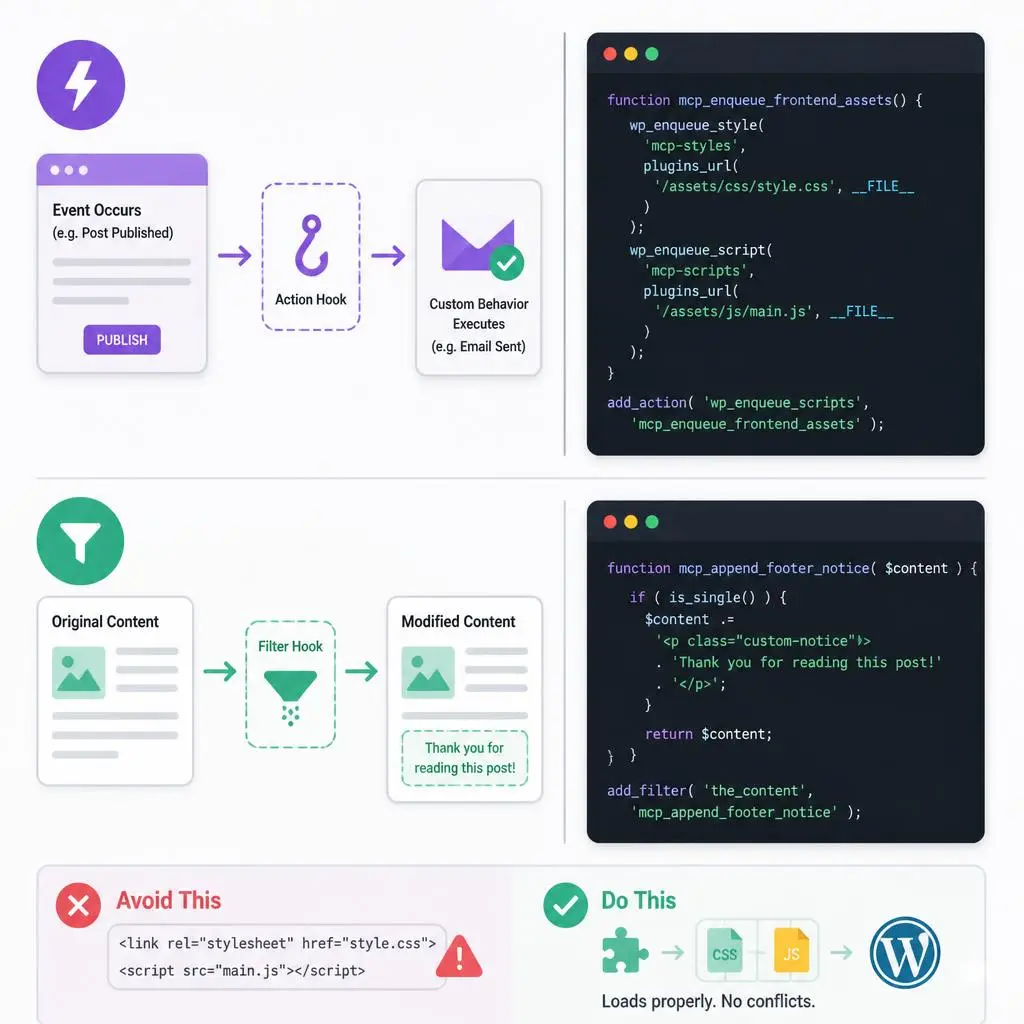
Hooks are the foundation of WordPress plugin development. They let your plugin interact with core at specific points in execution, without ever touching core files directly – which matters because editing core is what breaks on every WordPress update.
Actions vs. Filters (When to Use Which)
- Actions trigger custom behavior or output when a specific event occurs – like sending an email when a post is published.
- Filters intercept, modify, and return data before it’s saved to the database or rendered to the user – like changing post content before it displays.
Example – modifying content with a filter hook:
php
function mcp_append_footer_notice( $content ) {
if ( is_single() ) {
$content .= ‘<p class=”custom-notice”>Thank you for reading this post!</p>’;
}
return $content;
}
add_filter( ‘the_content’, ‘mcp_append_footer_notice’ );
Example – enqueueing your own CSS/JS properly (instead of hardcoding it into the theme):
php
function mcp_enqueue_frontend_assets() {
wp_enqueue_style( ‘mcp-styles’, plugins_url( ‘/assets/css/style.css’, __FILE__ ) );
wp_enqueue_script( ‘mcp-scripts’, plugins_url( ‘/assets/js/main.js’, __FILE__ ) );
}
add_action( ‘wp_enqueue_scripts’, ‘mcp_enqueue_frontend_assets’ );
Using wp_enqueue_script and wp_enqueue_style instead of directly printing <script> tags avoids duplicate-loading conflicts with other plugins and themes – a mistake that shows up constantly in WordPress maintenance for small business audits.
Security Best Practices for Custom Plugins

This is the section most quick tutorials skip – and it’s exactly where custom plugins tend to fail in production.
Prefixing to Avoid Conflicts
Prepend a unique, minimum 4-letter namespace to every function, class, option, and global variable. Without it, two plugins can define the same function name and crash the entire site with a fatal error.
Sanitizing Input
Never trust user data. Clean every input parameter using functions like sanitize_text_field() or absint() before it touches your logic or database.
Escaping Output
Strip out potentially malicious code right before rendering anything to the frontend, using esc_html(), esc_attr(), or esc_url() depending on context.
Using Nonces for Verified Requests
Validate intent using cryptographic tokens via wp_create_nonce() and wp_verify_nonce() – this confirms a request actually came from your site’s own form, not a forged external request.
Skipping any one of these four isn’t a hypothetical risk – it’s the most common way a “working” custom plugin becomes the entry point for a hacked site months later.
Testing, Activating, and Deploying Your Plugin
- Navigate to the Plugins dashboard inside your local WordPress admin panel.
- Click Activate under your plugin’s name.
- Debug behavior, monitor runtime logs, and deliberately test edge-case inputs – not just the happy path.
- Once stable, compress the plugin folder into a single .zip file so it can be uploaded directly to a live site.
Before pushing to production, always test on a staging copy first – this is standard practice across everything we cover in why website maintenance is important, and custom plugins are no exception. An untested plugin activation on a live site is one of the more common causes behind a sudden WordPress critical error.
Custom Plugin vs. Hiring a Developer – Which Is Cheaper
It depends on how often the task repeats. If you’re manually doing the same repetitive task every week – exporting data, syncing two systems, applying the same formatting fix – a one-time custom plugin build often pays for itself within a few months compared to continued manual hours or a recurring subscription plugin fee.
If the need is genuinely one-off, hiring for a quick fix or using an existing plugin is usually more cost-effective than building and maintaining custom code long-term.
Common Mistakes That Break Plugins in Production
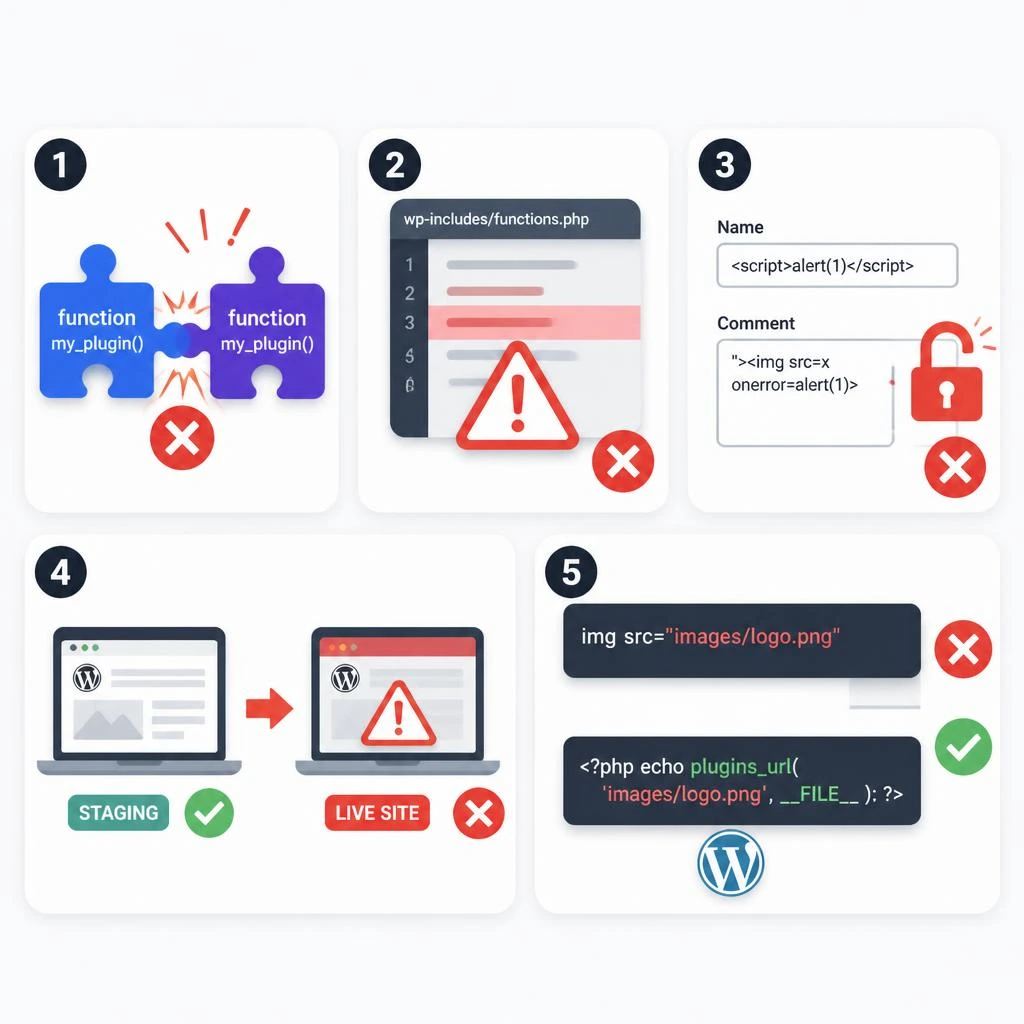
- No prefixing – function name collisions cause fatal errors the moment another plugin uses the same name
- Editing core files directly instead of using hooks – gets wiped on the next WordPress update
- Skipping sanitization/escaping – opens the door to injection vulnerabilities
- No staging test before activating on the live site
- Hardcoding file paths instead of using WordPress functions like plugins_url(), which breaks if the site structure changes
Conclusion
Custom WordPress plugin development isn’t complicated once you understand the core mechanics – correct file structure, hooks instead of core edits, and non-negotiable security practices. It’s how you get exactly the functionality your site needs without the bloat of a plugin built for ten thousand different use cases.
If you’d rather have this built and maintained for you, our Best WordPress Maintenance Services at RyDesk cover custom plugin work too – or contact us and tell us the task, we’ll tell you honestly if a plugin is even the right fix.
FAQs
- What is custom WordPress plugin development?
It’s writing code tailored to a specific site’s needs, instead of relying on a general-purpose plugin – giving you exactly the functionality required without extra bloat. - Do I need to know PHP to build a WordPress plugin?
Yes, basic to intermediate PHP is required, along with an understanding of how WordPress hooks (actions and filters) work. - What’s the difference between an action and a filter in WordPress?
Actions trigger custom behavior at a specific point (like sending an email). Filters modify data before it’s saved or displayed (like changing content text). - Is it safe to edit WordPress core files instead of building a plugin?
No. Core file edits get wiped on every WordPress update. Hooks let you add functionality without ever touching the core. - How long does it take to build a custom WordPress plugin?
Simple plugins can take a few days; more complex ones with admin settings pages or API integrations typically take 2–6 weeks depending on scope. - Should I hire a developer or build the plugin myself?
If the task is genuinely repetitive and ongoing, a custom plugin often pays for itself. For one-off needs, hiring for a quick fix is usually more cost-effective. - What security steps are essential for a custom plugin?
Prefixing functions and variables, sanitizing all input, escaping all output, and using nonces to verify request authenticity. - Can a custom plugin break my site?
Yes, if built without proper prefixing, sanitization, or testing. Always test on a staging site before activating on your live site.