

Quick Answer:
If your Elementor SVG upload is not working, the fastest fix is to log into your WordPress dashboard, navigate to Elementor > Settings > Advanced, scroll down to Enable Unfiltered File Uploads, and change the dropdown to Enable. Click Save Changes.
If the upload still fails after doing this, a local security plugin or hosting firewall is actively blocking the file’s XML code. Keep reading to clear those blocks in under two minutes.
You are building a beautiful layout in Elementor, you drag an Icon or Image widget onto the canvas, click upload, choose your custom-designed SVG file, and nothing. Either WordPress throws a strict Sorry, you are not allowed to upload this file type error, or the upload bar gets stuck spinning forever.
It is incredibly frustrating, especially when your competitor’s site looks crisp with scalable graphics while your upload system refuses to cooperate. WordPress websites offer massive flexibility, but native security locks often trigger unexpected road blocks for developers. When you encounter file restrictions, it usually means the core platform has flagged your data as a potential risk. If you are dealing with deeper system blockages beyond graphics, you can read our complete troubleshooting steps on how to fix WordPress critical error.
Why Elementor SVG Upload Is Not Working by Default
To beat this error permanently, we need to understand why it happens. Unlike traditional flat images like JPEGs or PNGs, an SVG (Scalable Vector Graphic) is not a collection of pixels. It is an actual XML-based text file containing raw code that tells the browser how to draw lines, curves, and shapes.
Because SVGs contain actual code lines, they introduce unique structural issues that trigger built-in security features:
The Hidden Security Risk: XML & Code Injection

Because an SVG is text-based code, malicious users can inject harmful JavaScript lines right inside the file. If an un-sanitized SVG file is uploaded to your media library, a hacker could execute a Cross-Site Scripting (XSS) attack on your server. To prevent this security nightmare, WordPress locks down SVG uploads by default.
Core WordPress Technical Restrictions

WordPress uses a strict system called MIME type validation. If a file type isn’t explicitly listed on the core allowed list, the media uploader shuts down the request instantly. Out of the box, `.svg` extensions are flagged as unsafe by the core application framework. To fix this issue permanently, we must look at how core applications handle secure media types. WordPress uses strict structural protocols to scan everything landing on your server database. If you want to optimize your entire site architecture to follow clean development standards from the ground up, make sure to check out our master manual on building an seo friendly website design.
Strict Server Firewalls & ModSecurity
Sometimes the issue isn’t WordPress or Elementor at all. Advanced web hosts deploy web application firewalls (WAF) like ModSecurity. When the server scans the upload packet and detects raw XML tags passing through an input field, it flags it as an attempted injection attack and terminates the process immediately.
Bloated or Unsanitized SVG Code
If you export vector assets directly out of design tools like Adobe Illustrator, CorelDRAW, or Canva, the file often contains thousands of lines of unnecessary code metadata, hidden designer layers, or broken paths. Elementor’s native processing engine often rejects these files because they fail basic structural integrity checks.
SVG vs. PNG vs. JPG: Why It Matters for Elementor Performance
When optimizing your Elementor website for maximum speed and excellent Core Web Vitals, choosing the wrong image format can completely ruin your optimization efforts. A very common mistake is using high-resolution PNGs across the entire site, which unnecessarily bloats the page weight and drags down loading speeds.
To maintain top-tier performance on an Elementor site, you must understand the technical differences and ideal use cases for these three primary formats . Choosing vector formats over flat pixel images dramatically changes your total asset weight. Clean illustrations keep your code footprint light and improve rendering times across modern mobile web browsers. If your files are properly formatted but the overall layout speed is still dragging down your scores, follow our detailed website speed optimization checklist to clean up performance bottlenecks.
How to Fix Elementor SVG Upload Not Working :
Follow this step-by-step sequencing guide to completely resolve the block and upload your vector assets safely.
Step 1: Enable Unfiltered File Uploads inside Elementor
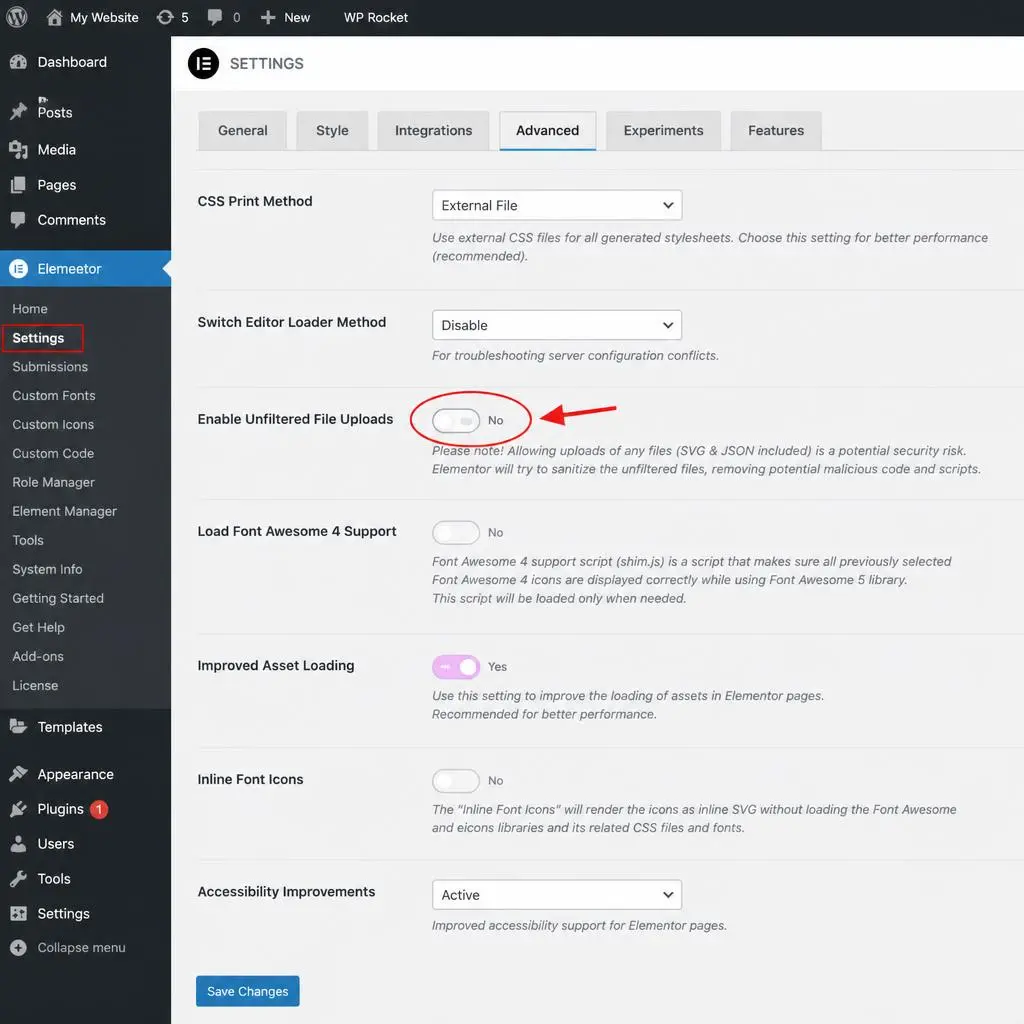
Elementor provides an internal override option designed to handle these media library limitations directly. The quickest native fix is adjusting the file handling behavior directly within your page builder setup dashboard. This opens up administrative permissions globally for your media library without forcing you to add third-party styling extensions. For a deeper understanding of handling advanced layout sync errors within this exact settings menu, see our guide on how to fix Elementor CSS not updating.
- Go to your WordPress Admin Dashboard.
- Navigate to Elementor > Settings on your left-hand sidebar menu.
- Click over to the Advanced tab at the top.
- Locate the row labeled Enable Unfiltered File Uploads.
- Switch the dropdown selection from Disable to Enable.
- Click the blue Save Changes button at the bottom of the page.
WordPress Dashboard
Elementor
Settings
Advanced ──> Enable Unfiltered File Uploads ──> [Set to Enable]
Step 2: Bypass the Native Elementor Editor Prompt

If you prefer not to dive deep into backend configuration screens, you can activate this directly while designing. When you drag an Icon Widget onto your layout section and click Upload SVG, Elementor will instantly trigger an administrative warning popup on your screen.
Instead of closing the window out of habit, click the green Enable button embedded right inside the security warning prompt. This action automatically updates the underlying Advanced settings tab for you instantly.
Step 3: Fix User Role & Permission Restrictions

The native Elementor allowance system relies entirely on standard WordPress capability parameters. Only Administrators possess the security clearance to authorize unfiltered structural file code uploads.
If your user account profile is configured under an Editor, Author, or Shop Manager role, Elementor will completely ignore the override configuration toggled in Step 1. You must request your site owner to upgrade your profile permissions or temporarily upload the asset using a full administrative account profile.
Step 4: Configure Security Plugins (Wordfence, Solid Security)

Are you still encountering a strict upload block screen? A local application security plugin is likely overriding your Elementor preference configurations. Plugins like Wordfence, Sucuri, or Solid Security monitor incoming data streams tightly.
To verify this conflict:
- Temporarily toggle your security suite into Learning Mode or turn off the firewall module for 60 seconds.
- Run your Elementor SVG upload test process.
- If the file transfers cleanly, navigate into your security tool’s activity log dashboard and whitelist the specific blocked action rule so it functions seamlessly going forward.
Step 5: Sanitize the File Code to Clean Triggers

If your SVG file contains malformed structural tags or hidden script properties, your hosting environment will terminate the upload. You can strip out dangerous tracking markers and clean up messy software metadata using a free web application optimizer like SVGOMG.
Simply drop your graphic into the tool, toggle the automated cleanup filters on, and export the fresh asset. This code cleanup keeps your site safe and drops the asset’s weight down even lower. Raw vector files straight out of graphic software often contain tracking metrics or unformatted layout lines that cause strict firewalls to flag the upload. Cleaning your vectors prevents unexpected server crashes and database loops. If your site code feels heavy or runs into severe script blocks during cleanups, you might need to increase your server capacity by checking our fix for the WordPress memory limit error.
Step 6: Use a Dedicated Fallback Plugin (Safe SVG)
If your specialized managed hosting platform has a hard block against code-based file uploads, using a plugin like Safe SVG or SVG Support is the best alternative option.
These lightweight helper plugins bypass basic media upload limits by integrating a secure code sanitization library directly into the file upload loop. They scrub every incoming code string cleanly before passing it to the database, ensuring you can upload vectors without weakening your server security.
Step 7: Clear Elementor CSS & Regenerate Files
Sometimes the asset successfully processes into the system database, but it won’t render inside the active browser workspace due to expired caching systems.
- Go to Elementor > Tools.
- Locate the top setting option labeled Regenerate CSS & Data.
- Click the Regenerate Files action button.
- Clear your local optimization caches (WP Rocket, LiteSpeed Cache, etc.) and refresh your page editor window.
Troubleshooting Common Elementor SVG Errors
Even after getting the file into the Media Library, you might run into layout or rendering issues inside the page builder. Here is how to fix them:
Upload Stuck or Infinite Loading Spinner
This usually happens because the file size is too big or it contains massive embedded raster graphics instead of real clean vectors. Open the asset file within an alternative text editor app (like VS Code or Notepad++). If you see long strings of base64 text, it means a heavy image is hidden inside it. Re-export the graphic from your design application while choosing the option to convert images to Link/Vector paths rather than embedding them directly.
SVG Uploads but Shows Up Completely Blank
If your graphics show an empty box inside the design canvas, your asset is missing its viewBox definitions. Open the file in an editor and check the main `<svg>` tag. If it lacks a `viewBox=”0 0 X Y”` attribute string, modern browsers won’t know how to scale it. Re-exporting the graphic with responsive properties enabled will fix this immediately.
Cannot Change SVG Colors in Elementor Styling Panel

To change graphic colors directly inside Elementor’s style tab, the graphic cannot have baked-in color styles. If the code contains hardcoded properties like `fill=”333333″`, Elementor’s styling panel can’t override it.
Open the file in a text editor, search for the `fill` attributes, and change them to:
css fill=”currentColor”
This tells the file to pull color choices directly from its Elementor wrapper style options. When your color pickers do not respond inside the styling layout, it means hardcoded color hex values are trapped inside your graphic file markup. Replacing those paths with flexible code tags allows your system to override asset variables instantly. If you are struggling with global style inheritance or typography bugs across your design, you can also learn how to fix Elementor custom fonts missing to sync your visuals perfectly.
SVG Dimensions Are Distorted or Micro-Sized
When a vector shrinks down into a tiny dot or warps out of proportion, it means fixed width and height attributes are overriding your layout code. You can easily fix this by adding a small snippet of custom CSS code directly into your Elementor widget layout properties:
css
selector svg {
width: 100% !important;
height: auto !important;
}
Safe Practices for Using SVGs in WordPress & Elementor
Stick to Trusted Design Ecosystems:
Only accept and upload structural graphic elements generated from reliable platforms like Figma, Adobe Illustrator, FontAwesome, or your core design team.
Keep SVG Support Limited to Admins:
Don’t let contributors or subscribers upload vector graphics. Keep the unfiltered upload options restricted to trusted web managers.
Audit Asset Files Regularly:
Run custom files through web optimization apps before saving them to your production server database. This keeps code files clean, light, and secure.
conclusion
Resolving the vector upload restriction in Elementor takes less than two minutes once you configure your advanced backend access. By balancing lightning-fast image delivery with secure upload protocols, you can build a premium, highly interactive user experience. If you want to elevate your business presence with custom layouts or a full platform overhaul, explore our professionalWebsite Maintenance & Support Services plans to launch high-performance pages today.
Need help fixing other Elementor errors? Head over to our Home Page or drop us a message directly via our Contact Us page to get it sorted instantly by our development team! If you want a permanent fix or professional setup, check out our Technical WordPress Optimization Services
FAQs
1. Why does Elementor block SVG uploads by default?
WordPress and Elementor disable SVG uploads for security. Unlike standard PNG or JPG images, SVGs are XML-based code files. If unrestricted, malicious scripts could be injected into the SVG code, leading to serious Cross-Site Scripting (XSS) vulnerabilities on your server.
2. Is it completely safe to enable unfiltered file uploads in Elementor?
Yes, it is safe if you are the only administrator or you trust your design team. However, if your website allows open user registration, guest blogging, or front-end form uploads, keeping this setting enabled permanently can expose your site to security risks.
3. Why is my Elementor SVG upload stuck on an infinite loading spinner?
An infinite loading spinner usually means a security layer is silently dropping the upload request. This is commonly caused by hosting-level firewalls (like ModSecurity) or WordPress security plugins (like Wordfence) flagging the file’s internal XML tags as a potential injection attack.
4. Can I fix the Elementor SVG upload issue without installing extra plugins?
Yes. You can fix it natively by navigating to Elementor > Settings > Advanced and changing Enable Unfiltered File Uploads to Enable. Alternatively, you can click the “Enable” prompt that automatically pops up when you try to upload an SVG via the Icon Widget.
5. Why can’t I change SVG icon colors inside Elementor’s style panel?
This happens because your SVG has hardcoded color values (like fill=”#000000″) written inside its source code. Open the SVG file in a basic text editor (like Notepad), search for fill, and replace the specific hex color code with currentColor. This allows Elementor’s style panel to control the color.
6. Why does my SVG look completely blank after a successful upload?
A blank SVG usually means the file is missing its viewBox attribute strings. Many modern vector tools strip out these responsive sizing coordinates during export. You can fix this by running the asset through a free optimization tool like SVGOMG with the viewBox option enabled.
7. Should I use SVG instead of WebP or PNG for blog photography?
No. SVGs should be used exclusively for vector-based graphics such as business logos, UI icons, and clean line illustrations. Using SVGs for real photographs would result in massive, complex code files that bloat your page and slow down .