

Quick Answer: The fastest fix is to open your wp-config.php file and add this line just before /* That’s all, stop editing! */:
php
define(‘WP_MEMORY_LIMIT’, ‘256M’);
If that doesn’t work, try adding php_value memory_limit 256M to your .htaccess file. Still stuck? Keep reading – we cover every method, including hosting-specific fixes for cPanel, Kinsta, SiteGround, and WP Engine.
You open your WordPress site and instead of your homepage, you see this:
Fatal error: Allowed memory size of 67108864 bytes exhausted (tried to allocate 20480 bytes)…
Or maybe your dashboard just goes blank. Or a plugin throws an error. Or your site loads halfway and dies.
This is the WordPress memory limit error. It looks terrifying, but it is one of the most common – and most fixable – WordPress problems out there. In most cases, you can solve it in under five minutes.
This guide walks you through every working method: from the simplest one-line code fix to hosting-panel solutions that require zero coding. If you would rather hand this off to a Home page , we can take care of it for you. Otherwise, let’s fix it step by step.We also explain why this happens, how to find which plugin is causing it, and how to stop it from coming back. If you suspect your memory issue has already triggered a total backend lockout, you can also check our structural guide on how to fix WordPress critical error in 2026 for immediate recovery steps.
What Is the WordPress Memory Limit Error?

WordPress is built on PHP, and PHP scripts on your server are assigned a memory budget – a ceiling on how much RAM they are allowed to use. The moment a WordPress process tries to go above that limit, the server kills it and throws the memory exhausted error.
Think of it like this: your server gave PHP a wallet with 64MB in it. WordPress needed 128MB to load that page. Transaction declined.
What Does This Error Look Like?
The exact message varies, but you will typically see one of these:
- Fatal error: Allowed memory size of 67108864 bytes exhausted
- Fatal error: Allowed memory size of 134217728 bytes exhausted
- WordPress memory limit exceeded
- A plain white screen (White Screen of Death) with no message
The error can appear on the frontend of your site, inside the WordPress admin dashboard, during plugin activation, or while uploading media files.
Why Does WordPress Run Out of Memory?
WordPress core by default requests only 40MB of PHP memory. That was fine in 2010, but modern sites are a different story. Here is what commonly eats up memory fast:
- Too many active plugins – every active plugin loads its code into memory on every page request
- Bloated themes – page builders like Divi, Avada, or poorly coded premium themes can pull in enormous amounts of data
- WooCommerce with large product catalogs – each product query can be expensive
- Running multiple background tasks at once – backups, imports, cron jobs
- Outdated PHP version – older PHP handles memory less efficiently
- Malware or injected code – a hacked site can exhaust resources unusually fast
Server-side resource constraints often impact performance across multiple layouts, which explains why is mobile website speed slower than desktop rendering platforms. The default PHP memory limit on shared hosting is typically 64MB or 128MB. For most modern WordPress sites, 256MB is a healthy minimum, and 512MB if you run WooCommerce or heavy plugins.
Step 1 – Check Your Current PHP Memory Limit

Before you change anything, confirm what your current limit actually is. There are two quick ways to do this.
Method A: Check via WordPress Dashboard
Go to Tools → Site Health → Info → Server. Look for “PHP memory limit.” This shows you what PHP currently allows.
Method B: Check via a simple PHP file
Create a file called info.php in your WordPress root directory with this content:
php
<?php phpinfo(); ?>
Open it in your browser at yourdomain.com/info.php. Search for memory_limit on the page. Delete this file immediately after checking – leaving it exposed is a security risk.
Now that you know your current limit, let’s fix it.
Step 2 – Fix WordPress Memory Limit via wp-config.php (Easiest Method)
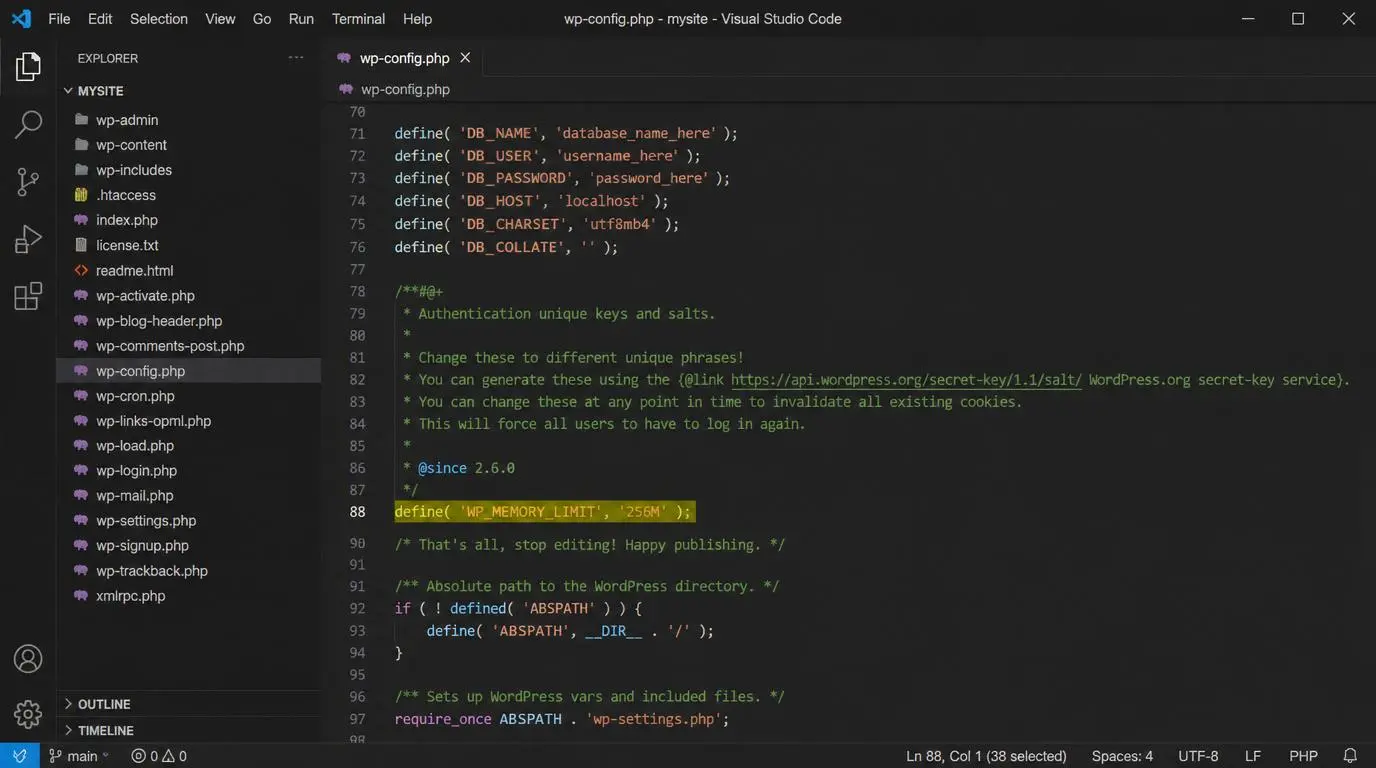
This is the most reliable method and the one you should try first. The wp-config.php file is WordPress’s main configuration file and it gives you direct control over memory settings.
How to do it:
- Connect to your site via FTP (FileZilla, Cyberduck) or use your hosting provider’s File Manager in cPanel.
- Navigate to your WordPress root directory – this is where you will find wp-config.php, usually the folder named public_html or www.
- Download a backup copy of wp-config.php before editing anything.
- Open the file in a text editor.
- Find this line:
php
/* That’s all, stop editing! Happy publishing. */
- Add this line directly above it:
php
define(‘WP_MEMORY_LIMIT’, ‘256M’);
- Save and re-upload the file.
- Refresh your WordPress site.
Why this works: This constant tells WordPress to request up to 256MB of PHP memory. If your hosting plan actually provides that much, WordPress will use it.
Pro Tip: If your site is a WooCommerce store or runs multiple premium plugins, go straight to 512M instead of 256M. You are less likely to need to come back and do it again.
Optional – also increase the admin memory limit:
Some WordPress operations in the backend require even more memory than the frontend. You can set a separate limit for the admin area:
php
define(‘WP_MAX_MEMORY_LIMIT’, ‘512M’);
Add this line right below the WP_MEMORY_LIMIT line.
If you are actively using Elementor and notice that editing changes are still not reflecting even after applying these constants, read our companion walkthrough on how to fix Elementor CSS not updating seamlessly.
Step 3 – Fix Memory Limit via .htaccess File
If editing wp-config.php did not resolve the error, or if your hosting environment does not allow that override, try the .htaccess file. This file controls server-level settings for Apache-based hosting environments.
How to do it:
- In your WordPress root directory, find the .htaccess file. If you do not see it, make sure hidden files are visible – in cPanel File Manager, click Settings and check “Show Hidden Files.”
- Create a backup before editing.
- Open the file and add this line near the top:
apache
php_value memory_limit 256M
- Save the file.
Important: This method only works on Apache web servers. If your site runs on Nginx (common on managed WordPress hosts like Kinsta, WP Engine, or Cloudways), .htaccess directives have no effect. Use the hosting-specific methods below for those platforms.
Step 4 – Fix Memory Limit via php.ini File
The php.ini file is PHP’s global configuration file. If you have access to it, this is the most powerful place to set the memory limit.
How to do it:
- Look for a php.ini file in your WordPress root directory or your public_html folder. Some hosts place it there; others require you to create one.
- If you need to create it, make a new file called php.ini and place it in your WordPress root directory.
- Add or edit this line:
ini
memory_limit = 256M
- Save and upload.
Note: On many shared hosts, you can also create a user.ini file in the same location if php.ini does not take effect. Add the same line:
ini
memory_limit = 256M
Step 5 – Fix Memory Limit via cPanel (No Code Needed)

If you manage your hosting through cPanel, you can change the PHP memory limit directly from the control panel – no file editing required.
How to do it:
- Log in to your cPanel account.
- Scroll down to the Software section and click MultiPHP INI Editor.
- Select your domain from the dropdown menu.
- Find memory_limit in the list of PHP settings.
- Change the value to 256M or 512M.
- Click Apply and you are done.
If you do not see MultiPHP INI Editor, look for PHP Configuration or PHP Settings – different cPanel versions label this differently. Alternatively, try Select PHP Version → Options tab.
Step 6 – Fix Memory Limit via Hosting Dashboard
If you are on a managed WordPress host, they often have their own interface for PHP settings. Here is how to do it on the most popular platforms:
Kinsta
- Log in to the MyKinsta dashboard.
- Go to Sites → Your Site → Tools.
- Look for PHP Memory Limit under PHP configuration. Kinsta sets this to 256MB by default on most plans. If you need more, contact their support – they can increase it.
SiteGround
- Log in to Site Tools (the new SiteGround dashboard).
- Go to Devs → PHP Manager.
- Select your PHP version and click Manage → PHP settings.
- Adjust memory_limit as needed.
WP Engine WP Engine sets PHP memory to 512MB by default on most plans. If you are still seeing the error, it is almost certainly a plugin or theme issue, not the limit itself. Contact WP Engine support to confirm your current limit.
Cloudways
- Go to your Application Settings.
- Click PHP FPM Settings tab.
- Increase the memory_limit value.
Step 7 – Deactivate Plugins to Find the Memory Hog

Increasing the memory limit is the right fix if your limit is genuinely too low. But if your limit is already at 256MB or higher and you are still seeing errors, a specific plugin may be leaking memory – consuming far more than it should.
Here is how to find the culprit:
- Go to Plugins → Installed Plugins in your WordPress admin.
- Deactivate all plugins at once (select all, then bulk deactivate).
- Check if the error disappears.
- If it does, reactivate plugins one by one, refreshing your site after each.
- The moment the error comes back, you have found your problem plugin.
Common memory-heavy plugins to check first:
- Backup plugins running on a schedule (UpdraftPlus, BackupBuddy)
- SEO plugins with large databases (Yoast, Rank Math with full indexing on)
- Security scanners running in the background (Wordfence with live traffic monitoring)
- Page builders loading on every page (Elementor, WPBakery)
- WooCommerce extensions, especially ones that sync with external APIs
In addition to runtime crashes, bloated builder assets frequently cause layout drops; if this occurs, see our solution on how to fix Elementor custom fonts missing on your template styles. Once you have found the problematic plugin, check if there is an update available. Memory leaks in plugins are often bugs that developers fix in newer versions. If the plugin is outdated and abandoned, it may be time to replace it.
Step 8 – Switch to a Lighter Theme
Themes can be surprisingly heavy, especially popular multipurpose themes that bundle dozens of features you may never use. A theme that loads a full page builder framework, five JavaScript libraries, and custom post type handlers on every request can push your memory usage significantly.
To test if your theme is the issue:
- Go to Appearance → Themes.
- Temporarily switch to the default WordPress theme (Twenty Twenty-Four or similar).
- Visit your site and check whether the error persists.
If it disappears with the default theme, your current theme is likely the cause. Consider reaching out to the theme’s support team or looking for a more optimized alternative. Themes like GeneratePress, Kadence, and Astra are known for their low memory footprint.Choosing a highly optimized development infrastructure is essential for core stability. For a deeper breakdown of structural setups, see our complete analysis comparing wordpress performance metrics.
Step 9 – Optimize Images to Reduce Memory Usage
Images do not just affect page load speed – they affect memory. When WordPress processes an image (during upload, resizing, or regenerating thumbnails), PHP holds the entire uncompressed image in memory. A single 8MB RAW photograph can temporarily require over 100MB of PHP memory just to process.
Practical steps:
- Compress images before uploading. Use tools like Squoosh, TinyPNG, or Photoshop’s “Save for Web” to reduce file size. Aim to keep images under 200KB for standard web use.
- Install an image optimization plugin. Smush, ShortPixel, or Imagify can automatically compress images on upload and batch-optimize your existing media library.
- Use WebP format. WebP files are typically 25–35% smaller than JPEG or PNG with similar quality. WordPress has supported WebP natively since version 5.8.
- Disable unnecessary image sizes. WordPress generates multiple copies of every uploaded image. If you have many registered sizes from plugins you no longer use, you can remove them using remove_image_size() in your theme’s functions.php. Image management is just one element of a faster platform. You can review our full strategic website speed optimization checklist to eliminate other performance bottlenecks completely.
Step 10 – Upgrade Your Hosting Plan
Sometimes, the honest answer is that your site has outgrown its hosting environment. If you are running a WooCommerce store with 500+ products, a membership site with hundreds of concurrent users, or a site with heavy custom functionality, shared hosting with a 128MB PHP limit is simply not enough.
Signs you need to upgrade:
- The error returns shortly after you increase the memory limit
- Your hosting provider cannot allow a higher limit on your current plan
- Your site runs slowly even when there are no errors
- You see memory errors only during traffic spikes
Moving to a VPS (Virtual Private Server) or managed WordPress hosting gives you dedicated resources rather than shared ones. On a VPS, you control the php.ini file entirely. On managed hosts like Kinsta or WP Engine, higher memory limits are built into the plan.
If your site has genuinely outgrown its current setup and you are thinking about a rebuild or migration to a better-optimised architecture, our WordPress website design and development services cover full-stack performance optimisation from the ground up. Upgrading your infrastructure ensures proper memory allocation. To keep your core files healthy, check out what to prioritize inside our website maintenance checklist for long-term uptime management.
What If the Error Still Appears After Increasing Memory?

You have added the define() to wp-config.php, reloaded the site, and the error is still there. Here are three things to check.
Check for Plugin Conflicts
Your hosting provider may have a php.ini or server-level configuration that overrides what you set in WordPress. The server-level limit is always the ceiling – WordPress can only request up to what the server actually allows. If your hosting plan caps PHP at 128MB, no WordPress-level setting can go above that. You will need to increase it at the hosting level or upgrade your plan.
Enable WordPress Debug Mode
Adding debug mode to wp-config.php can reveal exactly which file and function is exhausting memory:
php
define(‘WP_DEBUG’, true);
define(‘WP_DEBUG_LOG’, true);
define(‘WP_DEBUG_DISPLAY’, false);
After adding these lines, check the file /wp-content/debug.log for detailed error messages. They often point directly to the problematic plugin or theme file.
Contact Your Hosting Provider
If you have tried every method and the error persists, contact your host’s support team. Explain that you are hitting the PHP memory limit, tell them what you have already tried, and ask them to either increase the server-side limit or confirm what the maximum allowed is on your current plan. Alternatively, if you need a second opinion or hands-on help diagnosing the issue, you can get in touch with our team directly – we usually identify the root cause within one session.Good hosting support can often resolve this in one live chat session.
How Much PHP Memory Does WordPress Actually Need?

There is no single correct answer – it depends entirely on your site. But here are sensible benchmarks based on site type:
Site Type | Recommended PHP Memory |
Simple blog or portfolio | 128MB |
Standard business site with 5–10 plugins | 256MB |
WooCommerce store (small) | 256MB |
WooCommerce store (large catalog) | 512MB |
Membership or LMS site | 512MB |
High-traffic or agency site | 512MB–1GB |
The 64MB default that many shared hosts still set is outdated for anything beyond the simplest site. 256MB is a safe general-purpose target for most WordPress installations in 2026. Because storefront systems scale uniquely under heavy concurrent traffic, balancing these memory budgets is vital for ecommerce website speed optimization routines.
How to Prevent WordPress Memory Errors in the Future

Fixing the error once is good. Not seeing it again is better.
Audit plugins regularly. Every few months, go through your plugin list and deactivate anything you are not actively using. Unused plugins still load in some cases and always carry security risk. A clean, intentional plugin list is one of the best things you can do for site performance.
Keep WordPress, themes, and plugins updated. Memory leaks and inefficiencies get fixed in updates. A plugin that consumed 40MB of memory in version 1.2 might use 25MB in version 1.5. Staying current means you benefit from these improvements automatically.
Monitor your site’s resource usage. Plugins like Query Monitor or New Relic (available on some managed hosts) let you see which requests are using the most memory in real time. If a particular page or operation consistently spikes your usage, you know exactly where to look.
Choose quality plugins over quantity. A single well-built plugin that does five things is almost always lighter than five separate plugins each doing one thing. Before installing a new plugin, check when it was last updated, how many active installations it has, and whether it has recent support replies in the WordPress.org forums.
Set up uptime monitoring. Services like UptimeRobot (free) or Better Uptime notify you the moment your site goes down. If the WordPress memory error takes your site offline, you want to know within seconds – not when a customer emails you. Regular infrastructure audits prevent sudden memory exhaust runouts. Ensure your business stays ahead of code decay by reviewing how often should you update your website assets.
Conclusion
If you have made it this far, you now know more about WordPress memory limits than most site owners ever bother to learn – and that puts you in a genuinely good position to fix this properly rather than just patching it and hoping for the best.
The honest reality is this: for about 90% of WordPress sites, adding one line to wp-config.php solves the problem in under two minutes. But that fix only works when the root cause is a limit that is simply too low for your current site. If the error keeps coming back – or if it appeared suddenly after months of no problems – a plugin or theme change is almost always responsible, and chasing the memory number higher will not fix that.
Start with the simplest method, verify it actually worked using Site Health, and if the error returns, run the plugin deactivation test before doing anything else. That diagnostic step alone has saved our clients hours of unnecessary server-level changes.
A site that is consistently hitting its memory ceiling is a site under stress. Left alone, it does not just throw error messages – it slows down, crashes during checkout on WooCommerce, loses form submissions, and eventually goes dark at the worst possible moment. Fifteen minutes of maintenance today prevents a much worse conversation with a frustrated client or customer tomorrow.
If you have worked through every method in this guide and the error is still appearing, feel free to reach out to us at RyDesk. We have seen this problem in every possible configuration and we can usually pin down the cause in one session. If you want a permanent fix or professional setup, check out our Technical WordPress Optimization Services .
FAQs
Q1: What is the WordPress memory limit error? The WordPress memory limit error (also called “Fatal error: Allowed memory size exhausted”) occurs when your WordPress site tries to use more PHP memory than your server’s configured limit allows. PHP shuts down the process to protect the server, which can cause a blank page, admin failure, or visible error message.
Q2: What is the default PHP memory limit in WordPress? WordPress core requests 40MB by default, but most modern hosting environments are configured with a PHP memory limit of 64MB or 128MB. The recommended minimum for a functional WordPress site today is 256MB.
Q3: How do I check my current PHP memory limit? Go to WordPress Admin → Tools → Site Health → Info → Server and look for “PHP memory limit.” Alternatively, you can create a phpinfo.php file in your root directory containing <?php phpinfo(); ?>, open it in a browser, and search for memory_limit. Delete the file immediately after checking.
Q4: Is it safe to increase the PHP memory limit to 512MB? Yes, it is safe as long as your hosting plan allocates that much RAM. Setting a higher limit in WordPress does not actually consume that memory – it just allows PHP to use up to that amount if a process requires it. Most reputable hosting plans on VPS or managed WordPress can comfortably support 256MB to 512MB.
Q5: Why does the wp-config.php fix not work? If adding define(‘WP_MEMORY_LIMIT’, ‘256M’) to wp-config.php has no effect, it usually means your hosting server has a lower hard cap set in php.ini or .htaccess at the server level. WordPress can only request up to what the server allows. In this case, you need to change the limit at the hosting level (via cPanel, your hosting dashboard, or by contacting support).
Q6: Can a plugin cause the WordPress memory limit error? Absolutely. This is actually one of the most common causes. A poorly coded plugin with a memory leak, a backup plugin running a large job, or a WooCommerce extension doing expensive database queries can all push memory usage past the limit. To find the culprit, deactivate all plugins and reactivate them one by one until the error reappears.
Q7: Does the memory limit affect site speed? Indirectly, yes. When a PHP process approaches the memory limit, it can slow down before crashing. Sites running close to their memory ceiling often experience slower response times under load. Giving WordPress adequate memory headroom is one component of good overall performance.
Q8: How do I fix the WordPress memory limit error on WP Engine or Kinsta? On WP Engine, the default PHP memory limit is 512MB – if you are still seeing errors, the problem is almost certainly a plugin or theme, not the limit. On Kinsta, the default is 256MB, and you can request an increase through their support. For both hosts, debug mode and plugin deactivation testing are your best diagnostic tools.