

Quick Summary
Area | What to Do | Why It Matters | Tool/Fix |
Hosting | Choose WooCommerce-optimized hosting with PHP 8.2+ | Generic shared hosting can’t handle dynamic cart/checkout load | LiteSpeed, managed WooCommerce hosting |
Caching | Cache pages, exclude cart/checkout/my-account | Wrong caching breaks “Added to Cart” and stock counts | WP Rocket, LiteSpeed Cache |
Database | Clean post revisions, transients, expired sessions monthly | Bloated tables slow every query on every page | WP-Optimize, manual SQL cleanup |
Images | Convert to WebP, lazy-load below the fold | Product images are usually 60%+ of total page weight | ShortPixel, Imagify |
A slow WooCommerce store doesn’t just frustrate visitors – it quietly drains your ad budget and tanks your conversion rate before a customer ever sees your product. If your site takes more than 3 seconds to load, you’re likely losing over half your mobile visitors before they even see your homepage. This guide breaks down exactly where WooCommerce speed problems come from and how to fix each one, with the same diagnostic process we use on client stores. Running a slow WooCommerce store is the digital equivalent of locking your front door while customers are trying to walk in. It doesn’t just frustrate your visitors; it silently burns through your ad budget. If your website takes longer than 3 seconds to load, more than half of your mobile traffic will bounce before they even see your homepage. If you are wondering why performance hits mobile users so much harder than desktop users, diving into our detailed analysis on why is mobile website speed slower than desktop will give you the exact technical breakdown.
Why WooCommerce Speed Optimization Directly Affects Your Revenue

WooCommerce isn’t a static website – every product page queries the database for stock, price, variations, and related products in real time. That dynamic nature is exactly why generic “WordPress speed tips” often fail on a store: you can’t fully cache a cart page or checkout, so the optimization has to happen at a deeper level than just installing a caching plugin and walking away.
Because of this complex architecture, generic WordPress speed tips completely fail here. You cannot cache the cart or checkout pages using standard methods, meaning effective optimization requires a much deeper, strategic approach. If you are building a store from scratch and want to establish a solid foundation, our comprehensive ecommerce website development checklist is the perfect place to start.
The financial impact is measurable. A one-second delay in load time has been shown to drop conversions by several percentage points, and on a store doing even modest daily revenue, that compounds fast over a year. Google also folds page experience signals (Core Web Vitals) into ranking, so a slow store loses on both fronts – fewer visitors find you, and fewer of the ones who arrive actually buy.
How to Diagnose What’s Actually Slowing Down Your Store

Before messing with your settings or installing new plugins, you need to pinpoint exactly where the bottleneck lies-whether it is at the server level, within your front-end scripts, or buried deep inside your database tables. Blind guesswork will only waste your time and risks breaking your site. To approach this like a professional developer, map out your strategy using our website speed optimization checklist.
Run these three checks first:
- Google PageSpeed Insights (mobile and desktop separately) – gives you Core Web Vitals scores and a prioritized list of issues.
- GTmetrix or Pingdom – shows waterfall charts so you can see exactly which file or request is the slowest.
- Query Monitor plugin – installed directly on your site, this reveals slow database queries, plugin load times, and memory usage per page load.
A pattern we see constantly with client audits: PageSpeed shows a “good” server response time, but the checkout page itself is loading 15+ scripts because of poorly coded plugins. That’s a front-end problem, not a hosting problem – and no amount of hosting upgrades would have fixed it.
Reading Your Core Web Vitals Correctly
Three metrics matter most for a WooCommerce store:
- Largest Contentful Paint (LCP): how fast your main product image or hero banner appears. Should be under 2.5 seconds.
- Interaction to Next Paint (INP): how fast the site responds when someone clicks “Add to Cart.” Should be under 200ms.
- Cumulative Layout Shift (CLS): whether elements jump around as the page loads (common with unoptimized ads or late-loading reviews widgets).
If INP is your weak metric specifically on product or checkout pages, the cause is almost always JavaScript – third-party scripts, chat widgets, or heavy page builder animations all compete for the same processing thread.
Hosting: The Foundation Most Store Owners Get Wrong
You can install every caching plugin available and still have a slow store if your hosting can’t handle WooCommerce’s dynamic queries. This is the single most common root cause we find in speed audits.
Hosting Type | Best For | Limitation |
Shared Hosting | Very small catalogs, low traffic | Shared CPU/RAM means traffic spikes during sales tank performance |
Managed WooCommerce Hosting | Most growing stores | Higher cost, but built-in caching and PHP tuning |
VPS / Dedicated | High-traffic, large catalogs | Requires technical setup or a managed plan on top |
WooCommerce officially recommends PHP 8.2 or higher and a memory limit of at least 256MB. If you’re still on PHP 7.x, you’re not just risking speed – you’re risking plugin compatibility issues as the ecosystem moves on. Sticking to outdated PHP versions doesn’t just destroy performance; it introduces plugin compatibility risks. If your WordPress dashboard is actively throwing memory errors, you can follow our step-by-step guide on how to fix wordpress memory limit error to resolve it safely.
To check and raise your memory limit, add this line to your wp-config.php file just above the “stop editing” comment:
define(‘WP_MEMORY_LIMIT’, ‘256M’);
If that doesn’t take effect (some hosts cap it at the server level), you’ll need to ask your host to raise the PHP memory_limit directly – this is a five-minute support ticket on most managed hosts.
Caching Strategy for WooCommerce (Without Breaking Cart or Checkout)
This is where a lot of DIY speed attempts go wrong. Full-page caching is great for your homepage and blog, but if you cache the cart, checkout, or “my account” pages, customers will see stale stock counts, wrong cart totals, or even another customer’s session data. This is where DIY optimization often goes wrong. While full-page caching works miracles for standard blogs, applying it blindly to WooCommerce will break your store. If you accidentally cache the cart, checkout, or account pages, users will start seeing outdated stock numbers, other shoppers’ cart totals, or broken session details. To master the technical nuances of setting this up safely, read our specialized ecommerce website speed optimization guide.
Any caching plugin you use (WP Rocket, LiteSpeed Cache, or WP Super Cache) needs these pages explicitly excluded from page caching:
- Cart page
- Checkout page
- My Account page
- Any page using a shortcode that displays dynamic pricing or stock
On top of page caching, add object caching (Redis or Memcached) if your host supports it. Object caching stores the results of expensive database queries in memory, which matters enormously for WooCommerce because product, category, and stock queries repeat constantly across sessions.
Database Optimization: The Silent Speed Killer
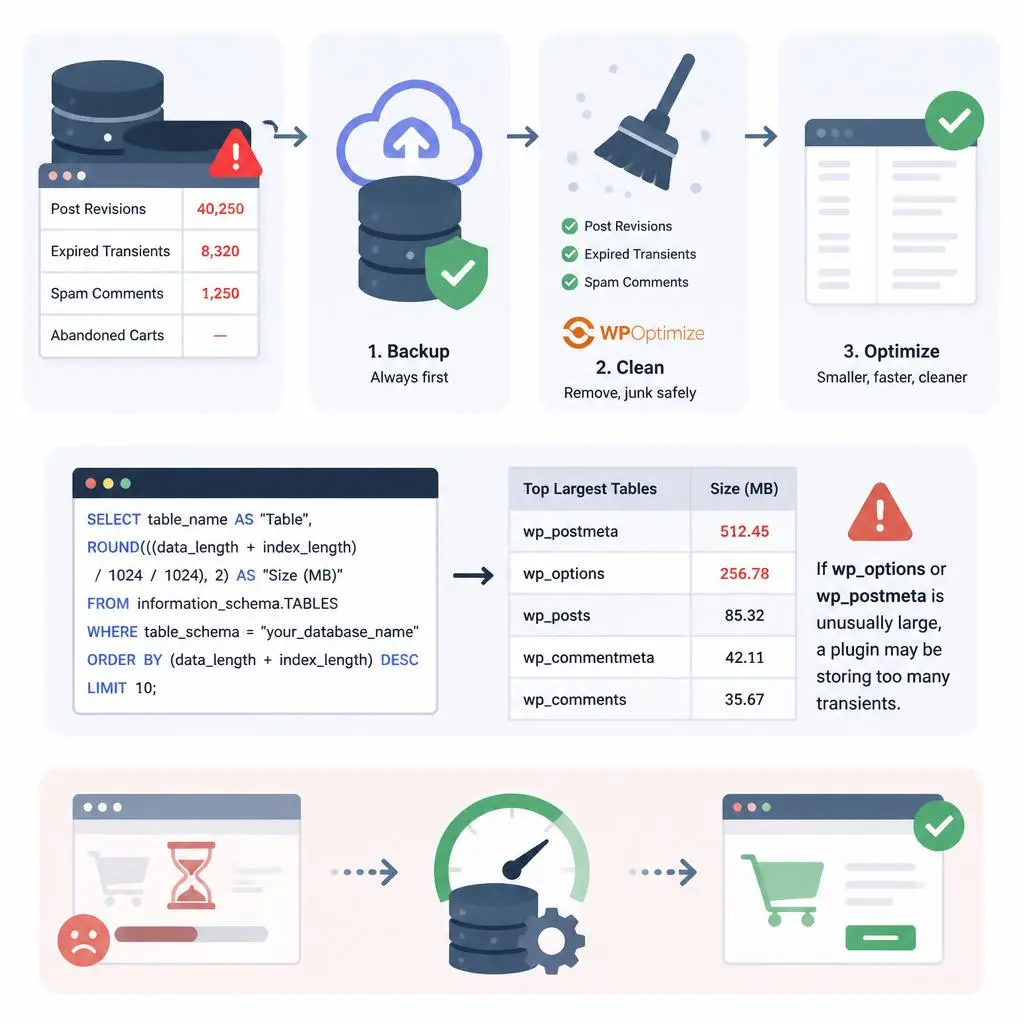
Every order, every abandoned cart session, every post revision your site has ever created is still sitting in your database unless you’ve cleaned it. We’ve opened client databases with over 40,000 orphaned post revisions – and every single one of those rows adds microseconds to queries that run on every page load.
A safe monthly cleanup routine:
- Back up your database first. No exceptions.
- Use a plugin like WP-Optimize to remove post revisions, expired transients, and spam comments.
- Check your largest tables directly if you’re comfortable with phpMyAdmin:
SELECT table_name AS “Table”,
ROUND(((data_length + index_length) / 1024 / 1024), 2) AS “Size (MB)”
FROM information_schema.TABLES
WHERE table_schema = “your_database_name”
ORDER BY (data_length + index_length) DESC
LIMIT 10;
If wp_options or wp_postmeta is unusually large, that’s almost always a sign of a plugin storing excessive transient data – worth investigating before you assume it’s just “normal growth.”
If your e-commerce store is losing customers due to slow load times and managing complex caching layers, database queries, and server configurations feels overwhelming, we can handle it for you. Our team offers dedicated Website Speed Optimization Services tailored specifically to eliminate bottlenecks, optimize dynamic checkouts, and maximize your store’s conversion rates without breaking core functionalities.
Image and Media Optimization for Product Catalogs
For most WooCommerce stores, product images account for the majority of total page weight. A single uncompressed 4MB product photo can undo every other optimization you’ve made on that page.
Three non-negotiables:
- Convert to WebP or AVIF format – typically 25-35% smaller than JPEG at the same visual quality.
- Resize before upload – don’t upload a 4000px photographer file when your product gallery displays at 800px.
- Lazy-load everything below the fold, but exclude your main hero/featured image from lazy loading, since lazy-loading your LCP element actually delays it and hurts your Core Web Vitals score.
Plugin Audit: Finding Hidden Speed Killers
Not all plugins are created equal, and WooCommerce stores tend to accumulate more plugins than typical WordPress sites – reviews, upsells, shipping calculators, loyalty programs, and more, each adding scripts and database queries.
Use Query Monitor’s “Queries by Component” panel to see exactly which plugin is responsible for the most database time on a given page load. In one audit we ran, a single “related products” plugin was firing 80+ queries on every single product page – replacing it with a lighter alternative cut that page’s load time by nearly half.
Theme and Page Builder Performance
Heavy multipurpose themes and page builders like Elementor or Divi can add significant front-end overhead if not configured carefully.
If you ever run into an issue where your styles break or layouts look wrong after updating your design tools, you can use our complete guide on how to fix elementor css not updating complete guide to get your visuals back on track instantly. Keep your layouts clean, avoid nesting sections excessively, and defer non-essential scripts to ensure your store remains lightning fast.
This doesn’t mean you need to abandon Elementor – it means you need to be deliberate about what loads.
For Elementor specifically:
- Enable Elementor’s built-in CSS optimization and “Improved Asset Loading” settings under Performance.
- Avoid stacking multiple animation widgets on product pages – each one adds JavaScript that competes for the same render thread.
- Use a lightweight base theme (Astra, Hello Elementor, or Storefront) rather than a heavy multipurpose theme underneath your Elementor design.
Checkout and Cart Speed: The Conversion-Critical Path
This is the part most generic speed guides skip entirely, and it’s the part that affects revenue most directly. WooCommerce’s AJAX Cart Fragments feature updates your cart total without a full page reload – useful for UX, but it fires a request on every single page load across your site, even on pages with no cart activity.
If your store doesn’t rely on a live cart count in the header, you can disable cart fragments selectively with a small code snippet (best added via a child theme or code snippets plugin, not directly in functions.php on a live site without testing):
function disable_woocommerce_cart_fragments() {
wp_dequeue_script(‘wc-cart-fragments’);
}
add_action(‘wp_enqueue_scripts’, ‘disable_woocommerce_cart_fragments’, 99);
Also audit your checkout page specifically for third-party trust badges, chat widgets, and tracking pixels – each one is a render-blocking request sitting between your customer and the “Place Order” button.
CDN Setup for Global Stores
If you sell beyond your local market, a CDN (Cloudflare, BunnyCDN, or your host’s built-in option) serves images, CSS, and JavaScript from a server physically closer to each visitor instead of routing every request back to your origin server. For a store with international traffic, this alone can shave a full second or more off load times for visitors furthest from your server location.
WooCommerce Speed Optimization Checklist

- Confirm PHP 8.2+ and 256MB memory limit
- Install page caching with cart/checkout/account excluded
- Add object caching (Redis/Memcached) if available
- Run a database cleanup (revisions, transients, spam)
- Convert product images to WebP, compress before upload
- Lazy-load below-the-fold images only
- Audit plugins with Query Monitor monthly
- Disable cart fragments if not needed
- Set up a CDN for image and static asset delivery
- Re-test PageSpeed Insights after each change, not all at once
Conclusion
WooCommerce speed optimization isn’t a one-time plugin install – it’s a layered process across hosting, caching, database, media, and checkout that compounds when done correctly. Start with the diagnostic step, fix the biggest bottleneck first, and re-test before moving to the next layer. If your store is still slow after working through this checklist, WebsiteMaintenance Services our team can run a full speed audit and handle the implementation for you. You can also browse more WordPress fixes on RyDesk , or ContactUs to get a quote for a complete performance overhaul.
FAQs
Q1: Why is my WooCommerce store slow even with good hosting?
Good hosting helps, but plugins, unoptimized images, bloated databases, or heavy page builder settings can all slow a store independently of server quality. Run a Query Monitor audit to find the actual bottleneck before upgrading hosting again.
Q2: Does caching break the WooCommerce cart or checkout?
Only if configured incorrectly. Page caching must exclude cart, checkout, and my-account pages, or customers may see stale stock counts or incorrect totals. Most caching plugins handle this automatically once WooCommerce is detected.
Q3: How much can image optimization speed up a WooCommerce store?
Significantly, since product images often make up most of a page’s weight. Converting to WebP and compressing before upload commonly cuts image-related load time by 25-40% without visible quality loss.
Q4: Is a CDN necessary for a small WooCommerce store?
Not strictly, especially if all your customers are local. It becomes valuable once you have international traffic, since it serves static files from servers closer to each visitor.
Q5: What PHP version should I use for WooCommerce speed?
WooCommerce recommends PHP 8.2 or higher. Older versions are slower, less secure, and increasingly incompatible with newer plugin updates, so staying current also protects functionality, not just speed.
Q6: How often should I clean my WooCommerce database?
Monthly for active stores. Post revisions, expired transients, and abandoned cart sessions accumulate constantly and slow down every database query across your entire site if left unchecked.
Q7: Can Elementor slow down a WooCommerce site?
Yes, if widgets and animations are stacked carelessly or paired with a heavy theme. Using a lightweight base theme and Elementor’s built-in performance settings keeps it from becoming a bottleneck.
Q8: What’s a good PageSpeed Insights score for WooCommerce?
Aim for 75+ on mobile, though Core Web Vitals (LCP, INP, CLS) passing matters more than the overall number, since Google uses those specific signals for ranking, not the composite score.