

QUICK ANSWER
The Astra theme mobile menu stops working for one of these reasons: the menu is not assigned to a location, a caching plugin is combining or deferring JavaScript, the mobile breakpoint is set incorrectly in the Customizer, or a page builder or third-party plugin is conflicting with Astra’s menu script. Start by assigning the menu under Appearance > Menus > Manage Locations, then clear all caches. If the menu still does not work, disable JS Combine settings in your cache plugin. That fixes roughly 90% of cases. Start by assigning the menu under Appearance > Menus > Manage Locations, then clear all caches. If the menu still does not work, disable JS Combine settings in your cache plugin. That fixes roughly 90% of cases. Learning how often should you update your website and its layout elements will help prevent these sudden core theme breaks after automated background updates.
WHY IS THE ASTRA THEME MOBILE MENU NOT WORKING?

Before jumping into fixes, it helps to understand what actually causes this. The Astra mobile menu relies on a hamburger toggle button powered by a small JavaScript file. When that script is blocked, delayed, or incorrectly loaded – or when no menu is assigned at all – the mobile navigation breaks. Here are the five root causes.If your Astra theme mobile menu is not working – whether the hamburger icon is missing, the menu won’t open, or the toggle is completely unclickable – you are not alone. This is one of the most commonly reported Astra issues, and the good news is that almost every variation of this problem has a clear, fixable cause.This guide covers every known reason the Astra mobile menu breaks, with exact steps to fix each one. No generic advice – just the actual solutions that work.
Menu Not Assigned to a Location
This is the most common cause, especially for new WordPress users. Astra has specific menu location slots: Primary Menu, Off-Canvas Menu, and sometimes a Mobile Menu (if you have Astra Pro). If you created a menu but never assigned it to one of these locations, nothing shows up on mobile. If you created a menu but never assigned it to one of these locations, nothing shows up on mobile. Leaving a completely blank or broken navigation link on touch devices is one of the biggest homepage mistakes leads seo performance drops, as it completely stops mobile users from interacting with your business funnel.
JavaScript Conflicts from Plugins or Custom Code
Astra’s hamburger toggle is triggered by a JS event listener. If another plugin loads conflicting JavaScript – or if jQuery is being deferred or removed by an optimization plugin – that event listener never fires. You click the hamburger icon and nothing happens.
Caching Plugins Serving Outdated Files
Caching plugins are one of the top culprits. When you make changes to menu settings or update Astra, the cache may still serve the old version of your page. On top of that, features like JS Combine, JS Minify, or Load JS Deferred can strip or reorder scripts in a way that breaks the toggle functionality entirely.
Breakpoint Settings Misconfigured in Customizer
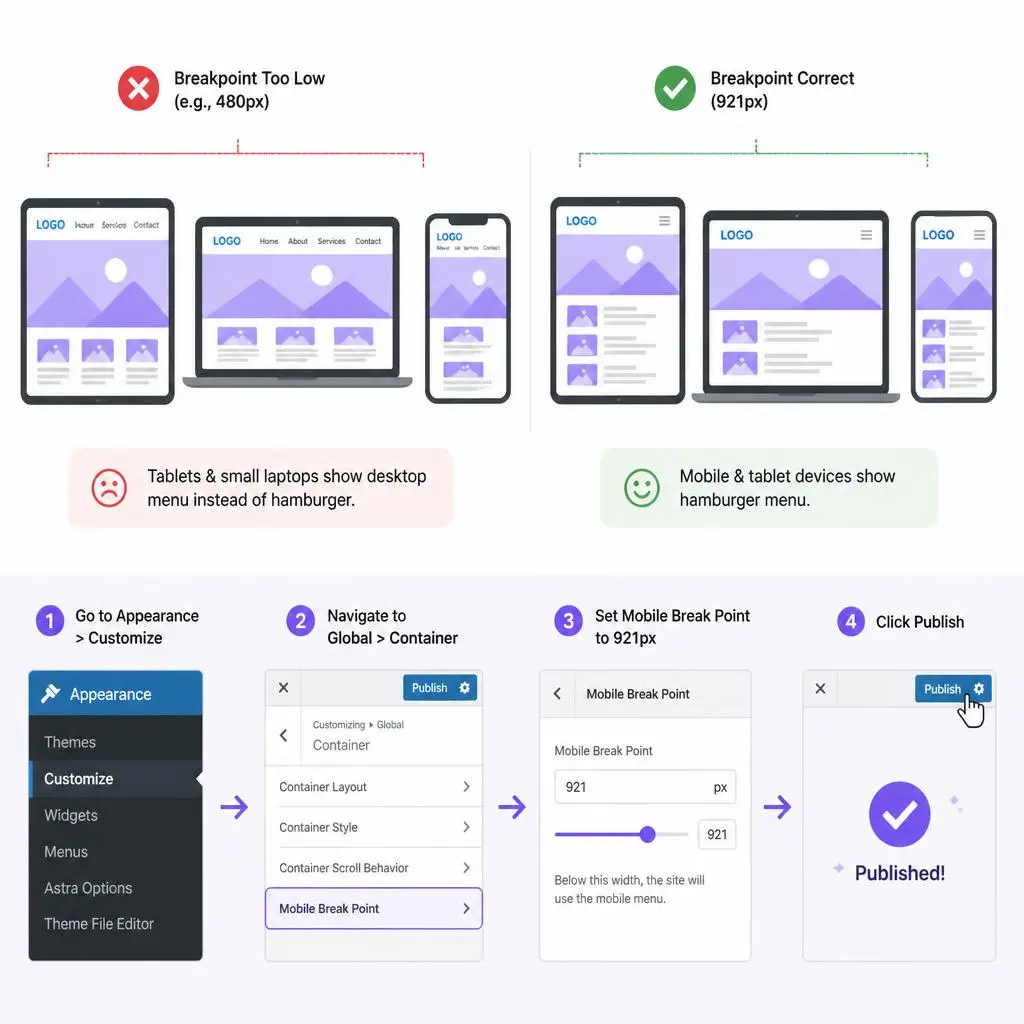
Astra has a mobile breakpoint setting that controls at which screen width the desktop menu switches to the hamburger icon. If this is set too low (for example, 544px instead of 921px), tablets and even some smaller laptops will still show the full desktop menu – but the mobile menu simply won’t trigger.
CSS Z-Index or Overlay Issues
This one is less common but worth knowing. If a page builder section, a sticky header plugin, or a custom CSS block has a high z-index, it can sit on top of the mobile menu dropdown – making it appear that the menu is not working when in reality it is opening behind another element.
FIX 1 – CREATE AND ASSIGN YOUR MENU PROPERLY

This should always be your first check. Even if you have been using WordPress for years, it is easy to miss a menu location assignment after switching themes or doing a fresh install.
Step 1: Create a Menu in WordPress
- Go to your WordPress Dashboard.
- Navigate to Appearance > Menus.
- Click “Create a new menu” if you do not have one yet.
- Give it a clear name – something like “Primary Menu” or “Main Navigation.”
- Add your pages, posts, or custom links using the left panel.
- Click Save Menu.
Pro Tip:
If manual configuration shifts feel overwhelming or you constantly worry about site breakdowns after theme updates, it’s safer to leave this to the pros. Check out our dedicated website maintenance support services to ensure your WordPress backend remains secure, updated, and bug-free 24/7.
Step 2: Assign It to the Primary or Off-Canvas Location
After creating the menu, you need to tell Astra where to use it.
- Go to Appearance > Menus > Manage Locations tab.
- You will see location slots including “Primary Menu” and “Off-Canvas Menu.”
- Assign your newly created menu to “Primary Menu” – this is what Astra uses on mobile by default.
- If you use the off-canvas sidebar style, also assign it to “Off-Canvas Menu.”
- Click Save Changes.
Now open your site on a mobile device or use Chrome DevTools (press F12 > toggle device toolbar) to simulate a phone screen. The hamburger icon should appear and your menu should open on tap.
Practical tip: If you have Astra Pro and use a separate mobile header layout, make sure the menu assigned there is not empty. A common oversight is building a custom mobile header in the Header Builder but forgetting to drag in a “Mobile Menu” widget.
FIX 2 – SET THE OFF-CANVAS MENU FROM MANAGE LOCATIONS
What Is the Off-Canvas Menu in Astra?
Astra supports two styles for mobile navigation: the standard dropdown toggle (the menu appears below the header) and the off-canvas menu (the menu slides in from the side, like a sidebar drawer). If you have chosen the off-canvas style in the Customizer but not assigned a menu to that specific location, the slide-in panel will appear empty or not open at all.
How to Enable It Correctly
- Go to Appearance > Menus > Manage Locations.
- Find the “Off-Canvas Menu” dropdown.
- Select the menu you want to appear in the off-canvas panel.
- Click Save Changes.
- Then go to Appearance > Customize > Header > Primary Header.
- Under “Mobile Header,” set the Menu Style to “Off-Canvas.”
- Publish the Customizer settings.
Quick Real-World Check:
While you are assigning and organizing your links for mobile layouts, make sure you configure your settings so specific external links or custom tabs behave correctly. You can check our quick guide on how to make a wordpress menu link open in new tab to keep users active on your main domain while they browse secondary resources. Test on mobile. The hamburger icon should now trigger a sliding panel with your menu links.
FIX 3 – ADJUST THE MOBILE BREAKPOINT IN ASTRA CUSTOMIZER
What Breakpoint Should You Use?
By default, Astra sets the mobile breakpoint at 921px. This means any screen narrower than 921px will see the hamburger menu instead of the full desktop navigation. If someone changed this value to something very low – like 544px or 480px – then devices like tablets and even some laptops will show the desktop menu instead of the hamburger toggle.
How to Change It
- Go to Appearance > Customize.
- Navigate to Global > Container (or look for “Mobile” settings depending on your Astra version).
- Find the “Mobile Break Point” option.
- Set it back to 921 (the standard recommended value).
- Click Publish.
If you are on Astra Pro, you have more control over breakpoints per-section. Make sure both the header and the navigation sections use the same breakpoint value to avoid inconsistencies.
Note: Astra 4.x and above moved some of these settings. If you cannot find the breakpoint option, use the Customizer search bar and type “breakpoint.”
FIX 4 – DISABLE JS COMBINE/DEFER IN YOUR CACHING PLUGIN

This is the fix for the “hamburger icon shows but menu won’t open” problem. The toggle button is there, but tapping it does nothing. That is almost always a JavaScript issue caused by a caching plugin combining or deferring scripts in the wrong order. While tweaking these JavaScript execution exclusions fixes the broken layout loop, balancing core caching properties with speed can be tricky. If your site speed drops while attempting these fixes, running a professional audit will help fine-tune your Core Web Vitals without breaking functionality.
LiteSpeed Cache
- Go to LiteSpeed Cache > Page Optimization > JS Settings.
- Find “JS Combine External and Inline” – turn this OFF.
- Set “Load JS Deferred” to “Deferred” (not “Delayed” or “Removed”).
- Save Changes.
- Go to LiteSpeed Cache > Dashboard and click “Purge All.”
Test your mobile menu. In most cases, this single change resolves the issue immediately.
WP Rocket
- Go to WP Rocket > File Optimization.
- Under “JavaScript Files,” find “Defer JavaScript loading.”
- If it is enabled, click “Excluded files” and add the Astra navigation script. The typical file path to exclude is: /wp-content/themes/astra/assets/js/minified/frontend.min.js
- Alternatively, disable “Combine JavaScript files” entirely.
- Save Changes and clear the WP Rocket cache.
W3 Total Cache
- Go to Performance > Minify.
- Scroll to the JavaScript section.
- Disable “Minify” and “Combine” for JS files.
- Save all settings and purge the cache.
WP Fastest Cache
- Go to WP Fastest Cache settings.
- Uncheck “Combine JS” and “Minify JS.”
- Save and clear the cache.
General rule: if your mobile menu worked fine before you installed or updated a caching plugin, the caching plugin is almost certainly the cause. Disable JS optimization features one by one to isolate the exact setting.
FIX 5 – DEQUEUE CONFLICTING SCRIPTS OR JQUERY ISSUES

How to Identify a JavaScript Conflict
The fastest way to test for a JS conflict is to temporarily switch to a default WordPress theme (like Twenty Twenty-Four) and check if the mobile menu works. If it does, the issue is specific to Astra’s script interaction with another plugin.
The next test: deactivate all plugins except Astra and your menu, then reactivate them one by one. When the mobile menu breaks again after reactivating a specific plugin, you have found your conflict.
Common conflicting plugins include: jQuery-heavy sliders, certain animation libraries, outdated contact form plugins that load their own version of jQuery, and some social sharing plugins.
“…This removes the jQuery migrate script that sometimes causes version conflicts. Test thoroughly after adding this, as some plugins depend on jQuery Migrate for backwards compatibility.
Caution: Remember that raw code edits in functions.php can sometimes break your database stream if a typo occurs. If your platform locks up entirely during execution, don’t panic-follow our diagnostic roadmap on how to fix WordPress critical error in 2026 to safely regain absolute dashboard control.
Disabling Plugins One by One
- Go to Plugins > Installed Plugins.
- Deactivate all non-essential plugins.
- Check the mobile menu on your site.
- If it works now, reactivate plugins one at a time and recheck after each.
- The plugin that breaks it when reactivated is your conflict.
Quick Code Fix for jQuery Conflicts
If you find that a plugin is calling an older version of jQuery alongside WordPress’s bundled jQuery, you may see a $ is not a function error in your browser console (accessible via F12 > Console tab). In that case, add the following to your child theme’s functions.php file:
add_action( ‘wp_enqueue_scripts’, function() {
wp_dequeue_script( ‘jquery-migrate’ );
}, 100 );
This removes the jQuery migrate script that sometimes causes version conflicts. Test thoroughly after adding this, as some plugins depend on jQuery Migrate for backwards compatibility.
FIX 6 – FIX Z-INDEX OR CSS OVERLAY BLOCKING THE MENU
What Causes This?
If your mobile menu appears to open (the hamburger icon changes state, the animation plays) but you cannot see any links or tap anything – a CSS element with a high z-index is sitting on top of the menu container. This is most common when using Elementor, Divi, or any theme with a sticky header.
How to Diagnose and Fix It
- Open your site on mobile and open the developer tools (in Chrome, press F12).
- Switch to the Elements panel.
- Try to click on the area where the menu should appear.
- Inspect which element is being highlighted – if it is not the menu container, something else is on top.
To fix it, add this custom CSS to your Astra child theme’s style.css or via Appearance > Customize > Additional CSS:
.ast-mobile-menu-buttons,
.main-header-menu.ast-nav-menu {
z-index: 9999 !important;
}
.ast-mobile-popup-content {
z-index: 99999 !important;
}
If you are using a sticky header from a third-party plugin, check its z-index settings in that plugin’s options and lower it to something below 9999.
FIX 7 – ASTRA MOBILE MENU NOT CLICKABLE AFTER PAGE BUILDER USE

Elementor-Specific Fix
Elementor sometimes loads its own scripts in a way that interferes with Astra’s mobile navigation, especially on pages built with Elementor’s full-width canvas template. Elementor sometimes loads its own scripts in a way that interferes with Astra’s mobile navigation, especially on pages built with Elementor’s full-width canvas template. If you notice that your entire responsive layout or header grid shifts out of proportion right after core file updates, you are likely dealing with an Elementor layout broken after update fix layout conflict that requires regenerating structural style data
Here is what to check:
- Go to Elementor > Settings > Advanced.
- Under “Editor Loader Method,” switch from “Default” to “Compatibility Mode.”
- Save and regenerate Elementor CSS files (Elementor > Tools > Regenerate CSS & Data).
- Also go to Elementor > Settings and disable “Improved Asset Loading” if it is enabled – this feature defers assets in a way that sometimes breaks Astra’s menu JS.
Beaver Builder Fix
If you use Beaver Builder and the mobile menu stops working on BB-built pages.
- Go to Beaver Builder > Settings > Advanced.
- Find “Asset Loading” and switch it to “Standard.”
- Clear the Beaver Builder cache.
- Also check if Beaver Builder’s “Enable Script Minification” option is on – turn it off and test.
FIX 8 – CLEAR ALL CACHES AND TEST IN INCOGNITO MODE
This one sounds obvious, but it catches a surprising number of “bugs” that are not actually bugs. If you have made changes but still see a broken menu, there are potentially three layers of cache serving the old version to you:
- Your caching plugin (LiteSpeed, WP Rocket, etc.)
- Your hosting-level cache (many managed hosts like WP Engine, Kinsta, and SiteGround have a separate server-side cache)
- Your browser cache
Here is the correct order to clear everything:
Step 1: Log in to your WordPress dashboard and purge your caching plugin completely.
Step 2: Log in to your hosting control panel and clear the server-side cache (look for “Cache Manager” or “Object Cache” in cPanel or your host’s dashboard).
Step 3: Open your site in an incognito or private browsing window (this bypasses your browser cache entirely).
Step 4: Resize the browser to a mobile width (under 921px) or use Chrome DevTools device emulator.
If the menu works in incognito but not in your normal browser window, a hard refresh (Ctrl + Shift + R on Windows, Cmd + Shift + R on Mac) will clear your local browser cache.
WHEN TO CONTACT ASTRA SUPPORT OR YOUR DEVELOPER

You have tried all the fixes above and the mobile menu is still not working. That happens, and here is when it makes sense to escalate:
Contact Astra’s official support (via the WP Astra website) when you suspect a bug introduced in a recent Astra update. Include your Astra version number, WordPress version, PHP version, and a list of active plugins. Their team is generally responsive and the support quality is solid.
Hire a WordPress developer when the issue involves a heavily customized child theme, a complex page builder setup, or when your site’s CSS has been significantly modified. In these cases, the conflict is usually site-specific and not something a support team can debug remotely without access to the code.
Before reaching out to anyone, take a screenshot of your browser’s JavaScript console (F12 > Console) with any error messages visible. That single piece of information will cut debugging time in half.
Conclusion
Dealing with a broken Astra mobile menu can be incredibly frustrating, but as we’ve seen, it
always boils down to aggressive caching setups or a minor assignment mix-up right after an update. By tackling the fixes step-by-step—checking your menu locations first, then adjusting how your caching plugin handles JavaScript—you can get your responsive navigation back on track without losing your mind or ruining your site’s performance.
If you’re looking to browse through more actionable web optimization guides, feel free to jump back to our Home page to check out our latest resources. Planning a bigger digital upgrade? If you want to scale your business with a fast, flawless, and completely hassle-free user experience, take a look at our professional Website Maintenance Services . Finally, if you’re still stuck in a tricky code loop or just want an expert team to sort out your WordPress backend backend bugs immediately, simply contact us we are always here to jump in and get your platform running smoothly.
FAQS
Q1: Why is my Astra mobile menu hamburger icon not showing?
The hamburger icon only appears when the screen width is below the mobile breakpoint (default 921px in Astra). If the icon is completely missing, either your menu is not assigned to a location (check Appearance > Menus > Manage Locations), or your breakpoint is set too low so Astra never switches to mobile mode. Also check if a CSS rule is hiding the toggle button – search for .ast-mobile-menu-buttons { display: none } in your custom CSS and remove it.
Q2: Why does my Astra mobile menu not open when I tap the hamburger icon?
This is almost always caused by a caching plugin that is combining or deferring JavaScript files. Astra’s toggle button relies on a JS event listener. When that script is loaded out of order or delayed, the tap does nothing. Go into your caching plugin settings (LiteSpeed, WP Rocket, W3TC, etc.) and disable “JS Combine” and “Load JS Deferred.” Purge all caches and retest.
Q3: My Astra mobile menu worked fine before – why did it suddenly break?
Sudden breakage usually follows one of these events: a plugin update (especially caching plugins), an Astra theme update, or adding new custom CSS or JavaScript to the site. Go to your browser console (F12 > Console) and look for red error messages. If you see a JS error, it will usually point you to the file that caused it. Roll back the most recent change and test.
Q4: How do I fix the Astra off-canvas menu not sliding in?
If the off-canvas panel is not opening, first confirm that you have assigned a menu to the “Off-Canvas Menu” location under Appearance > Menus > Manage Locations. Then go to Appearance > Customize > Header > Primary Header > Mobile Header and make sure the Menu Style is set to “Off-Canvas” and not “Default.” Publish the Customizer and clear your cache.
Q5: Why is my Astra mobile menu showing on desktop as well?
This happens when the mobile breakpoint is set too high. Go to Appearance > Customize and search for “breakpoint.” Lower the value to 921px (default) or whatever width makes sense for your design. If both the desktop and mobile menus are showing at the same time, there is likely a custom CSS conflict – check for display: block rules targeting the mobile nav in your Additional CSS.
Q6: Can a page builder cause Astra mobile menu issues?
Yes, definitely. Both Elementor and Beaver Builder have asset optimization features that can interfere with Astra’s menu JavaScript. In Elementor, disabling “Improved Asset Loading” under Settings > Advanced usually resolves it. In Beaver Builder, switching the Asset Loading setting to “Standard” fixes most cases. Always regenerate the page builder’s CSS cache after making these changes.
Q7: My Astra mobile menu links are invisible – the menu seems to open but nothing shows. What is wrong?
This is a z-index issue. The menu is opening, but another element (often a sticky header, a page builder section, or an overlay) is sitting on top of it. Open browser DevTools (F12) on mobile view and inspect the area where the menu should appear. You will likely find a div with a high z-index covering the menu. Add this to your Additional CSS to push the menu on top:
.ast-mobile-popup-content { z-index: 99999 !important; }
Q8: Does clearing the Astra cache fix mobile menu problems?
It can – but only if the problem is cache-related. Clearing your plugin cache and testing in an incognito window is always a good first step because it rules out stale cache as the cause. However, if the underlying issue is a misconfigured menu location, a JS conflict, or a CSS z-index problem, clearing the cache alone will not fix it. Use cache clearing as a diagnostic step, not a solution by itself.