


Quick Answer
The short version: Your WordPress site is stuck in an infinite redirect loop – it keeps bouncing between two or more URLs and never lands on a final page. The browser gives up after too many attempts and throws this error.
The most common causes are:
- Mismatched WordPress URL settings (WordPress Address vs. Site Address)
- Incorrect SSL/HTTPS configuration
- Cloudflare Flexible SSL conflicting with your server’s SSL
- A plugin or theme triggering conflicting redirects
- A corrupted .htaccess file with bad rewrite rules
- Browser cache or cookies carrying an outdated redirect
Fix order: start with browser cache → WordPress URL settings → plugins → .htaccess → SSL → Cloudflare.
You open your browser, type in your site URL, and instead of your homepage you see a blank screen with a cold, unhelpful message: ERR_TOO_MANY_REDIRECTS. Your site is inaccessible. Visitors are being turned away. And you have no idea where the problem even started.
This guide will walk you through every proven fix – in order from quickest to most complex – so you can get your WordPress site back online as fast as possible.
When building a modern website, ensuring flexibility in design and robust performance is essential for long-term growth. To achieve this, resolving minor technical glitches early on is crucial. For instance, if you are working with media files, learning how to fix elementor svg upload not working is a necessary step to keep your site’s visual elements sharp and scalable.
What causes err_too_many_redirects?
The ERR_TOO_MANY_REDIRECTS error occurs when a website gets stuck in an infinite redirection loop (e.g., Page A points to Page B, and Page B points back to Page A). This is primarily caused by misconfigured WordPress URL settings, faulty redirection plugins, incorrect HTTPS/SSL settings, or corrupted browser cache and cookies.
What Is ERR_TOO_MANY_REDIRECTS?

When you visit a URL, your browser may be redirected – for example, from http:// to https://, or from www to non-www. That is normal. The problem starts when two or more redirects point back at each other in a circle. Your browser follows redirect A, which sends it to redirect B, which sends it back to A – over and over. After a certain number of attempts (usually around 20), the browser declares a “redirect loop” and refuses to continue.
This error does not fix itself. Unlike some WordPress errors that clear after a few minutes, a redirect loop is a configuration problem that will persist until you resolve the conflict.
How It Looks Across Different Browsers

The error message looks slightly different depending on which browser you use:
Browser | Error Message |
Google Chrome | ERR_TOO_MANY_REDIRECTS |
Mozilla Firefox | The page isn’t redirecting properly |
Safari | Safari Can’t Open the Page – Too many redirects |
Microsoft Edge | This page isn’t working right now – redirected too many times |
All of these are the same underlying issue – a redirect loop. Only the wording differs.
In the modern digital landscape, user experience and search engine rankings are heavily dependent on how fast your platform loads. If you notice a drop in performance, it is vital to analyze why is mobile website speed slower than desktop so you can optimize your pages properly and avoid losing potential mobile traffic.
Common Root Causes at a Glance
Understanding the root cause saves you time. Rather than trying every fix randomly, match your situation to the most likely cause:
- Just enabled SSL or migrated to HTTPS? → Start with Fix 5 (SSL settings).
- Using Cloudflare? → Start with Fix 6 (Cloudflare Flexible SSL).
- Recently installed or updated a plugin? → Start with Fix 3 (deactivate plugins).
- Just moved your site or changed domain? → Start with Fix 2 (WordPress URL settings).
- No recent changes and it just broke? → Start with browser cache, then WordPress cache.
Structural redirect loops are often a side effect of deeper database conflicts or faulty domain migrations. To ensure your platform’s underlying architecture stays clean and functional over time, keeping track of how often should you update your website is a vital practice for long-term stability.How to correct err_too_many_redirects?
To correct the
ERR_TOO_MANY_REDIRECTSerror, follow these key troubleshooting steps:Clear Browser Cache and Cookies: Delete stored data that might be forcing an old redirect loop.
Check SSL/HTTPS Configuration: Ensure your flexible SSL settings (like Cloudflare) match your origin server’s configuration.
Verify Site URL Settings: Confirm that your website’s URL protocols (HTTP vs HTTPS) match correctly in your server dashboard.
Before You Start – Two Checks That Take 60 Seconds
Before touching any server files, rule out the two simplest causes first. These take less than a minute and might save you a lot of unnecessary work.
1. Clear Your Browser Cache and Cookies
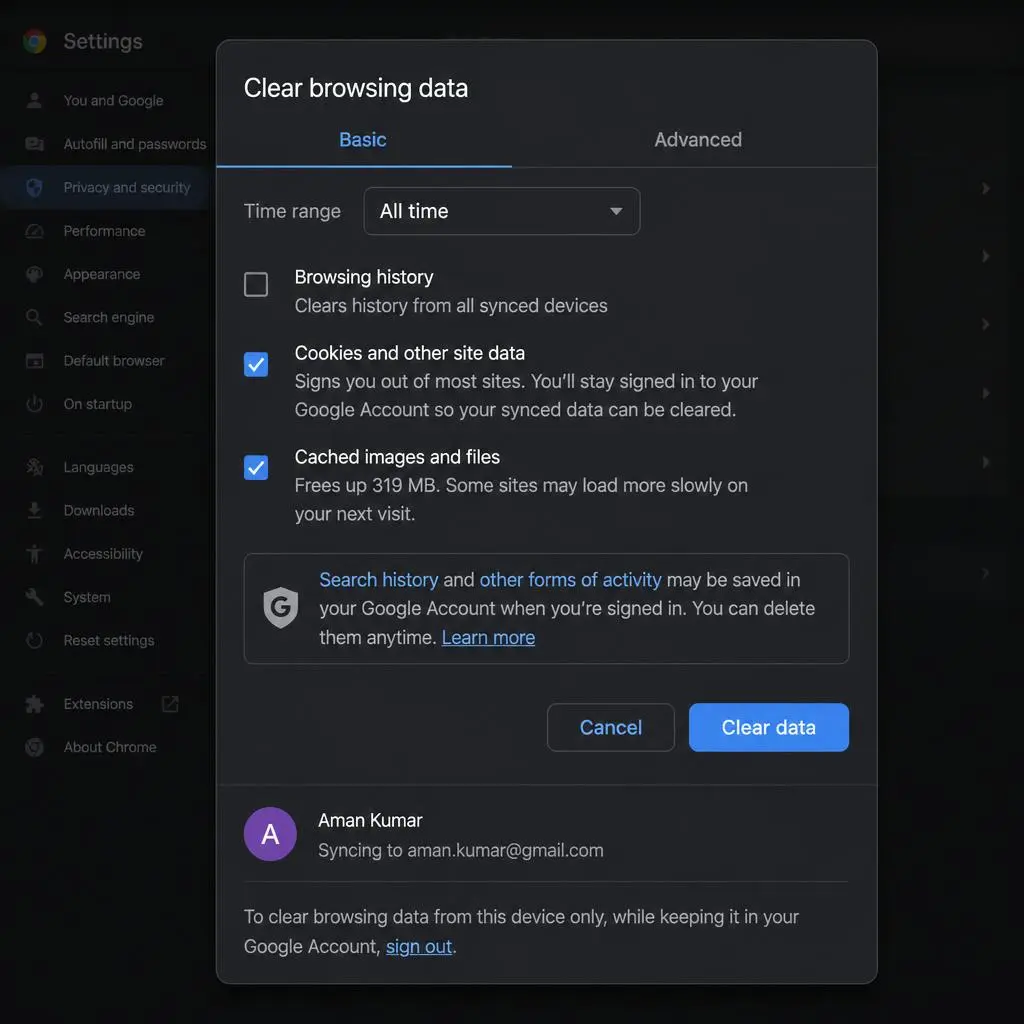
Your browser stores cached redirect instructions. If your site once had a redirect that is now broken, your browser might still be following it even after you fix the server-side issue. Clearing the cache forces a fresh start.
In Chrome:
- Press Ctrl + Shift + Delete (Windows) or Cmd + Shift + Delete (Mac)
- Set the time range to All time
- Check Cookies and other site data and Cached images and files
- Click Clear data
Then reload your site. If the error disappears, your local browser was the culprit – you are done.
2. Try a Different Browser or Incognito Mode
Open an Incognito or Private window, or try a completely different browser (Firefox, Edge, Safari). If your site loads fine there, the issue is definitely your browser’s stored data – not your server.
If the error appears on every browser and device, the problem is on the server side. Continue to the fixes below.
Mobile / Browser Specific Section (Ya Blog Ke End Me)
Ye sawal thora different hai kyunki ye specific Chrome Android ke bare me hai. Is ko tum blog ke end par “Bonus Tip” ya “Browser Specific Fixes” ke tor par add kar sakte ho:
How to fix err_too_many_redirects in chrome android?
Answer (Direct Snippet): To fix the ERR_TOO_MANY_REDIRECTS error on Google Chrome for Android, clear your mobile browser data by following these steps:
Open Chrome on your Android device and tap the three dots (Menu).
Go to Settings > Privacy and security.
Tap Clear browsing data.
Select Cookies and site data and Cached images and files (set Time range to All time).
Tap Clear data and refresh the webpage.
Fix 1 – Clear Your WordPress Site Cache
If your WordPress site has a caching plugin (WP Rocket, W3 Total Cache, WP Super Cache, LiteSpeed Cache, etc.), that plugin may have cached a broken redirect. Clearing it is a quick, safe step. Resolving local caching conflicts is a great first step, but it is equally critical to monitor how your asset delivery affects overall performance. To make sure your site stays fast once the redirect loop is cleared, you should routinely audit your pages using a professional website speed optimization checklist.
Steps (with WP Rocket as an example):
- Log into your WordPress dashboard
- Go to Settings → WP Rocket (or your cache plugin’s menu)
- Click Clear Cache or Purge Cache
- Reload your site
If you use a managed WordPress host like WP Engine, Kinsta, or SiteGround, check their dashboard for a server-level cache purge option as well. One click there often resolves the loop if a stale cache was enforcing the redirect.
Pro Tip: If you cannot access your dashboard at all because of the redirect loop, skip this step and proceed to Fix 2. You can always clear cache later once you regain access.
Fix 2 – Correct Your WordPress URL Settings

This is the single most common cause of ERR_TOO_MANY_REDIRECTS in WordPress. Your installation stores two critical URLs in the database:
- WordPress Address (URL): Where WordPress is installed
- Site Address (URL): The public-facing URL visitors use
Managing a WordPress site can sometimes lead to unexpected server resource shortages that take your pages offline. When troubleshooting layout freezes, your first step should be learning how to fix wordpress memory limit error.
For more severe core system crashes or database accessibility issues that completely block your admin panel, you don’t need to panic. You can follow our comprehensive, step-by-step troubleshooting guide on how to fix wordpress critical error in 2026 to safely recover your entire platform.
Method A – Fix via WordPress Dashboard
- Log in to your WordPress admin panel
- Go to Settings → General
- Check both WordPress Address (URL) and Site Address (URL)
- Make sure both are identical and use the correct protocol (both https:// if you have SSL, both http:// if you do not)
- Example of a correct setup:
- WordPress Address: https://www.yourdomain.com
- Site Address: https://www.yourdomain.com
- Click Save Changes
If they were mismatched, this single change often eliminates the redirect loop immediately.
Method B – Fix via wp-config.php (When Locked Out)
If the redirect loop prevents you from accessing your dashboard, you can override the URL settings directly in wp-config.php. This file lives in your WordPress root directory.
- Connect to your server via FTP (FileZilla) or use your host’s File Manager in cPanel
- Open wp-config.php for editing
- Add these two lines above the line that says That’s all, stop editing!
Php
define(‘WP_HOME’, ‘https://yourdomain.com’);
define(‘WP_SITEURL’, ‘https://yourdomain.com’);
- Save the file and upload it back to the server
Important: Replace https://yourdomain.com with your actual domain. Once you regain dashboard access, you can remove these lines if you prefer – the dashboard settings will take over. But leaving them in wp-config.php is also perfectly safe and actually prevents accidental changes from the dashboard.
How to fix too many redirects in WordPress?
You can fix the ERR_TOO_MANY_REDIRECTS error in WordPress by using these four direct methods:
Check WordPress Site URLs: Go to Settings > General and verify that the WordPress Address (URL) and Site Address (URL) match exactly.
Deactivate Faulty Plugins: Temporarily disable all plugins via FTP or File Manager to locate conflicting redirect setups.
Reset the .htaccess File: Rename your current
.htaccessfile and generate a default one to clear corrupted rewrite rules.Check Cloudflare SSL Settings: Change your Cloudflare SSL mode from Flexible to Full or Full (Strict).
Fix 3 – Deactivate All Plugins (The Most Common Culprit)

Plugins are responsible for a large percentage of redirect loops. Redirect manager plugins, SEO plugins, security plugins, and SSL plugins can all conflict with each other or with WordPress core. If two plugins are each trying to enforce a different redirect, a loop is almost inevitable.
The safest approach is to deactivate all plugins at once, confirm whether the loop is gone, and then reactivate them one by one to identify the offender.
When You Can Access the Dashboard
- Go to Plugins → All Plugins
- Check the box at the top to select all plugins
- In the Bulk Actions dropdown, choose Deactivate
- Click Apply
- Reload your site – if the error is gone, a plugin was the cause
Then reactivate plugins one at a time, refreshing your site after each activation. The redirect loop will return when you activate the problematic plugin. Once identified, you can delete it, replace it, or look for its configuration settings to fix the conflict.
When You’re Locked Out – Use FTP or File Manager
- Connect via FTP or open File Manager in cPanel
- Navigate to /wp-content/
- Find the folder named plugins
- Rename it to plugins_disabled (this is all you need to do – WordPress will see no plugins folder and disable them all)
- Reload your site
If it loads, rename the folder back to plugins. Then go to your WordPress dashboard – WordPress will notice the folder was renamed and will show all plugins as “deactivated.” Reactivate them one by one to identify the culprit.
Real-world example:
A site running Really Simple SSL alongside a Cloudflare plugin that also handles HTTPS rewrites – both trying to redirect http to https – is a classic two-plugin redirect loop. Deactivating one of them instantly resolves it.
Fix 4 – Reset the .htaccess File
The .htaccess file is a server configuration file in your WordPress root directory. It handles URL rewrites, redirects, and permalink routing. A single incorrect rule – especially a redirect pointing https:// back to http:// or a custom rule conflicting with WordPress defaults – can cause an infinite loop.
Steps to reset it safely:
- Connect via FTP or open File Manager in cPanel
- Navigate to your WordPress root directory (the folder that contains wp-config.php, wp-login.php, etc.)
- Find .htaccess (you may need to enable “Show Hidden Files” in your FTP client or File Manager)
- Download a backup copy to your computer before making any changes
- Delete the .htaccess file from the server
- Now log into your WordPress dashboard
- Go to Settings → Permalinks
- Without changing anything, click Save Changes
WordPress will automatically regenerate a clean, default .htaccess file. This removes any corrupted or conflicting rules. A broken or corrupted server configuration file can instantly take your entire digital presence offline. Instead of waiting for critical rewrite rules to fail, maintaining a strict and proactive website maintenance checklist will help you keep your server scripts secure.
Building a website is only the first step; keeping it secure and fully operational requires ongoing technical attention. Instead of waiting for a major error to break your layout, investing time in routine checkups ensures your database stays optimized, your plugins remain compatible, and your user data stays completely protected year-round.
A healthy default WordPress .htaccess file looks like this:
apache
# BEGIN WordPress
<IfModule mod_rewrite.c>
RewriteEngine On
RewriteBase /
RewriteRule ^index\.php$ – [L]
RewriteCond %{REQUEST_FILENAME} !-f
RewriteCond %{REQUEST_FILENAME} !-d
RewriteRule . /index.php [L]
</IfModule>
# END WordPress
If you had custom rules above or below the WordPress block (for caching, security headers, custom redirects), add them back carefully and test after each addition to identify which rule caused the loop.
Fix 5 – Fix SSL/HTTPS Configuration Issues
SSL misconfiguration is one of the sneakiest redirect loop causes. The most common scenario: you installed an SSL certificate and configured WordPress to use https://, but your server is still delivering pages over http://. Now WordPress redirects http → https, and the server redirects https → http – and you have a loop.
Force HTTPS the Right Way in WordPress
The cleanest way to enforce HTTPS is by adding a redirect in .htaccess above the WordPress block:
apache
<IfModule mod_rewrite.c>
RewriteEngine On
RewriteCond %{HTTPS} off
RewriteRule ^(.*)$ https://%{HTTP_HOST}%{REQUEST_URI} [L,R=301]
</IfModule>
# BEGIN WordPress
This tells Apache to redirect all HTTP traffic to HTTPS once, at the server level. Combined with both WordPress URLs set to https://, this creates a clean, single redirect.
What NOT to Do
Avoid using multiple methods to enforce HTTPS simultaneously. For example:
- Do not use a “Force HTTPS” plugin AND a .htaccess redirect AND a WordPress URL set to https:// all at the same time
- Do not have your hosting panel set to redirect HTTP to HTTPS while also having conflicting rules in .htaccess
Pick one method. Using all of them stacks redirects on top of each other and almost always creates a loop.
Pro Tip: If you are on a server behind a load balancer or proxy (common with managed hosting), the server may always report connections as http:// even when users are on https://. In that case, you need to check for the X-Forwarded-Proto header instead. Add this to wp-config.php:
php
if (isset($_SERVER[‘HTTP_X_FORWARDED_PROTO’]) && $_SERVER[‘HTTP_X_FORWARDED_PROTO’] === ‘https’) {
$_SERVER[‘HTTPS’] = ‘on’;
}
Fix 6 – Fix the Cloudflare Flexible SSL Redirect Loop

This is the most specific and misunderstood cause of ERR_TOO_MANY_REDIRECTS, and it catches a lot of WordPress site owners off guard. If you are using Cloudflare and your site recently broke after enabling SSL, this is likely your issue.
Why Cloudflare Flexible SSL Breaks WordPress
Cloudflare offers different SSL modes:
Cloudflare SSL Mode | What It Does |
Off | No encryption at all |
Flexible | Encrypts traffic between the visitor and Cloudflare, but Cloudflare talks to your server over plain HTTP |
Full | Encrypts both sides, but does not validate your SSL certificate |
Full (Strict) | Encrypts both sides with a valid, trusted certificate |
Here is the problem: Flexible SSL means Cloudflare talks to your origin server using plain HTTP. But if your WordPress site or server has a rule that redirects all HTTP traffic to HTTPS, here is what happens:
- Visitor requests https://yourdomain.com
- Cloudflare fetches http://yourdomain.com from your origin server
- Your origin server redirects that http:// request to https://
- Cloudflare makes a new request to http:// (again – because Flexible SSL)
- Your server redirects again – and the loop begins
The Permanent Fix
Option A (Recommended) – Switch to Cloudflare Full or Full (Strict) SSL:
- Log into your Cloudflare dashboard
- Select your website
- Go to SSL/TLS → Overview
- Change the SSL mode from Flexible to Full (if you have a self-signed cert) or Full (Strict) (if you have a valid cert like Let’s Encrypt)
- This fixes the loop immediately without removing any HTTPS rules from your server
Option B – Remove the HTTPS Redirect From Your Origin Server: If you must keep Flexible SSL, you need to remove the server-side HTTPS redirect. Remove the RewriteRule forcing HTTPS from .htaccess, and ensure your WordPress URLs in the database are set to http:// (not https://). Cloudflare will handle the HTTPS part on its own.
Option A is almost always the better choice. Full (Strict) mode with a free Let’s Encrypt certificate is the ideal configuration.
Fix 7 – Check Your CDN Settings
If you use a CDN other than Cloudflare (like Sucuri, BunnyCDN, AWS CloudFront, or KeyCDN), the same type of Flexible SSL conflict can occur. The principle is identical: if your CDN is sending HTTP requests to your origin server while your origin server is redirecting all HTTP to HTTPS, you get a loop.
Steps to check:
- Log into your CDN dashboard and find the SSL/HTTPS origin connection setting
- Make sure your CDN is connecting to your origin server using HTTPS (not HTTP)
- Ensure your origin server’s SSL certificate is valid
- If using a CDN cache, purge the cache after making changes
Sucuri, for instance, has an “SSL” setting under its firewall configuration where you can set whether it connects to your origin over HTTP or HTTPS. Switching it from HTTP to HTTPS, combined with a valid SSL cert on your server, resolves this category of loop.
Fix 8 – Inspect Your Hosting Server Configuration

If none of the above fixes work, the issue may be deeper in your server configuration. Some scenarios where this applies:
Reverse proxies and load balancers: Managed WordPress hosts like WP Engine, Pressable, and Pantheon run your site behind a proxy layer. These proxies often handle HTTPS termination before the request reaches WordPress, which means WordPress sees all incoming traffic as http:// even when visitors are on https://. This can cause double-redirect loops if WordPress is also configured to redirect to HTTPS.
Fix: Add this code to wp-config.php to tell WordPress to trust the proxy’s forwarded header:
php
if (isset($_SERVER[‘HTTP_X_FORWARDED_PROTO’]) && $_SERVER[‘HTTP_X_FORWARDED_PROTO’] === ‘https’) {
$_SERVER[‘HTTPS’] = ‘on’;
}
Apache vs. Nginx:
WordPress is designed for Apache (hence .htaccess). On Nginx servers, .htaccess files are ignored entirely. Redirect rules for Nginx need to go in the server block configuration file (usually at /etc/nginx/sites-available/yourdomain.conf). If you or your host recently migrated from Apache to Nginx, any .htaccess redirect rules you relied on will stop working – and conflicting rules elsewhere may trigger a loop.
If your host uses Nginx, contact their support team and ask them to review the server block configuration for conflicting redirect directives.
How to Prevent ERR_TOO_MANY_REDIRECTS From Happening Again
Once your site is back up, a few habits will keep this error from returning:
- Set your WordPress URLs correctly before enabling SSL. Before installing an SSL certificate, go to Settings → General and update both URLs to https://. Then enable SSL. In this order, WordPress never sees an http:// URL and never creates a redirect.
- Use one redirect method only. If you have HTTPS enforcement in .htaccess, disable the “Force HTTPS” toggle in your security plugin and in Cloudflare. Pick one place to enforce the redirect.
- Choose Cloudflare Full (Strict) SSL from day one. Never use Flexible SSL if your origin server has SSL configured. It exists only for servers with no SSL certificate at all.
- Test after every plugin installation. Open an incognito window and load your site immediately after activating any new redirect, SEO, security, or SSL plugin. A loop caught right away is easy to reverse.
- Back up .htaccess before editing. Always download a copy before making changes. One misplaced character can take your site down.
- Use a staging environment for major changes. If you are migrating to HTTPS or changing your domain, test the entire redirect chain on a staging site first. Most managed hosts provide free staging environments.
Preventing system-wide redirect crashes requires a solid understanding of how multiple background scripts and core files interact. Learning the core principles behind why website maintenance is important will allow you to handle regular database updates safely without triggering loop errors.
Quick Diagnosis Checklist (Save This)
Use this table to narrow down your fix before reading through everything:
Symptom or Recent Action | Most Likely Fix |
Error appears only in one browser | Clear that browser’s cache and cookies |
Error started after enabling SSL | Fix 5 (SSL Config) or Fix 6 (Cloudflare) |
Error started after installing a plugin | Fix 3 (Deactivate Plugins) |
Error started after a site migration | Fix 2 (WordPress URL Settings) |
Using Cloudflare with Flexible SSL | Fix 6 (Cloudflare SSL Mode) |
Error started after editing .htaccess | Fix 4 (Reset .htaccess) |
Can’t access dashboard at all | Fix 2 Method B → Fix 3 FTP method |
Everything looks correct but still looping | Fix 8 (Server/Proxy Config) |
Conclusion
ERR_TOO_MANY_REDIRECTS is a frustrating error-especially when your website suddenly becomes inaccessible and you have no idea where to start. However, once you understand that it is simply a redirect loop caused by a configuration conflict, fixing it becomes much more straightforward.
A secure, responsive, and fast-loading platform is the foundation of digital success. At RyDesk, we specialize in delivering high-quality design solutions and premium Website Maintenance & Support Services to keep your business running smoothly. If you want to audit your current platform or start a new project, feel free to visit our Contact Us page to connect with our expert team today.
In most cases, the issue is caused by one of five common factors: browser cache, a mismatch in WordPress URL settings, a conflicting plugin, incorrect .htaccess rules, or Cloudflare’s Flexible SSL mode. This guide covers each of these causes in a structured order-from the easiest fixes to the more advanced ones-so you can avoid wasting time on unnecessary troubleshooting steps.
One important habit to remember: whenever you enable SSL, migrate your domain, or install a new redirect plugin, always test your website in an incognito window first. This simple practice can help you catch redirect issues early and prevent this error from occurring in the future.
If you have tried all the fixes in this guide and the redirect loop still persists, contact your hosting provider’s support team. Specifically, ask them to check whether there are any server-level or proxy-level redirect rules configured on your account. In some cases, the problem exists outside of WordPress, and only the hosting team can identify and resolve it directly. If you want a permanent fix or professional setup, check out our Technical WordPress Optimization Services
FAQs
1. What does ERR_TOO_MANY_REDIRECTS mean exactly?
It means your browser followed a chain of redirects – where each URL redirected to another – and the chain never ended at a final destination. After hitting its redirect limit (usually around 20), your browser stops and displays this error. The root cause is a configuration conflict in your WordPress site, SSL setup, or server that creates a circular redirect path.
2. Will ERR_TOO_MANY_REDIRECTS fix itself over time?
No. This error is caused by a configuration problem, not a temporary glitch. It will persist indefinitely until you identify and fix the conflicting redirect settings. Do not wait for it to resolve on its own.
3. Can this error happen on my local WordPress development environment?
Yes. If you are developing locally with tools like LocalWP, XAMPP, or Laragon and you have SSL settings or redirects configured for a live domain, the same types of loops can occur. The fix is typically the same – check your wp-config.php URL definitions and look for conflicting SSL rules.
4. Does this error affect SEO?
Yes, temporarily. If your site is stuck in a redirect loop, search engine crawlers will be unable to access it and will eventually mark the pages as unavailable. If the error persists for several days, you may see ranking drops. Fixing it quickly and submitting your sitemap through Google Search Console helps recover any lost visibility.
5. How do I fix ERR_TOO_MANY_REDIRECTS when I can’t access my WordPress dashboard?
Access your site files directly via FTP or your host’s File Manager. The two most effective locked-out fixes are: (1) add WP_HOME and WP_SITEURL definitions to wp-config.php to correct URL settings, and (2) rename the /wp-content/plugins/ folder to deactivate all plugins at the file system level. Either of these usually restores dashboard access.
6. Is this error the same as a 301 redirect loop?
Yes and no. A 301 is a permanent redirect at the HTTP response level. A redirect loop occurs when 301 (or 302) redirects point back at each other in a circle. The browser error you see (ERR_TOO_MANY_REDIRECTS) is the result of that loop, regardless of whether the individual redirects are 301 or 302.
7. My Cloudflare is set to Full SSL but I still get the error. What else could it be?
If Cloudflare Full SSL is correctly configured but you still have a loop, check these three things in order: (1) Verify your WordPress URLs in Settings → General are both set to https://, (2) Make sure you are not using a “Force HTTPS” plugin that is doubling the redirect, and (3) Check your .htaccess for any redirect rules that conflict with Cloudflare’s behavior. Also confirm your origin SSL certificate has not expired – Full SSL requires a valid cert.
8. Can too many legitimate redirects (301 chains) also trigger this error?
Yes, but it is less common. A long chain of legitimate 301 redirects – for example, page-a → page-b → page-c → page-d – will not create a loop, but browsers do have a limit on how many hops they will follow. Chrome typically allows up to 20 redirects before giving up. If you have very long redirect chains (common on sites after multiple domain migrations), clean them up using a redirect manager plugin and ensure each URL points directly to its final destination rather than to an intermediate URL.
9. What causes err_too_many_redirects?
This error occurs when a website gets stuck in an infinite redirection loop. It is primarily caused by misconfigured WordPress URL settings, faulty redirection plugins, incorrect HTTPS/SSL setups, or corrupted browser cache.
10. How to correct err_too_many_redirects?
To correct this error, you should clear your browser cache and cookies, check your website’s SSL/HTTPS configuration (like Cloudflare settings), and verify that your Site URL protocols match correctly.
11. How to fix too many redirects in WordPress?
You can fix it in WordPress by verifying that your WordPress Address and Site Address match in Settings, deactivating conflicting redirection plugins via FTP, resetting your .htaccess file, or changing your Cloudflare SSL mode from Flexible to Full.
12. How to fix err_too_many_redirects in chrome android?
Open Chrome on your Android device, tap the three dots, and go to Settings > Privacy and security > Clear browsing data. Select ‘Cookies and site data’ and ‘Cached images’, set the time range to ‘All time’, and tap Clear data.