

Quick Answer
Symptom | Most Likely Cause | Fastest Fix |
White screen (blank page) | PHP fatal error, memory exhaustion | Deactivate plugin via File Manager |
“There has been a critical error” | Fatal plugin error, PHP mismatch | Recovery Mode email, then deactivate |
Elementor layout broken | JS conflict or stale CSS cache | Regenerate CSS + clear cache |
WooCommerce checkout down | Payment plugin conflict | Disable gateway plugins, test |
Admin dashboard won’t load | Plugin crash or memory limit | Rename plugin folder via FTP |
Stuck in “briefly unavailable” mode | Update got interrupted | Delete .maintenance file |
In most cases, deactivate the plugin you just updated -via Plugins → Installed Plugins if you can reach the dashboard, or by renaming its folder in wp-content/plugins/ through File Manager or FTP if you can’t. This brings the site back online in under 5 minutes. From there, roll back the plugin, restore a backup, or fix the underlying PHP/cache issue depending on what caused it.
Here’s the thing nobody tells you upfront: a plugin update almost never destroys your content. It breaks code execution, not your database. Your posts, pages, orders, and media are sitting there untouched -WordPress just can’t render the page because one plugin is throwing a fatal error. That distinction matters, because it means you’re troubleshooting a code conflict, not doing data recovery. Different mindset, faster fix.
Before You Touch Anything: 5 Things to Do First
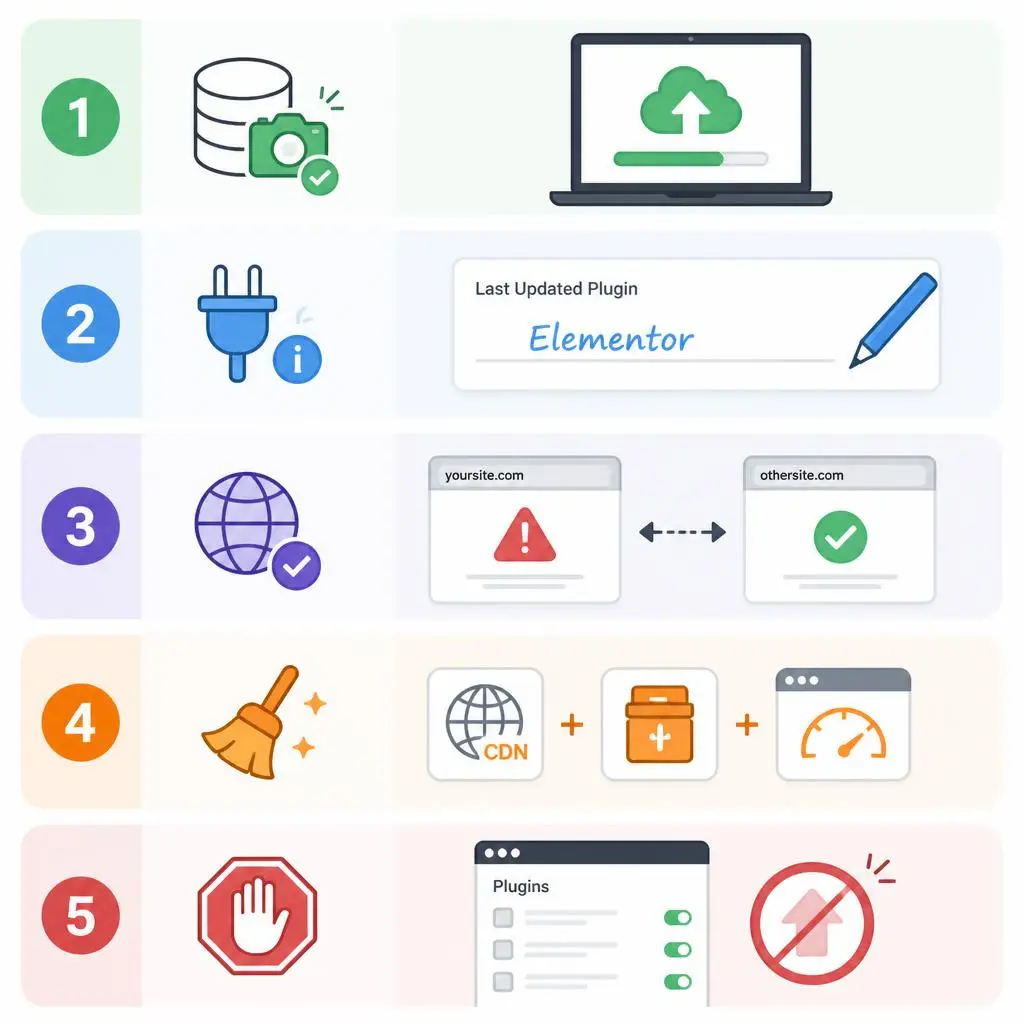
Panicking and clicking random buttons is how a 5-minute fix turns into a 3-hour mess. Do these in order:
- Take a snapshot backup right now, if your dashboard or hosting panel is still reachable -even a broken site is worth backing up before you change anything else.
- Write down which plugin you just updated. This is the single most useful piece of information you have. If Elementor updated and the layout broke, that’s a different fix than WooCommerce breaking checkout.
- Check if it’s actually a hosting outage. Load a second site on the same server, or check your host’s status page. A server-level issue can look identical to a plugin failure.
- Clear every cache layer -CDN, caching plugin, browser. A large share of “broken site” panic calls turn out to be stale cache serving an old, broken version of a page that’s already fixed.
- Stop updating anything else. Every additional plugin you touch adds another variable, and now you’re troubleshooting two problems instead of one.
Diagnose It: What Actually Broke?
The symptom you’re seeing points almost directly at the cause. Match yours below before jumping to a fix.
White screen of death
You load the site and get… nothing. No error, no design, just white. This is almost always a PHP fatal error or the site running out of memory. It’s the least informative error but usually the fastest to fix -go straight to Fix 2.
“There has been a critical error” message
WordPress caught the crash and told you about it. Check your admin inbox first -WordPress often auto-sends a Recovery Mode link within minutes. If your site’s critical-error handling has thrown you into this loop before, our breakdown on fixing the WordPress critical error walks through it in more depth than we can here.
Elementor broke after the update
Sections missing, spacing off, fonts wrong, or the editor itself won’t load. This is rarely a “true” conflict -it’s usually a JavaScript clash with an addon plugin or, more often, your cache serving the old CSS file. We’ve written a full Elementor-broke-after-update recovery guide if this is your specific situation.
WooCommerce checkout stopped working
Highest-priority fix on this list -every hour of downtime here is lost revenue. Payment gateway plugins are the first suspect; disable them one at a time and test checkout after each.
Admin dashboard won’t load
You can’t even reach /wp-admin to fix anything from inside WordPress. This forces you into File Manager or FTP territory -see Fix 2.
Site stuck in maintenance mode
You see “Briefly unavailable for scheduled maintenance.” This means the update process got interrupted -a timeout, a lost connection, a server hiccup -and WordPress never cleared the maintenance flag it sets during updates. This one has a one-line fix, covered below.
Fix 1 -WordPress Recovery Mode (Try This First)

If WordPress detected a fatal error, it may have already emailed your admin address a Recovery Mode link. Check that inbox before doing anything manual.
- Open the email titled “Your Site is Experiencing a Technical Issue” and click the Recovery Mode link.
- This drops you into a special version of wp-admin that isolates the broken plugin so the dashboard still loads.
- Go to Plugins → Installed Plugins and deactivate whichever plugin you updated right before the crash.
- Reload your site.
No email in sight? Your site’s WordPress mail function may not be configured -this happens on a lot of shared hosting setups. Skip to Fix 2.
Fix 2 -Manually Deactivate the Plugin via File Manager or FTP
This is the fastest fix when you can’t reach /wp-admin at all -and it works every single time, because WordPress simply skips over a plugin folder it can’t find.
Using File Manager (fastest):
- Log into your hosting control panel (Hostinger, SiteGround, Bluehost, etc.) and open File Manager.
- Go to public_html/wp-content/plugins/.
- Find the folder for the plugin you just updated.
- Rename it -for example, elementor becomes elementor-disabled.
- Reload your site. WordPress will now load normally, having auto-deactivated the missing plugin.
Using FTP: Same steps, just through FileZilla or your FTP client of choice instead of the browser-based File Manager.
Don’t know which plugin caused it? Rename the entire plugins folder to plugins-old. Your site will load with everything deactivated. Once you’re back in, rename it back to plugins, then reactivate one at a time, testing after each, until you catch the culprit.
Fix 3 -Roll Back the Plugin to Its Last Working Version

Once deactivating the plugin confirms it’s the cause, rolling back gets you a stable site while you figure out why the new version broke things.
With the WP Rollback plugin (only works for plugins hosted on WordPress.org):
- Install and activate WP Rollback.
- Go to your plugins list, find the affected one, and click Rollback.
- Pick the last version that worked and confirm.
Manually, via FTP (needed for premium/paid plugins):
- Download the older version from the developer’s site or your own pre-update backup.
- Delete the current plugin folder via FTP.
- Upload the older version in its place.
- Reactivate through WordPress admin.
Clear every cache layer afterward, then test forms, checkout, and login specifically -those are the three things that silently break most often.
Rollback buys you time. It is not a permanent fix -treat the plugin as still broken until you know why the update failed and can safely reinstall the current version.
Fix 4 -Restore a Backup
When several things break at once, or troubleshooting is getting messier than the outage itself, restoring is often faster than diagnosing.
- Full hosting restore: most hosting panels have a Backups or Restore Points section -pick a snapshot from before the update.
- Plugin-level restore: tools like UpdraftPlus, BlogVault, or Jetpack Backup can restore just one component instead of the whole site, useful when only one plugin is at fault and everything else is fine.
Before restoring anything, snapshot the current broken state too -if the restore doesn’t fully resolve it, you’ll want to compare.
Fix 5 -Turn on Debug Mode to Find the Exact Error
When the cause isn’t obvious from the symptom, the debug log will usually name it directly.
Open wp-config.php and add these lines just above /* That’s all, stop editing! */:
define(‘WP_DEBUG’, true);
define(‘WP_DEBUG_LOG’, true);
define(‘WP_DEBUG_DISPLAY’, false);
Reload the site, then check wp-content/debug.log. Look for:
- PHP fatal errors -the direct cause of most white screens and critical errors
- Deprecated function warnings -not usually the crash itself, but a signal the plugin is drifting out of compatibility with your PHP version
- Missing dependency errors -the plugin needs a class, file, or PHP extension your hosting doesn’t have
Turn WP_DEBUG back to false once you’ve found the answer -never leave debug mode exposed on a live site.
Fix 6 -Fix File Permissions and PHP Memory Limits
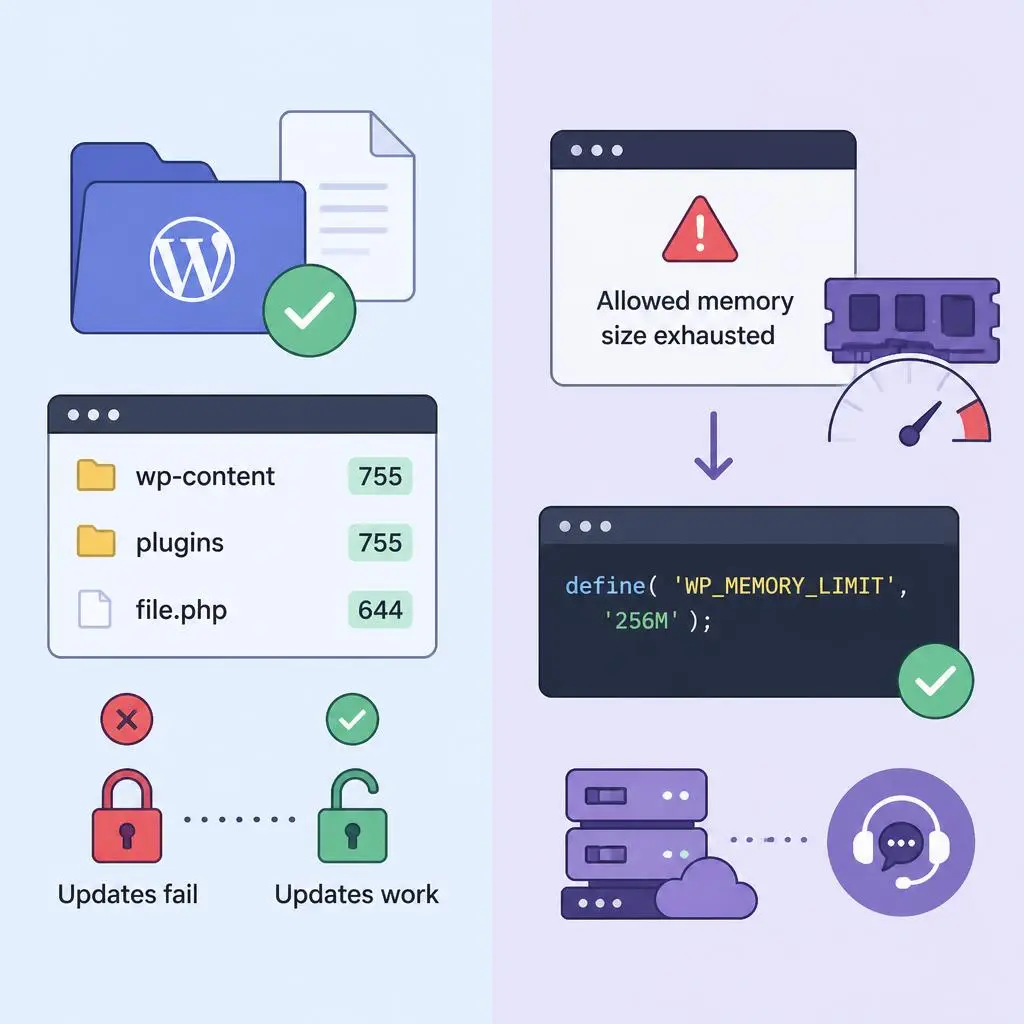
Two infrastructure issues that get mistaken for plugin bugs constantly.
File permissions: WordPress needs write access to wp-content/plugins/. Standard values are folders at 755, files at 644. If a hosting migration or manual upload tightened these, updates will keep failing no matter which plugin you touch.
PHP memory: Big plugins -WooCommerce extensions, page builders, security suites -can exhaust the memory limit mid-update. Look for Allowed memory size exhausted in your debug log, then add this to wp-config.php:
define(‘WP_MEMORY_LIMIT’, ‘256M’);
If that doesn’t stick, your host may be enforcing a server-level cap -worth a quick support ticket. For a deeper walkthrough of memory-limit specific errors, see our WordPress memory limit fix guide.
Fix 7 -Update Your PHP Version
A growing share of plugin updates now require PHP 8.1 or 8.2. If your server is still on 7.4, expect compatibility failures to become more frequent, not less, as more plugins update.
Check your current version at Tools → Site Health → Info → Server. Before switching:
- Take a full backup.
- Confirm your theme and every active plugin supports the target PHP version.
- Test on staging first, if you have one.
Most hosts let you switch PHP versions directly from a “PHP Selector” or “MultiPHP Manager” panel -no code required.
Fix 8 -Clear Every Cache Layer

A plugin update can complete successfully and still look broken because your cache is serving an old file. This should be one of the first things you check, not the last -it fixes a surprising share of “broken” Elementor layouts and missing styles on its own. Full breakdown here: clearing WordPress cache the right way.
Clear in this order: server/hosting cache → CDN cache → caching plugin (WP Rocket, LiteSpeed, W3TC) → browser cache (test in incognito) → PHP OPcache if your host uses it.
Fix 9 -Reinstall the Plugin From a Clean Copy
If the update process was interrupted mid-way, the plugin may be running on partial, corrupted files.
- Download a fresh copy from WordPress.org (free plugins) or the developer’s account portal (premium).
- Rename -don’t delete yet -the existing plugin folder via FTP as a safety net.
- Upload the clean copy to wp-content/plugins/.
- Activate and test. If it works, delete the renamed backup folder.
Your settings, stored in the database, should survive this -only the plugin’s files get replaced.
Plugin-Specific Fixes
Elementor
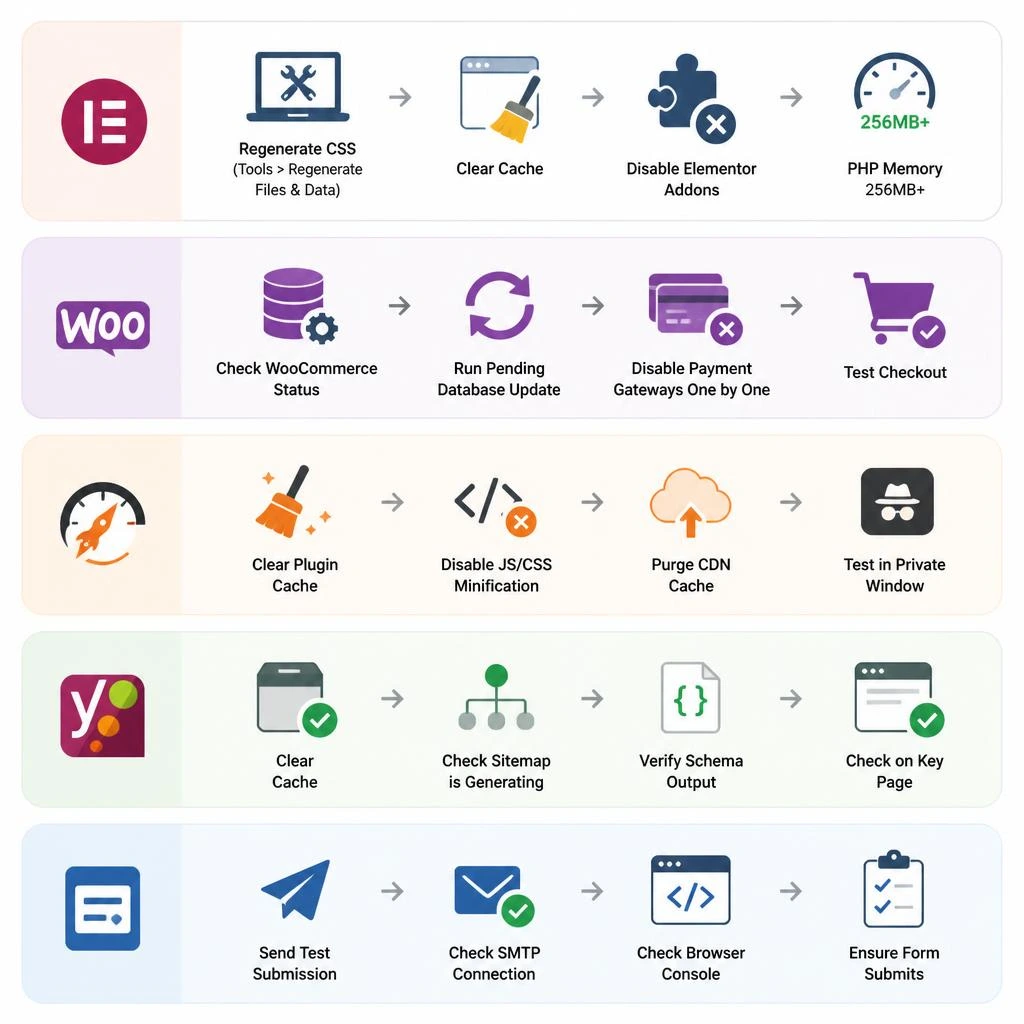
Regenerate CSS at Elementor → Tools → Regenerate Files & Data, clear cache, and temporarily disable Elementor addon plugins to isolate the conflict. Elementor recommends 256MB+ PHP memory. If it’s a CSS rendering issue specifically rather than a full crash, our Elementor CSS not updating guide covers it in more depth.
WooCommerce
Check WooCommerce → Status for a pending database update notice and run it. Disable payment gateway plugins one at a time and test checkout after each -and if transactional emails stop going out during this, that’s usually a separate SMTP issue, not the core plugin; see our WooCommerce emails not sending fix.
Caching plugins (WP Rocket, LiteSpeed, W3TC)
Clear the plugin’s own cache first, then disable JS/CSS minification temporarily, then purge CDN cache separately. Test in a private window to rule out your own browser.
SEO plugins (Yoast, Rank Math)
Almost always cache-related. Clear cache first, then verify the sitemap is still generating and schema is still outputting on a key page before assuming a real conflict.
Form plugins (Contact Form 7, WPForms, Gravity Forms)
Form failures are silent -nobody tells you a form broke, they just stop submitting. Send yourself a test submission right after any plugin update, check SMTP is still connected, and check the browser console for JS errors if the form won’t render.
When You Should NOT Roll Back
Rollback is a recovery tool, not always the right one.
- Security updates: rolling back reopens the vulnerability the update patched -especially risky for login, payment, or file-upload plugins.
- Payment plugins: older versions may still process payments but silently fall out of current gateway compliance requirements.
- Database migration updates: if the update already altered your database structure, rolling back the plugin files alone leaves old code running against a new schema. A full backup restore is safer here than a plugin-only rollback.
The Update Habit That Prevents This Entirely
Recovery matters, but the businesses that stop having this problem are the ones that build a boring, repeatable update routine:
- Read the changelog before updating. A patch version (5.4.1 → 5.4.2) is low-risk. A major version (5.x → 6.0) can carry database changes or new PHP requirements -treat it differently.
- Backup before every update, not just the big ones.
- Run it on staging first if your site runs WooCommerce, memberships, or several interdependent plugins.
- Update one plugin at a time, not in bulk -bulk updates make isolating a failure nearly impossible.
- Test the essentials right after -forms, checkout, login, one Elementor page, mobile view.
If “we don’t have time for staging” is the honest answer, that’s usually the point where ongoing maintenance handled for you costs less than the downtime.
How Long Does This Actually Take to Fix?
Problem | Typical Fix Time |
Simple plugin conflict | 5–15 minutes |
Plugin rollback | ~10 minutes |
Backup restore | 15–30 minutes |
Database-level issue | 30–60+ minutes |
These times assume you’ve already identified the cause. Diagnosis is what actually eats time -especially when multiple plugins are involved or the failure sits at the server level, not the plugin.
When to Stop DIY-ing and Call a Developer
Structured troubleshooting fixes most of these. Bring in help when:
- You suspect database corruption -missing content or failed migration notices
- Multiple plugins fail at once -that’s usually an environment problem (PHP version, server resources), not a single plugin
- WooCommerce checkout is down -every hour of downtime has a direct cost, so escalate faster than you would for a cosmetic issue
- You’ve tried Recovery Mode, manual deactivation, backup restore, and debug mode, and the site is still down
Conclusion
Plugin updates aren’t optional – skip them and you’re carrying known security holes instead. But when one does break your site, the fix is almost never as bad as the blank white screen makes it feel. Your content is safe; it’s the code execution that failed. Identify the symptom, match it to the cause, work through the fixes in order, and you’ll usually be back online in under 15 minutes.
If you’d rather not be the one doing this at 11pm the next time an update goes sideways, that’s exactly what our Best WordPress Maintenance Services are built for – staging tests, one-at-a-time updates, and someone watching the logs so you don’t have to. Take a look at what we do on the RyDesk homepage, or contact us if your site is down right now and you need it fixed today.
FAQs
Why did my WordPress site break after a plugin update?
Usually a compatibility conflict with another plugin or theme, an outdated PHP version, or files that got corrupted during an interrupted update.
How do I roll back a WordPress plugin update?
Use the WP Rollback plugin if it’s a WordPress.org plugin and you have admin access. For premium plugins or if you’re locked out, restore a pre-update backup or manually upload an older version via FTP.
Can a plugin update really break my whole WordPress site?
Yes -one plugin’s fatal PHP error can take down the entire site, not just its own feature, because WordPress loads all active plugins together.
Why are my WordPress plugins not updating at all?
Usually file permission issues, hosting resource limits, or leftover corrupted files from a previous failed update. A manual FTP install bypasses most of these.
Can I fix a broken WordPress site without a backup?
Often yes -Recovery Mode, manual plugin deactivation, and debug mode can all get you back online without one. A backup just makes it faster and lower-risk.
How do I fix a WordPress critical error after updating a plugin?
Check your admin email for a Recovery Mode link first. No email? Deactivate the plugin via File Manager or FTP, then enable debug mode to pinpoint the exact error.
Is it safe to update all my WordPress plugins at once?
No -update one at a time and test after each. Bulk updates make it far harder to trace which plugin actually caused a failure.
My site is stuck saying “briefly unavailable for maintenance” -what do I do?
Delete the .maintenance file from your WordPress root folder via File Manager or FTP. This means the update was simply interrupted, not that anything is actually broken.